Pennie turns everyday finance notifications into a local-first financial timeline. It extracts amounts and context so you can review and confirm, or intentionally configure auto-save. Optional account, Drive backup and AI features have separate data flows and choices. This detailed guide walks through the app's features and how to use them. See the Privacy Policy and Terms of Use.
Local-firstOptional AI IntelligenceAndroid (MAUI)SQLite + EF CoreNotifications parsingCharts + insights
Start with onboarding, then use the links below to jump across the full Pennie experience: tabs overview, Dashboard, Transactions, Add Transaction, Categories/Budget, EMI Planner, Reports, Settings, and the notification/SMS review flows.
Contents
What Pennie optimises for
🔒
Privacy by design
Core features work without internet. Permissions are explained in plain language so the user stays in control.
⚡
Fast daily workflows
Amounts are auto-parsed from finance messages: review the staged transaction, tweak category if needed, and save — no manual amount entry for every payment.
📈
Actionable insights
The Dashboard prioritises trend and composition: expense breakdown + last 6 months net trend.
On first launch, Pennie guides users through consent + defaults so the app feels local immediately: privacy/terms → currency → permissions (Android).
1) Welcome + privacy policy + terms of use
The first screen introduces local-first tracking and optional connected features. Review the notices before tapping Continue. The screen includes links to:
Continue records your general acknowledgement. Signing in afterward does not turn on cloud AI or require the same current policy acknowledgement again. Enable cloud AI has its own explicit agreement in AI Intelligence.
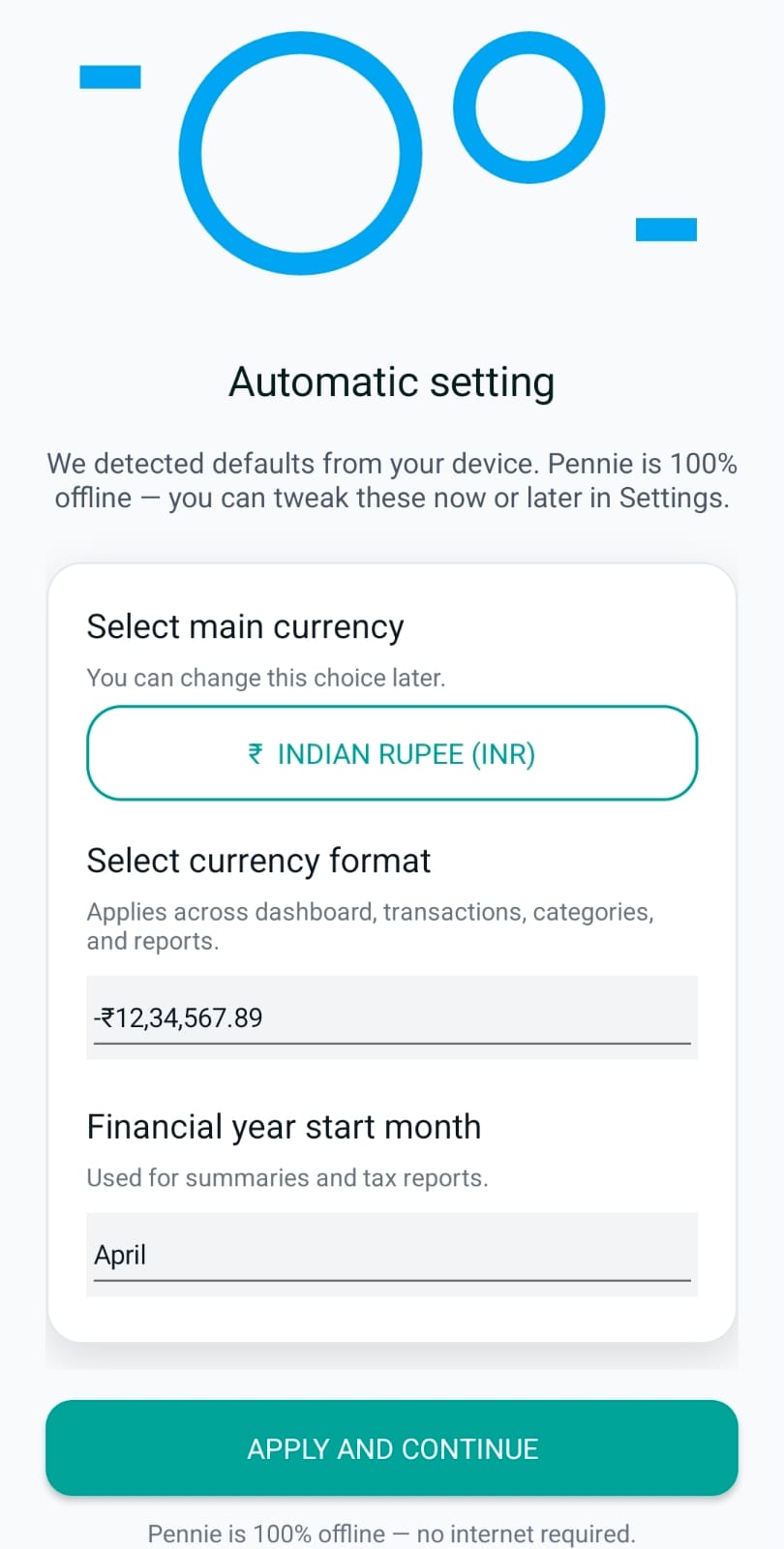
2) Automatic currency selection (based on locale)
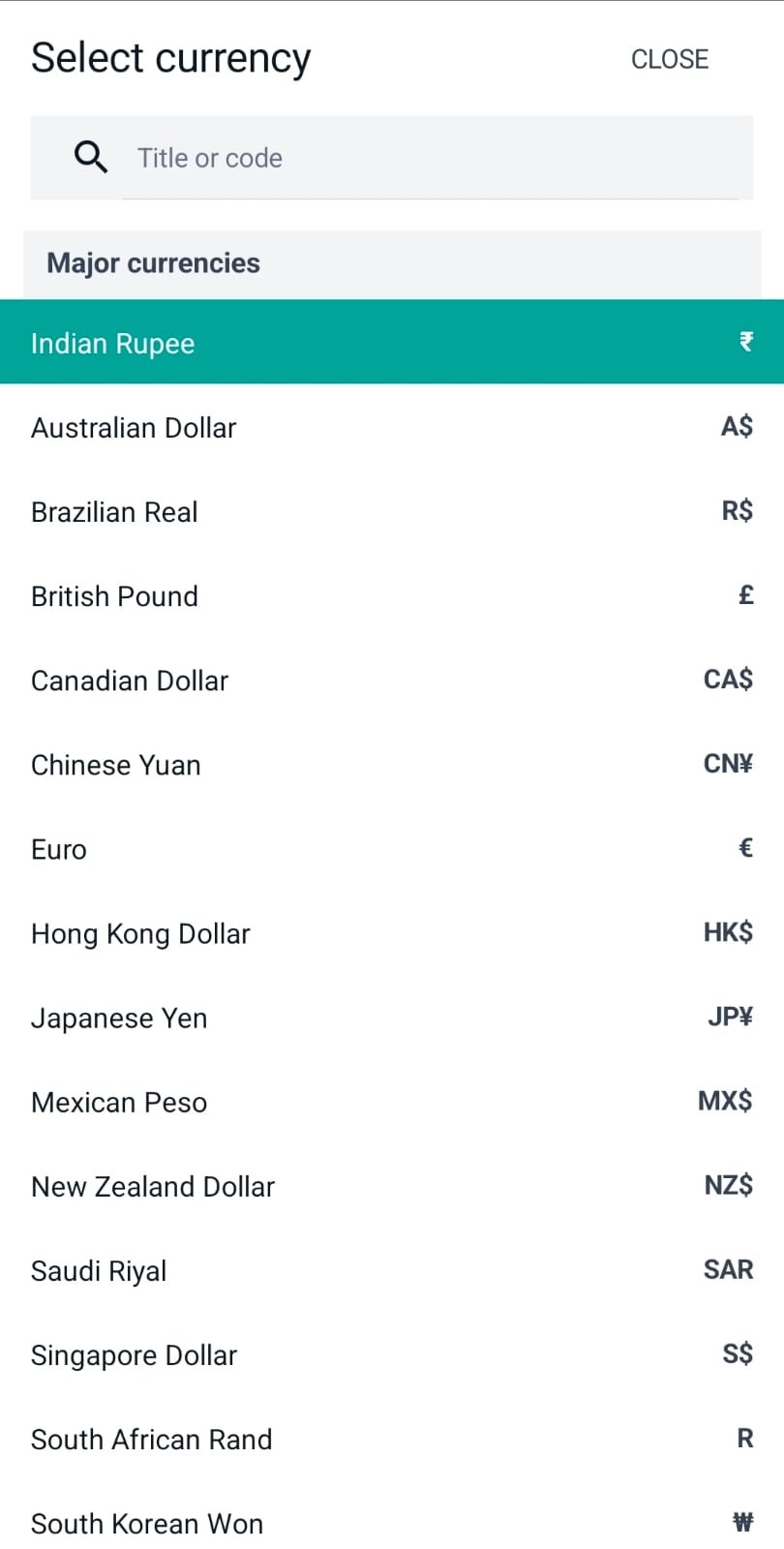
Pennie detects defaults from the device locale and preselects:
Main currency
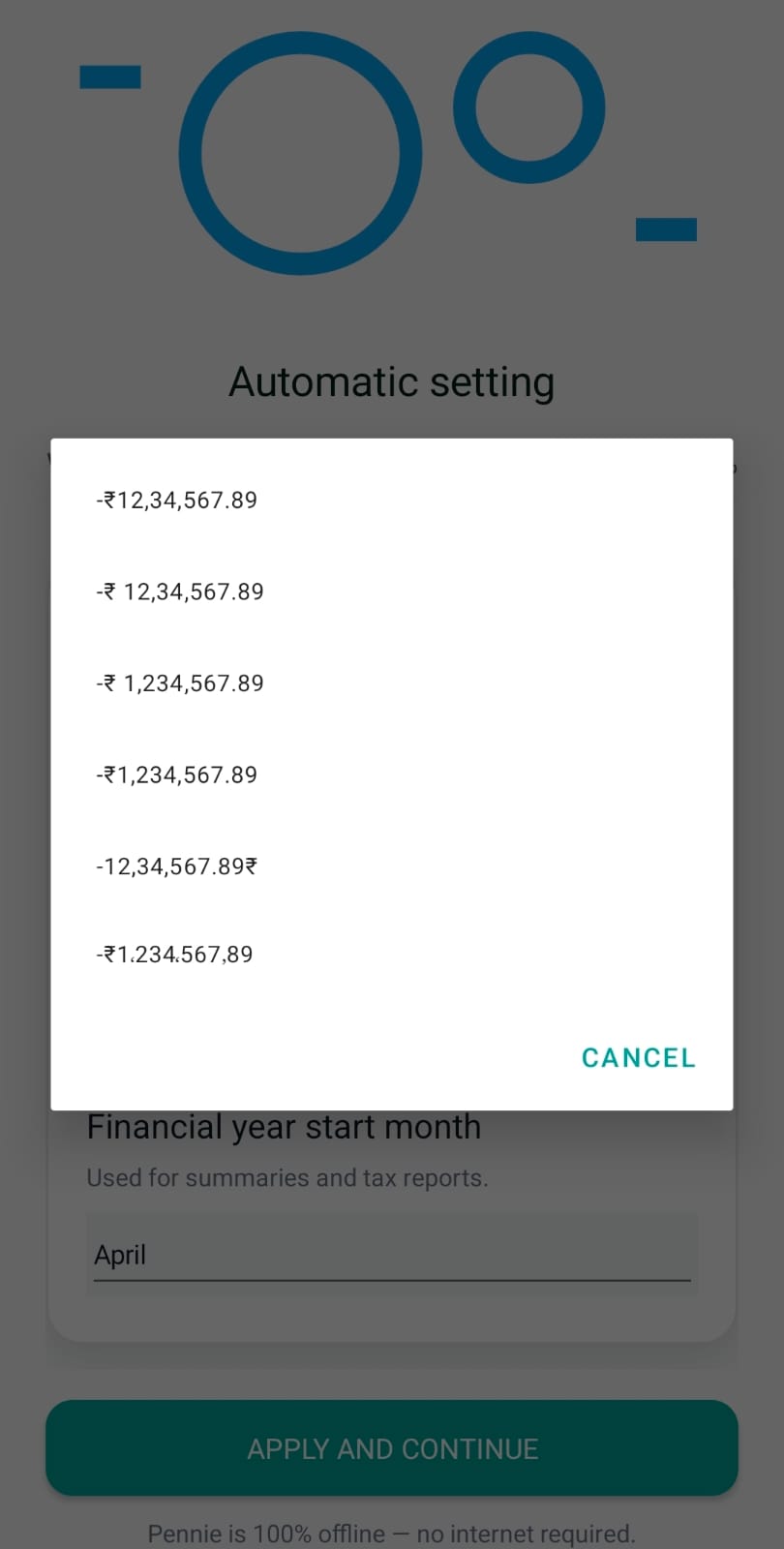
Currency formatting style (examples shown)
Financial year start month (used for summaries)
Bank message languages (choose the languages your bank SMS and transaction alerts use for parsing)
This is designed to remove setup friction — most users can simply tap “Apply and continue”.
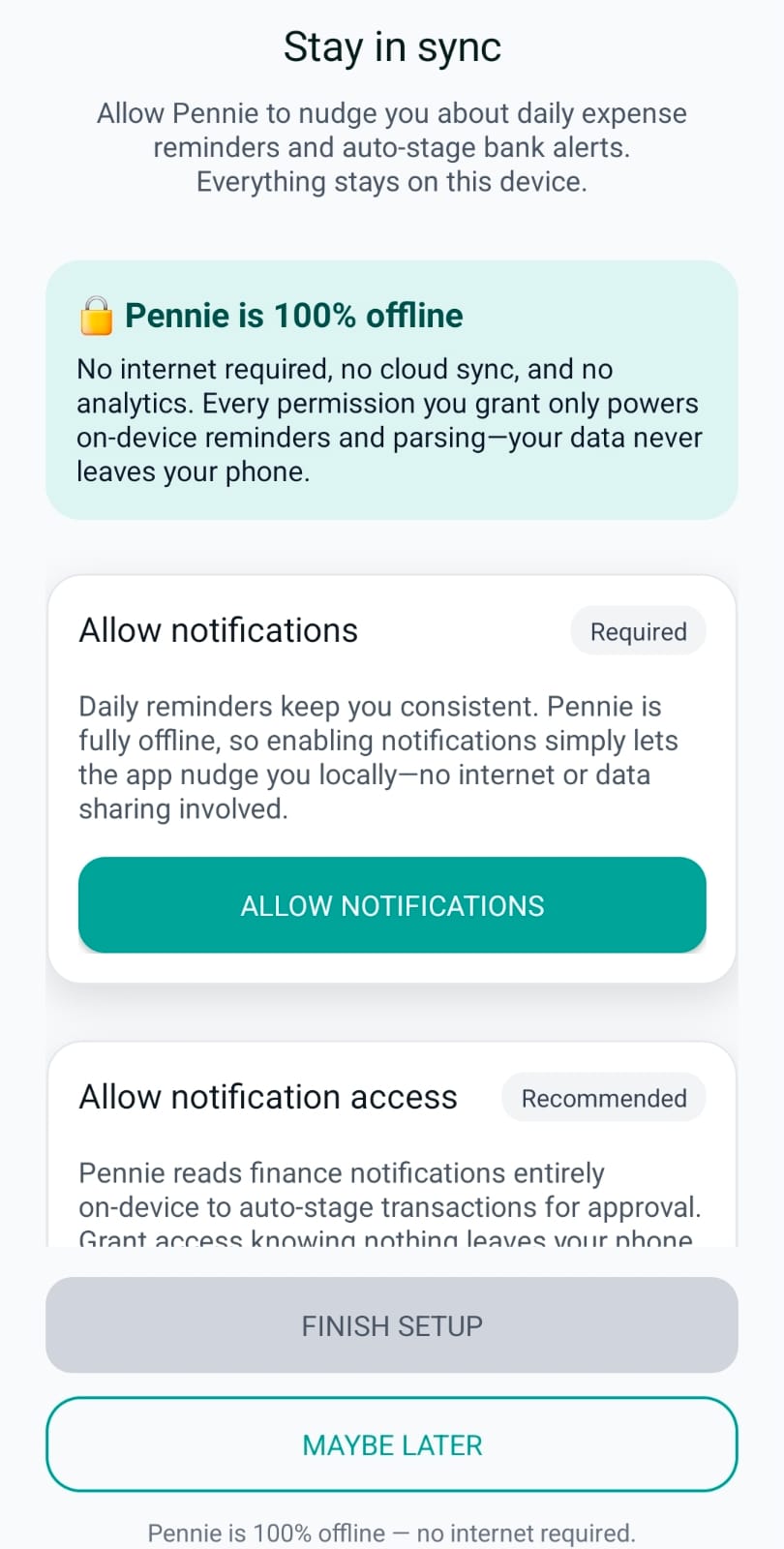
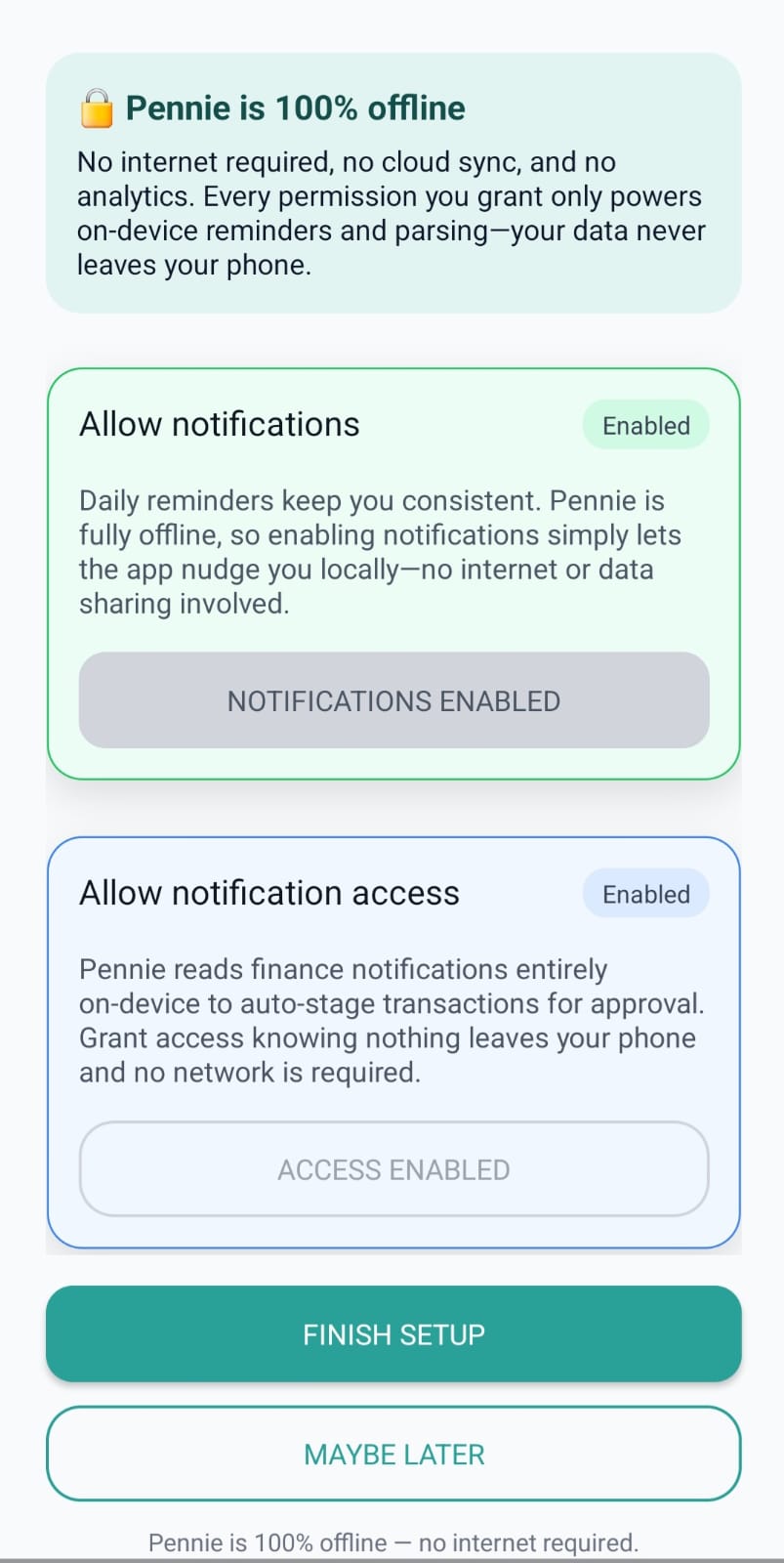
On Android, Pennie asks for two related permissions, with clear rationale:
Allow notifications: so Pennie can send local reminders (no internet required).
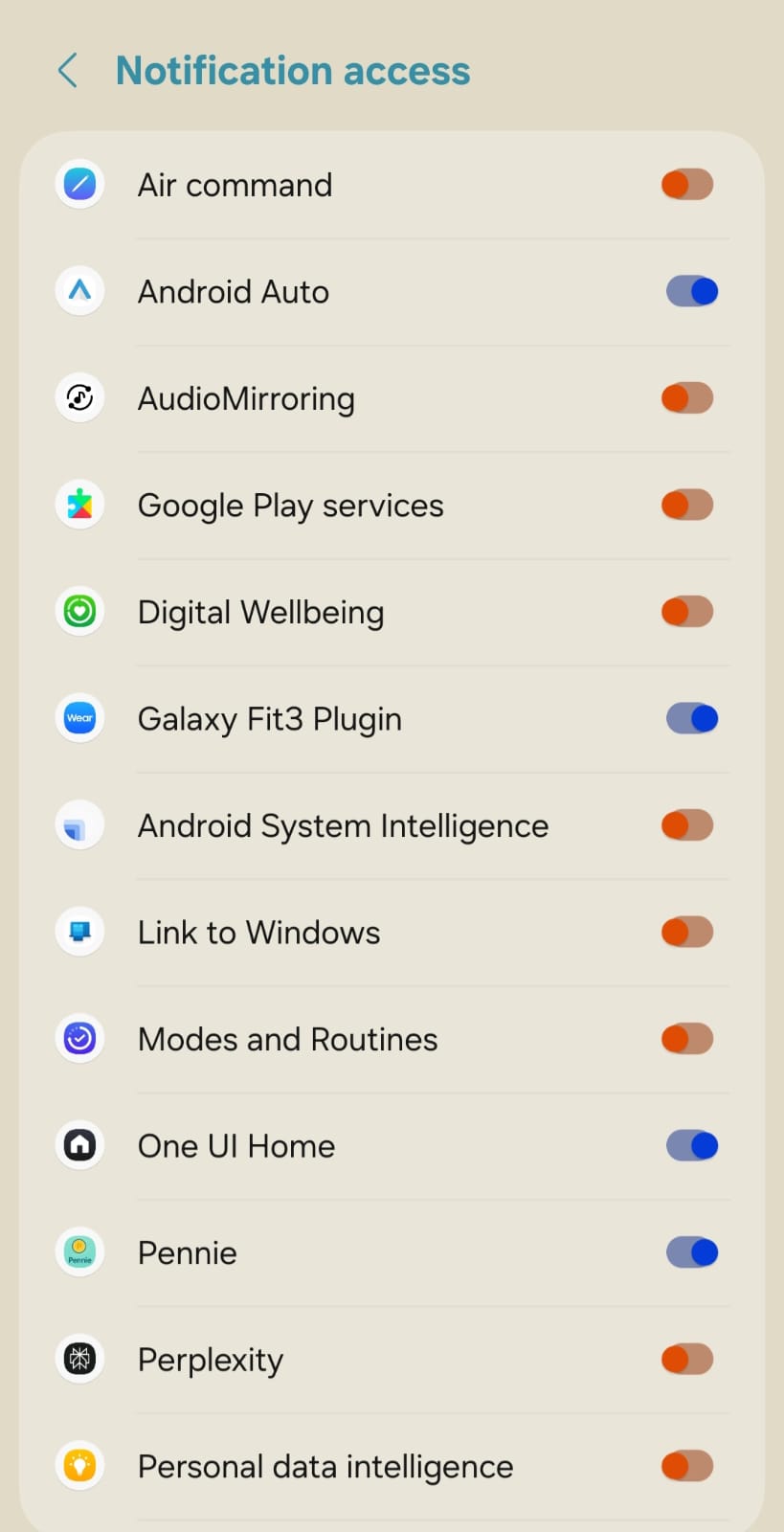
Allow notification access: so Pennie can read finance notifications on-device and stage transactions for approval.
Key feature: once notification access is enabled, Pennie can automatically parse finance messages to extract the amount and context, then pre-fill a “review” item. The user typically just confirms (or edits category/type) instead of typing amounts manually.
Users can finish setup or choose “Maybe later” — the app remains usable either way.
Google sign-in is optional for local tracking. Use the sign-in step during onboarding or open your profile later to connect a Pennie account for account-based features, referrals and AI allowance.
Choose Continue with Google, select the intended Google account and complete Google's sign-in screen.
Check the account shown in your profile before using account-based features. Your local transaction history does not become a cloud-synced ledger merely because you signed in.
For backup, connect Google Drive separately in Data Transfer. For AI, explicitly enable cloud AI in AI Intelligence. Neither permission is implied by sign-in.
Accepting the current Privacy Policy during onboarding is remembered when you sign in afterward. The optional cloud AI agreement is still requested when you enable AI. Local tracking can work without cloud AI, but ad-gated actions may need internet access to unlock.
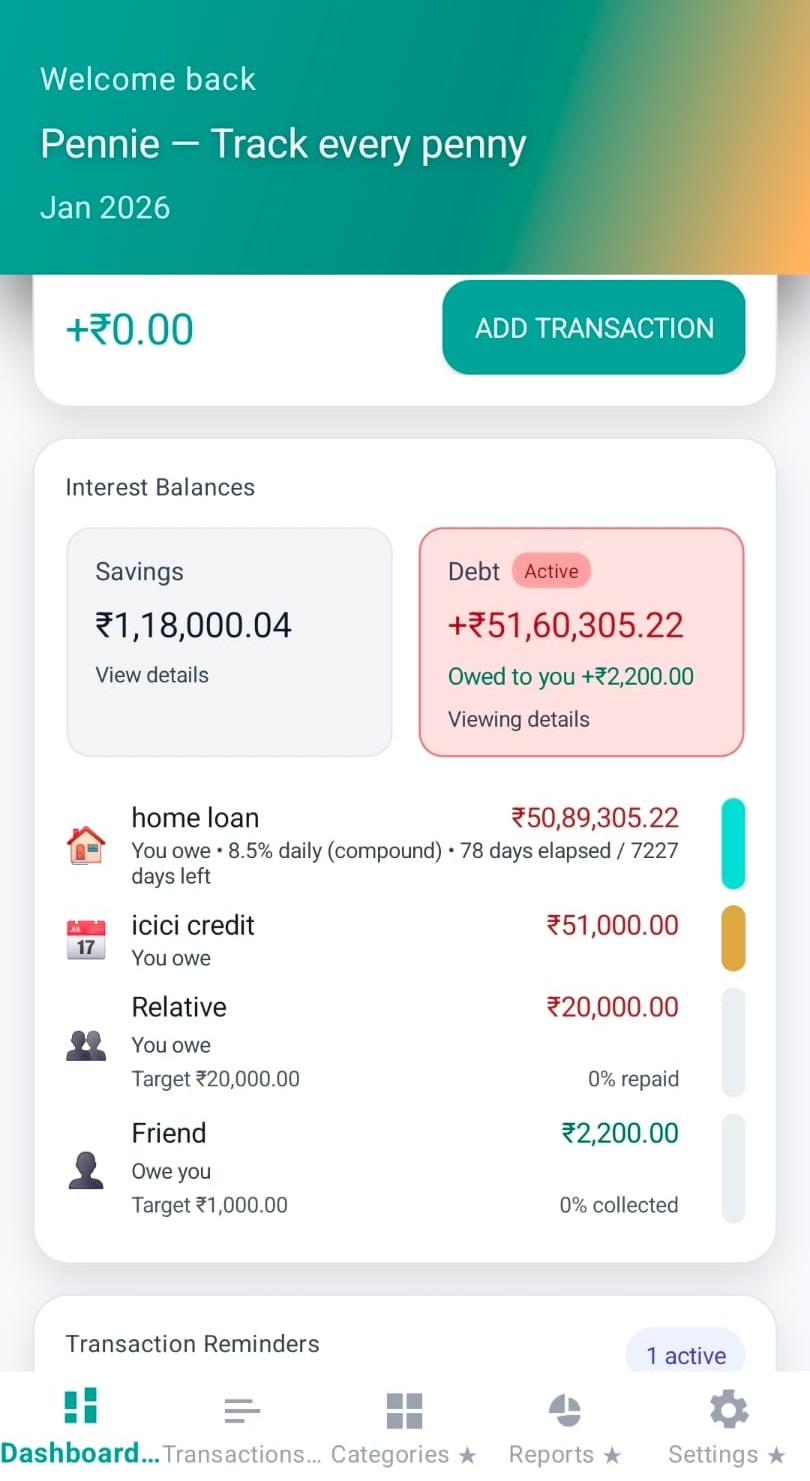
The Dashboard is the “money home” screen: it summarises the current month, surfaces automation (reminders/subscriptions), and provides quick charts for clarity.
Header + month context
The top header anchors users with a friendly greeting and the current month (e.g., “Jan 2026”). This keeps the rest of the metrics easy to interpret.
Budget, expense, net balance (this month)
Pennie computes month totals from the transaction list and shows them as:
Total Budget
Total Expense
Net Balance (budget − expense), color-coded green/red
Insight: interest-accrual transactions are excluded from these top-level totals so the “true” budget/expense picture stays clean.
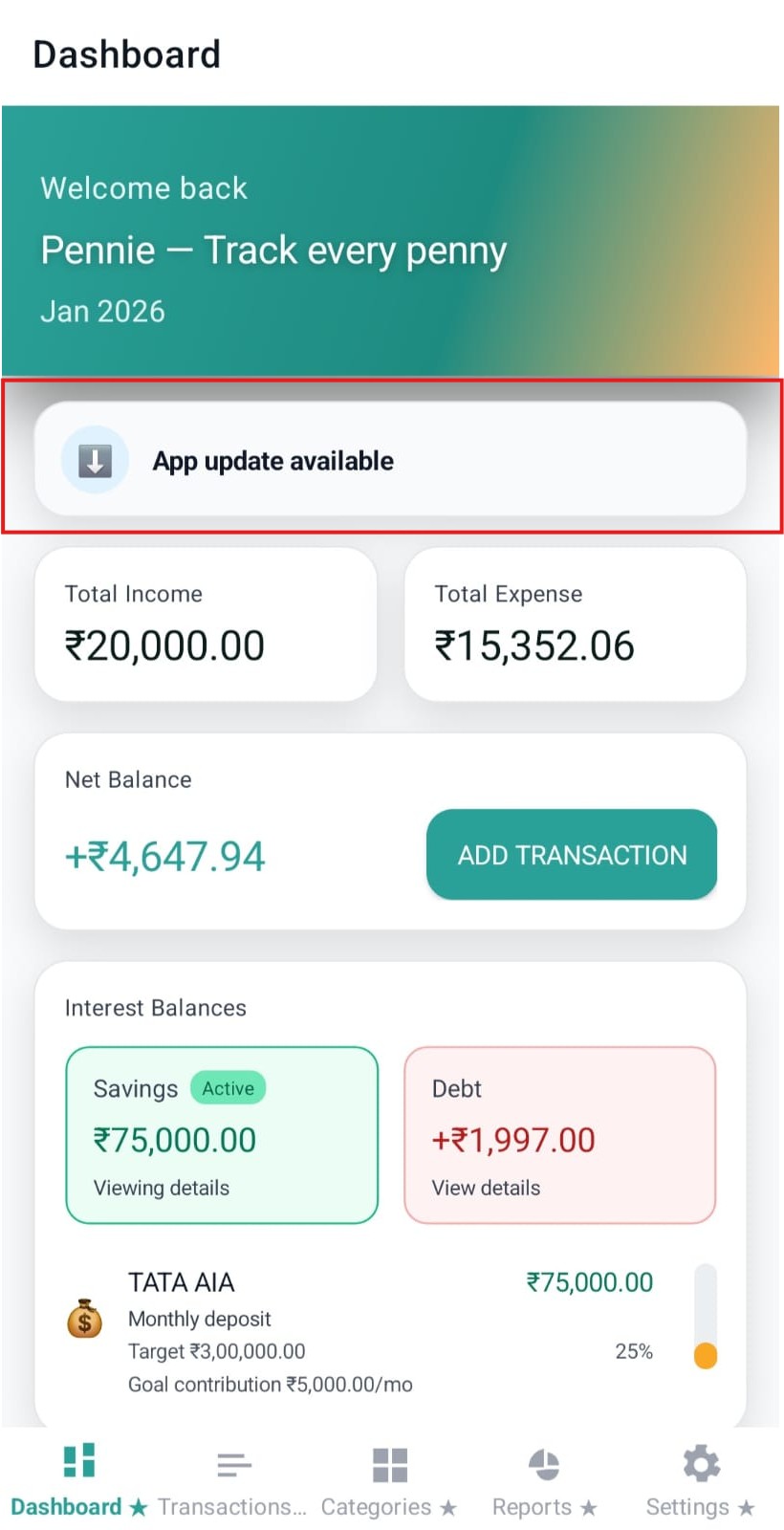
App update banner
When an update is available, the dashboard surfaces a small banner. Tapping it takes the user to the marketplace/web listing to update.
Image: dashboard-app-update-banner.jpeg
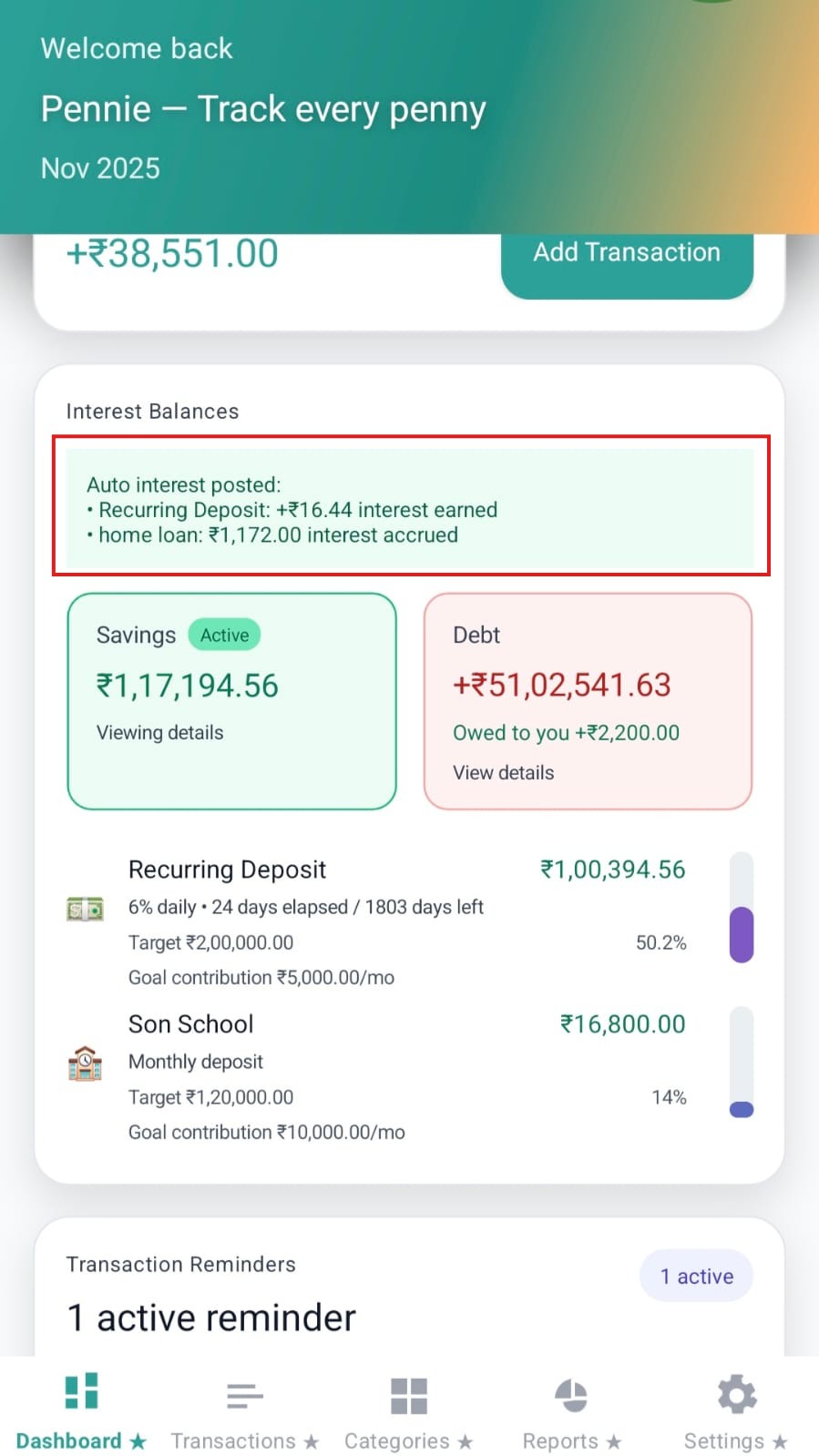
Interest balances
Track interest-bearing balances with two primary views:
Savings: balances and optional goal progress
Debt: outstanding vs receivable, with payoff context
Each chip can expand into a detailed list with category-level rows and progress indicators.
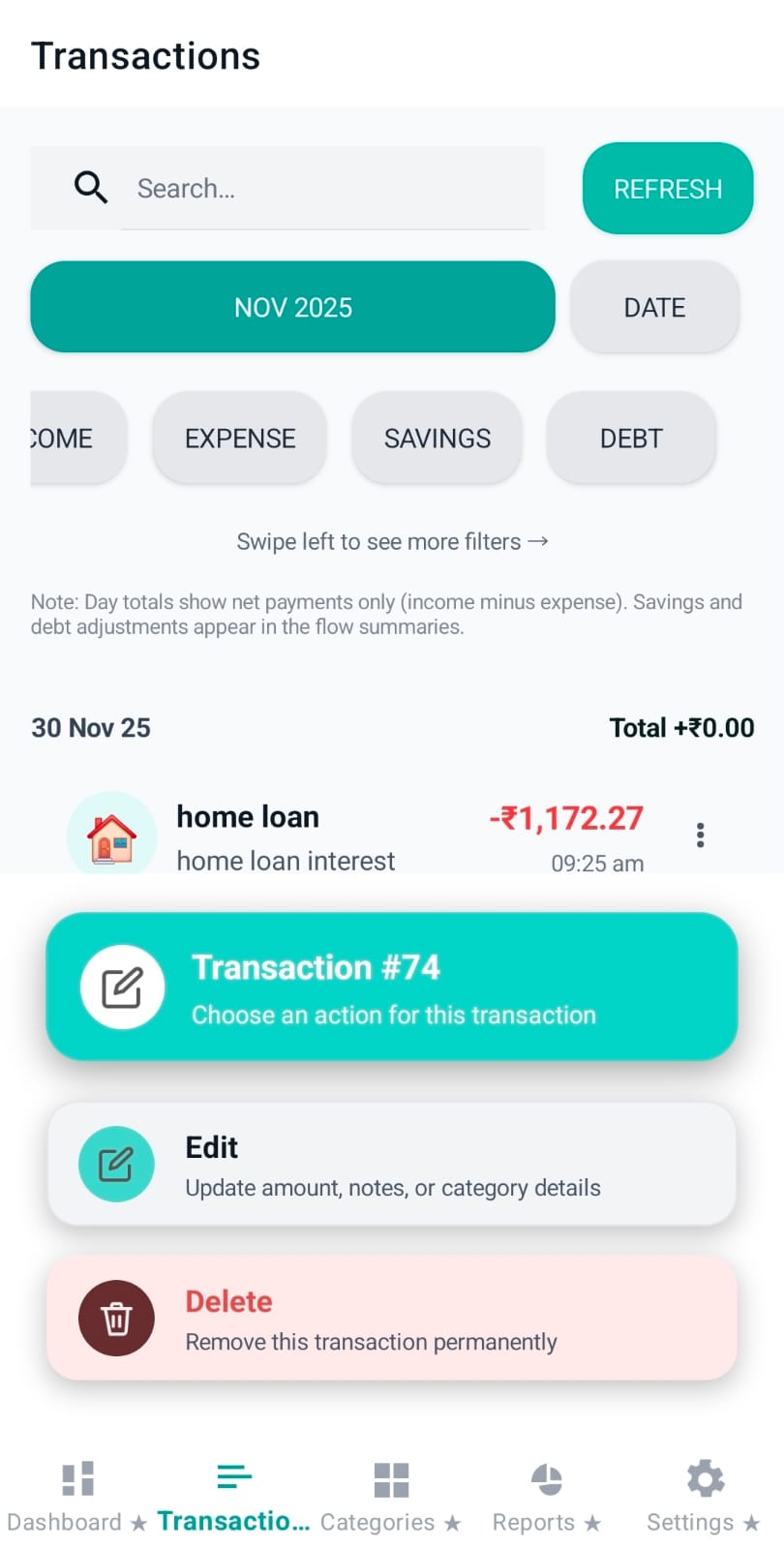
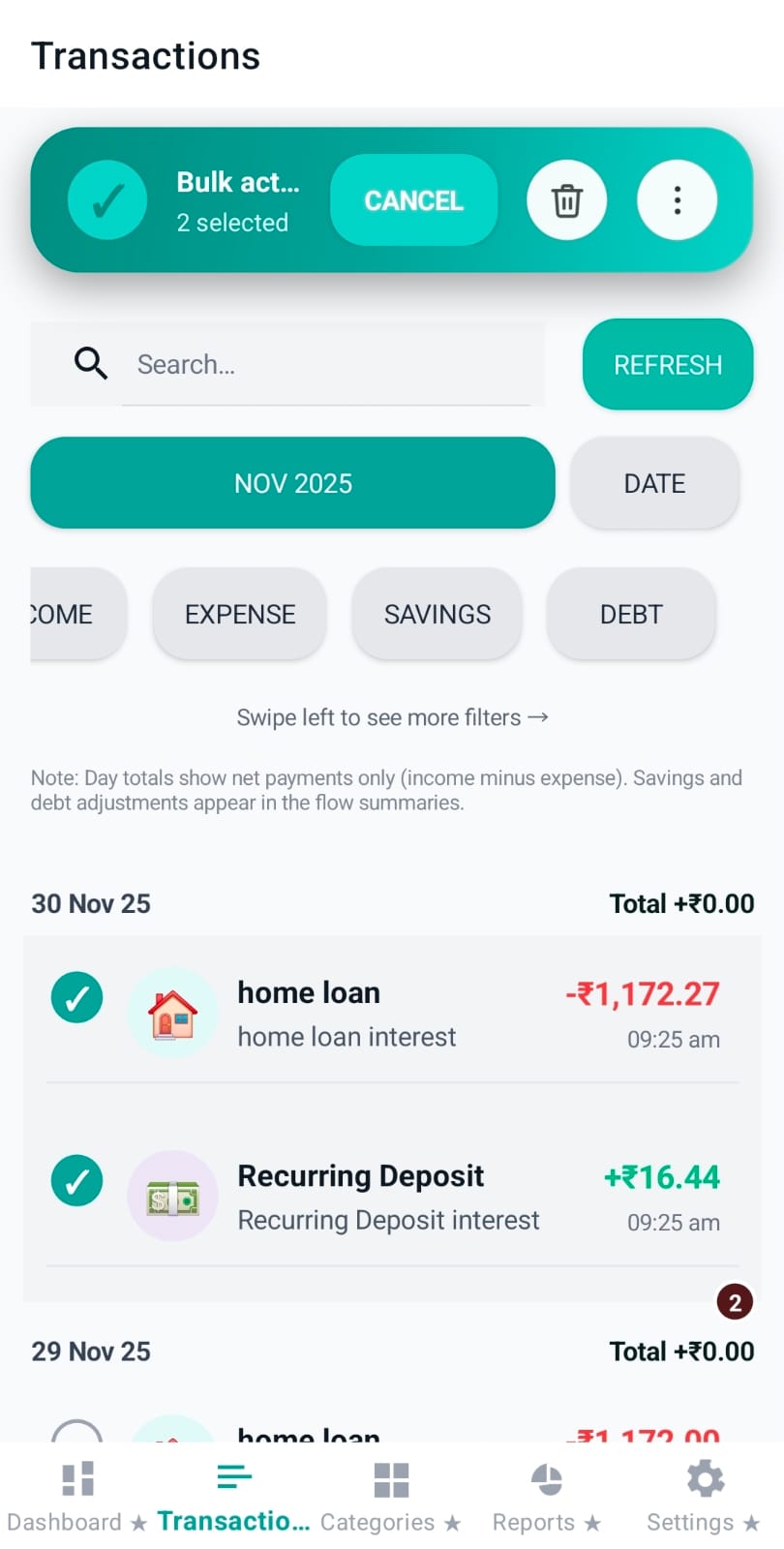
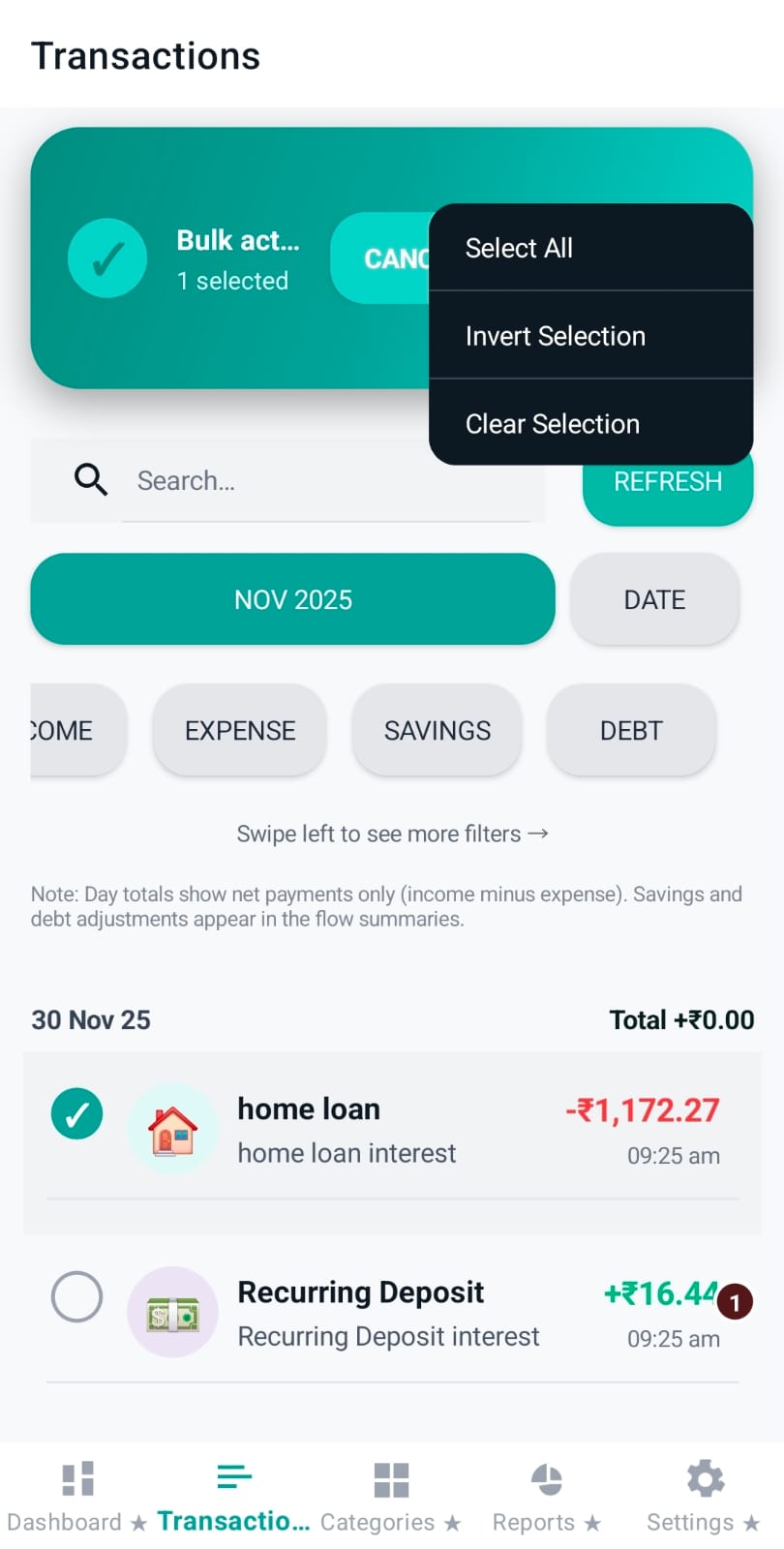
The Transactions tab is Pennie’s primary “timeline” view. It’s optimised for fast review (search + filters), safe edits (bottom sheet actions), and bulk cleanup (multi-select + undo).
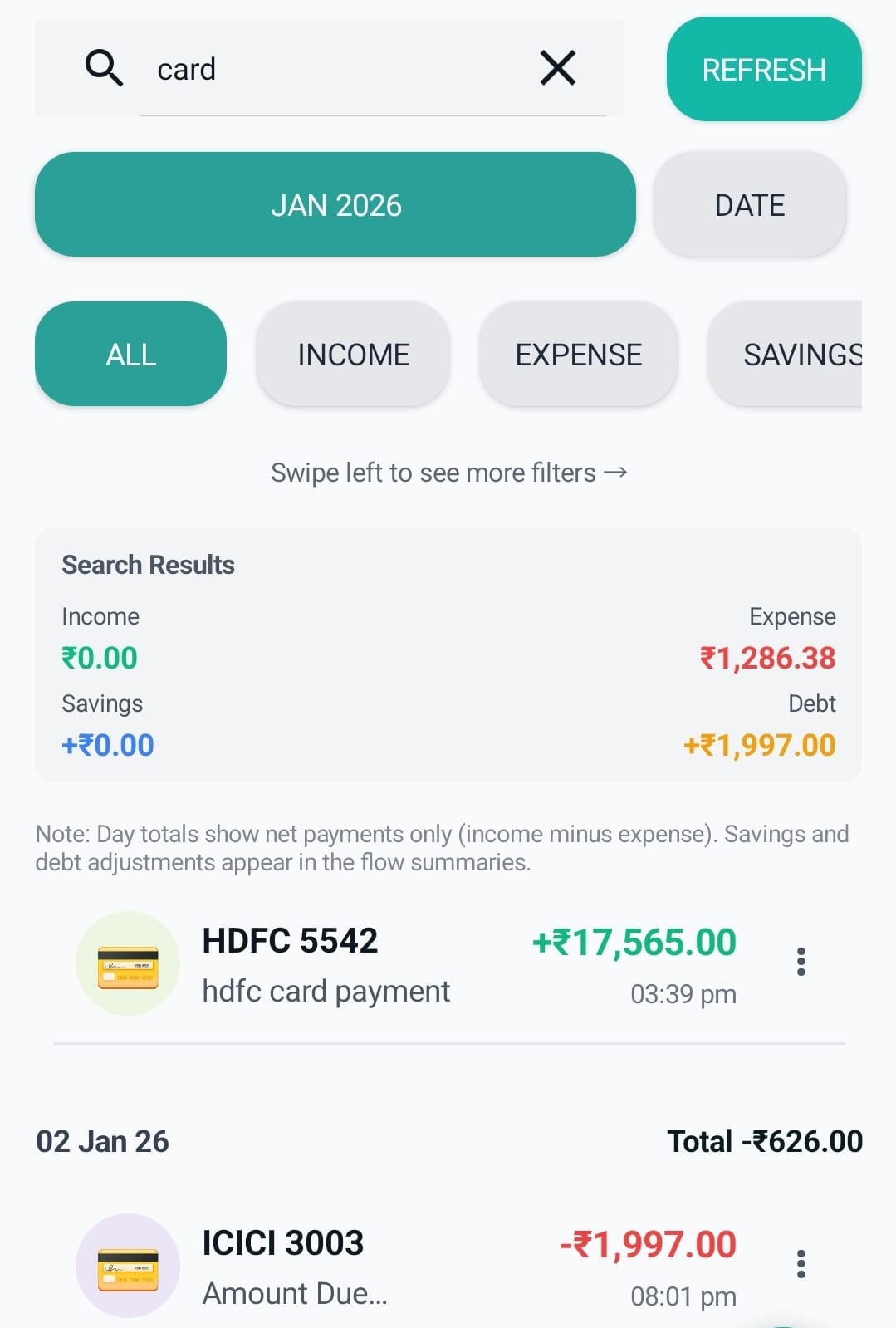
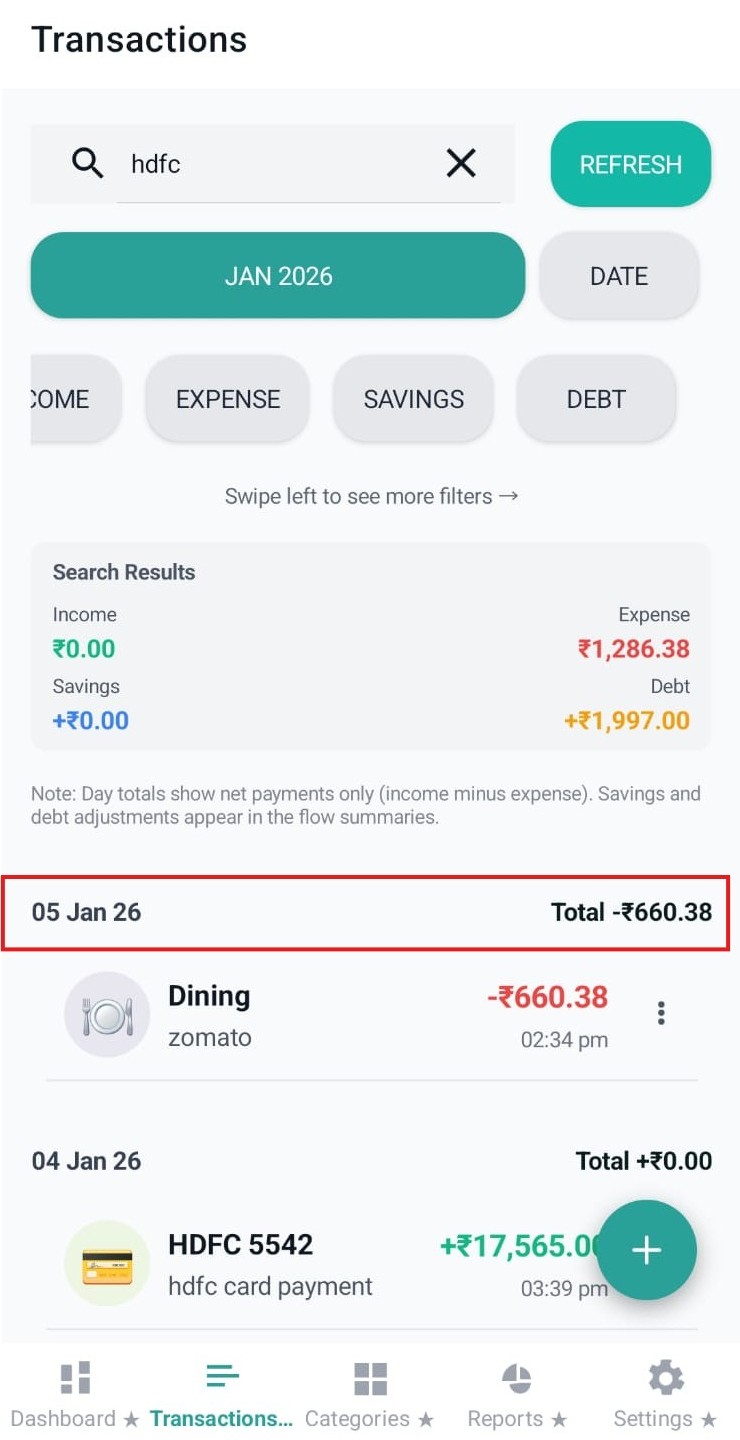
Top toolbar: search + explicit refresh
The first row provides a search bar and a dedicated Refresh button. Search is debounced so typing doesn’t reload on every keystroke.
Insight: Refresh also scrolls the list back to the top so the user immediately sees the newest items for that month.
Image: transactions-search-and-refresh.jpeg
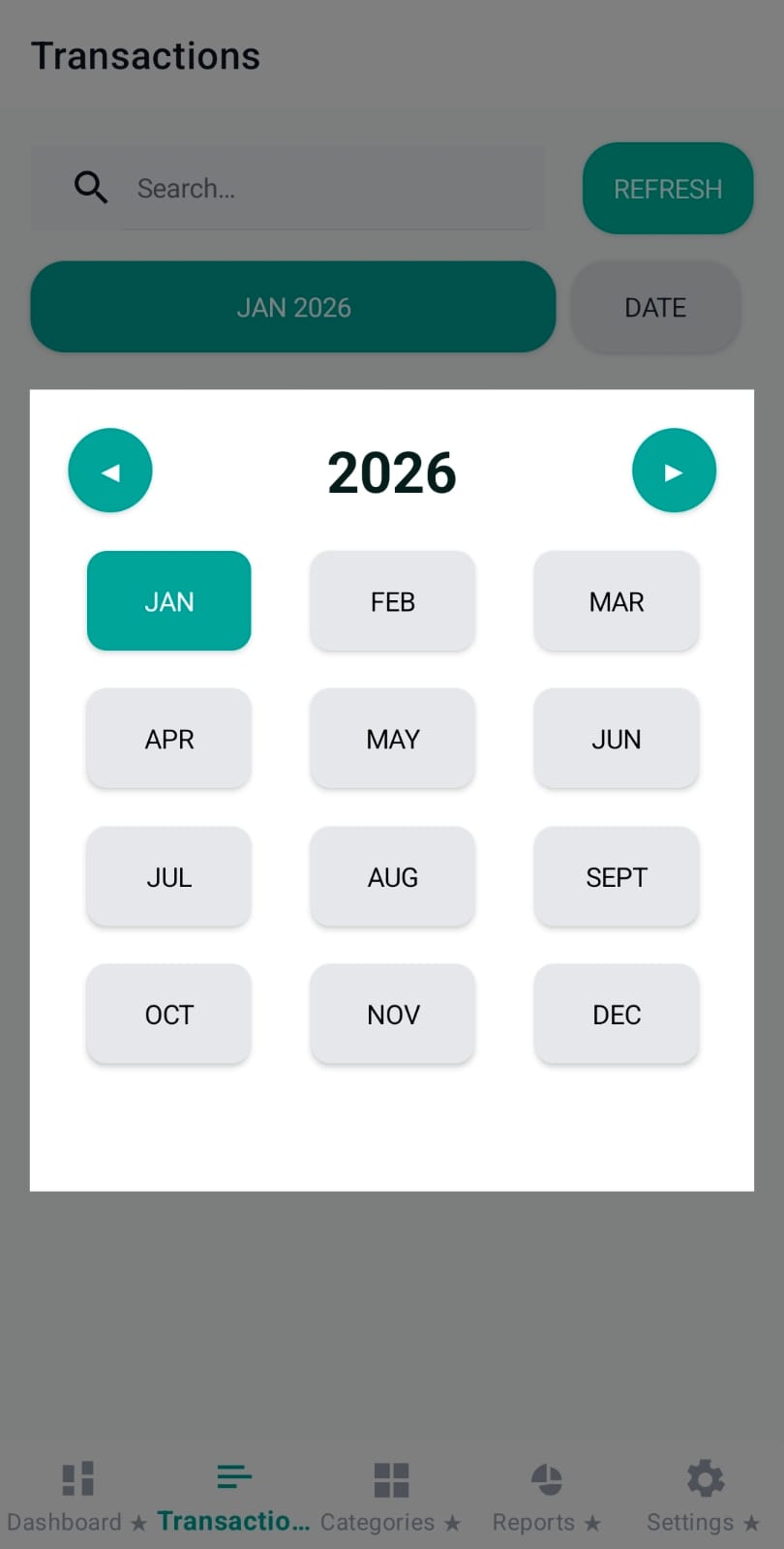
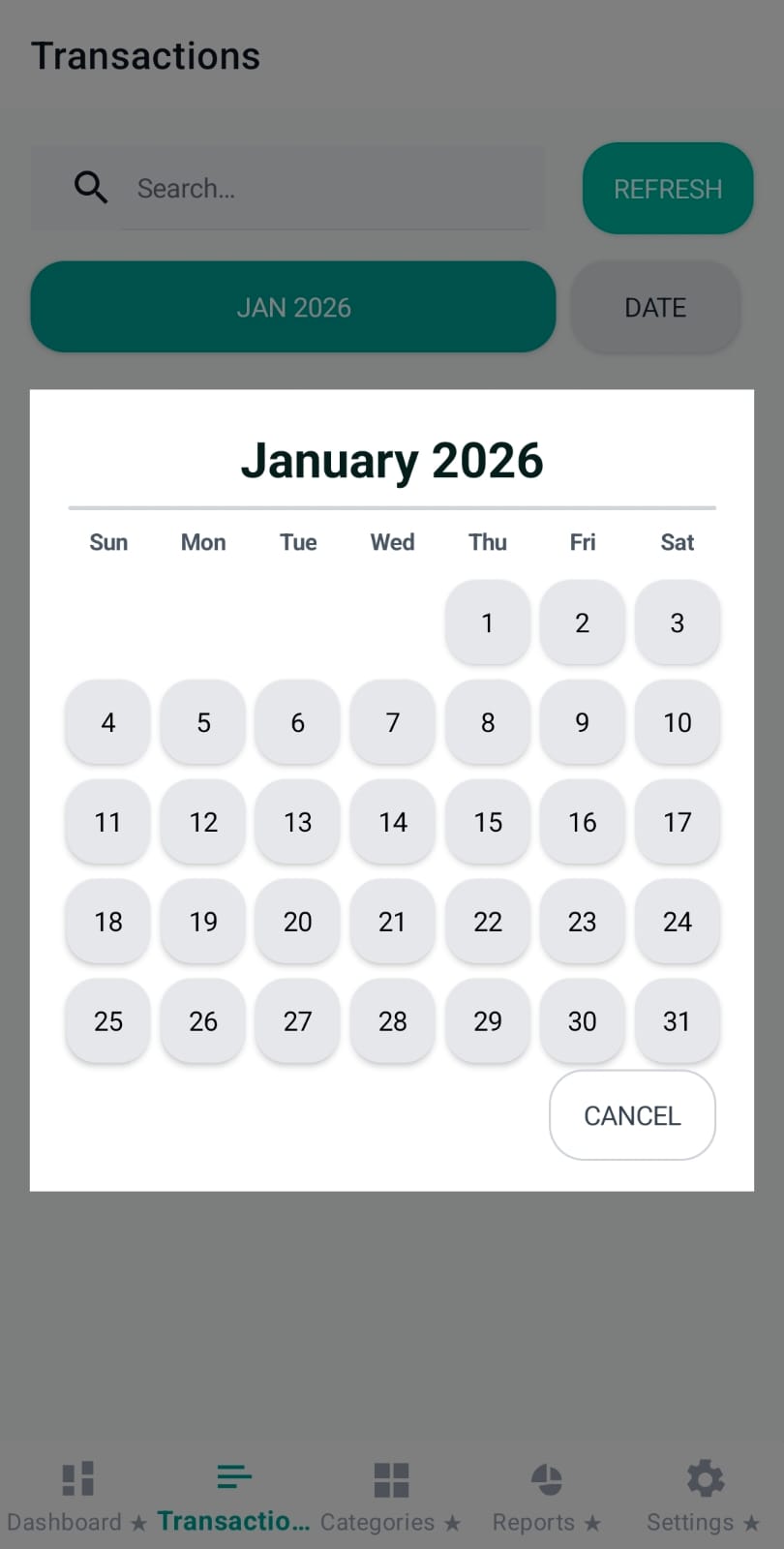
Month picker + optional day filter
Pennie keeps the timeline strictly scoped to a single month (no infinite cross-month feed). Users can switch months with a chip-style month/year selector.
The Date chip enables a day filter inside the selected month. When a day is active, the chip shows the chosen date plus a small “✕” clear button.
When search or filters are active, Pennie shows a compact summary card with totals for the full matching set (not just the visible page). This helps users understand “how much” without scrolling the entire month.
Note: Day totals shown in headers focus on net payments (budget minus expense). Savings/debt adjustments are surfaced in the summary totals.
List structure: date headers + daily net total
The transaction list is grouped by day. Each day starts with a header (Today/Yesterday or date) and a daily total computed as:
Daily Total = (sum of allocation payments) − (sum of expense payments)
Insight: interest accrual entries are ignored for daily totals so the “what I paid/received” number stays trustworthy.
Image: transactions-date-headers-daily-total.jpeg
Transaction row design: category-first + amount + time
Each transaction row is designed to scan quickly:
Category icon (colored avatar) and category name
Secondary text (derived details) and optional note (hidden when not applicable)
Amount color-coded by sign/flow, plus a compact time label
Gestures: long-press starts multi-select, single-tap toggles selection (when multi-select is active), and double-tap jumps to edit.
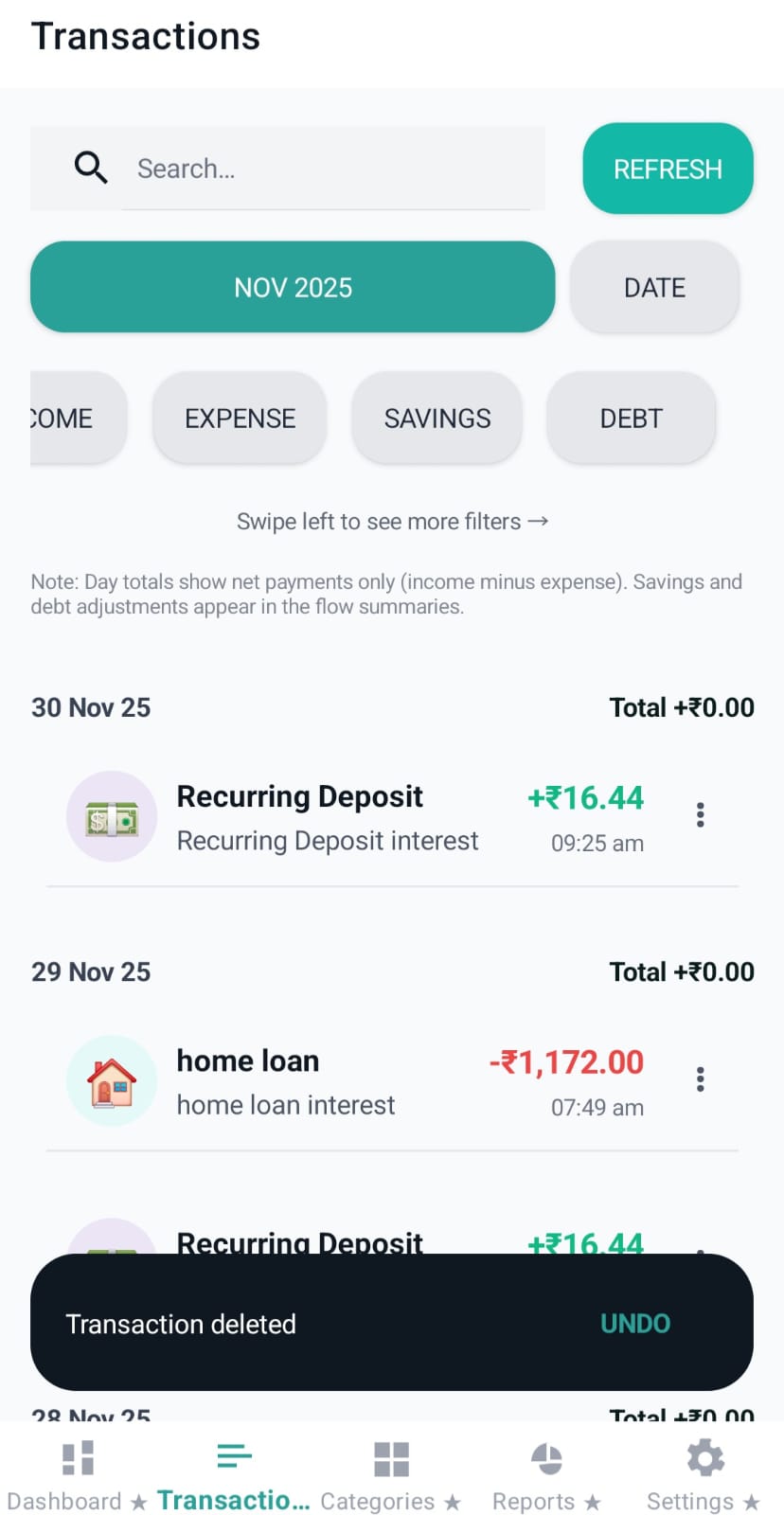
After deletions (single or bulk), Pennie shows a snackbar for a few seconds with an UNDO action. Undo restores the deleted batch, making cleanup safer.
Image: transactions-delete-snackbar-undo.jpeg
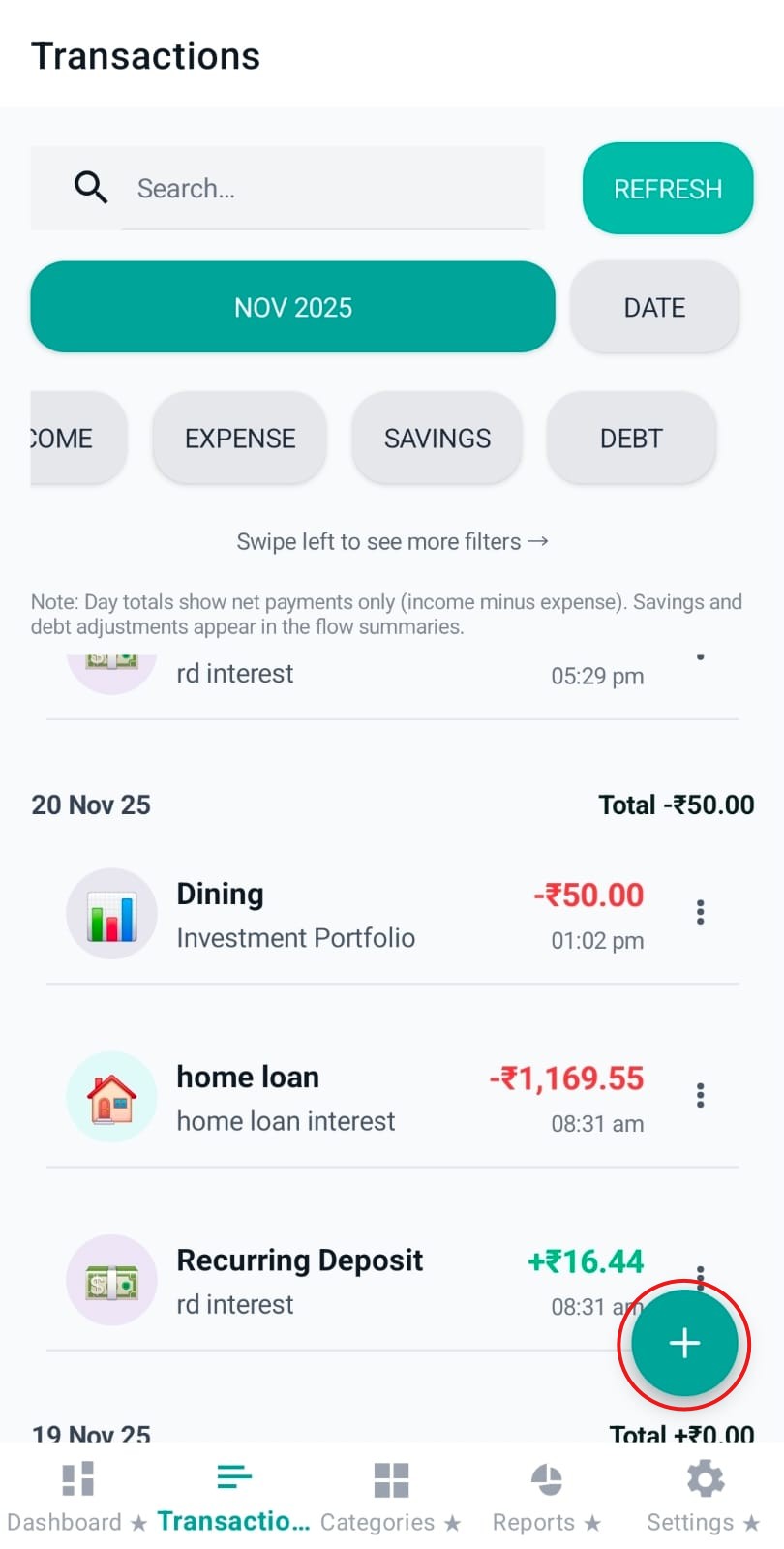
Primary action: floating “Add” button
The floating Add button stays available while browsing. It intelligently hides on scroll-down (to reduce visual noise) and reappears when the user scrolls up.
Add Transaction is where Pennie converts a “money event” into a structured entry. It supports normal allocation/expense entries, Savings and Debt balance updates, Transfers, optional reminders, and lightweight enrichment via sub-category + notes. Eligible manual-save and reminder actions use their own rewarded unlocks unless ad-free access applies.
Entry points: manual, dashboard shortcut, and auto-parsed review
Users typically open this page from:
Transactions: the floating Add button.
Dashboard: the “Add transaction” CTA under month totals.
Notifications review: when Pennie auto-parses a finance message, it stages a review item and can route into this form with prefilled values.
Top actions: Save + Cancel (toolbar and bottom buttons)
The page provides two consistent actions:
Save: validates the form and writes the transaction (or updates an existing one).
Cancel: exits without saving.
UX detail: Pennie shows Save/Cancel both in the top toolbar and again at the bottom so users don’t need to scroll back up after filling fields.
Transaction type chips: Expense / Allocation / Savings / Debt / Transfer
At the top of the form, a horizontal chip row selects the entry type:
Allocation: use this to record what you earned/received for the month — this becomes the month’s “budget pool” that Pennie summarises at the top.
Expense: use this to record spending made from that monthly budget, so Pennie can show remaining balance and category breakdowns.
Savings: updates a savings goal/balance.
Debt: updates a debt balance.
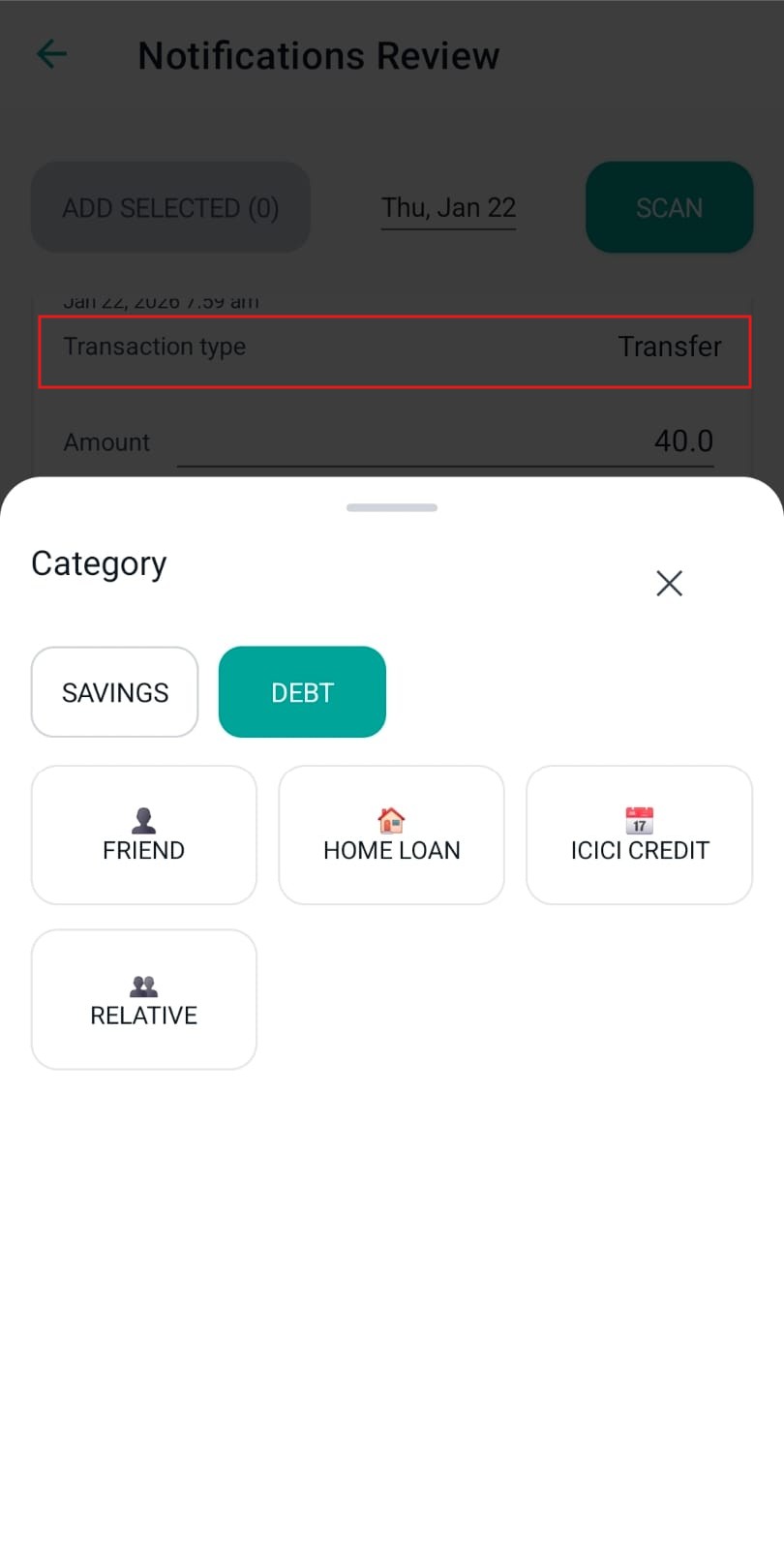
Transfer: move money between balance categories — for example Savings → Savings, Savings → Debt, or Debt → Debt (you pick a “From” and a “To”).
Validation: choose valid categories for the selected transaction type. If a rewarded unlock is required, complete it before saving; cancelling leaves the draft unsaved.
Category selection (and “From/To” when Transfer)
The category field is the core classifier. It shows:
Category icon + color
Category name
Helper text (e.g., “Allocation category”, “Expense category”)
When the type is Transfer, the same UI expands to a two-part selection:
From: the source category
To: the destination category
Rule: Transfer destinations are constrained (Savings or Debt categories), and “From” and “To” cannot be the same category.
Category/type mismatch guidance (info banner)
When the selected category doesn’t match the current transaction type, Pennie surfaces a contextual info message to prevent wrong classification (for example, choosing an Allocation category while Expense is selected).
Amount entry: currency symbol, limits, and error states
The amount field is numeric with a visible currency symbol. Pennie displays a limit hint (for example “Up to 100,000”) and validates:
Amount must be a valid number.
Amount cannot be zero.
Amount must be within the configured limits for that type.
Savings balance mode (Credit vs Debit)
When the type is Savings, Pennie adds a “Savings balance” toggle:
Credit: increases the savings goal/balance.
Debit: withdraws from savings without marking it as “spending”.
Debt balance mode (Loan vs Repayment)
When the type is Debt, Pennie adds a “Debt balance” toggle:
Loan: grows the debt balance (you owe more, or someone owes you more).
Repayment: reduces the debt balance.
Date picker (when the transaction happened)
The date field controls which month/day the transaction appears under in the Transactions timeline and in month totals. It defaults to “today” but can be backdated for missed entries.
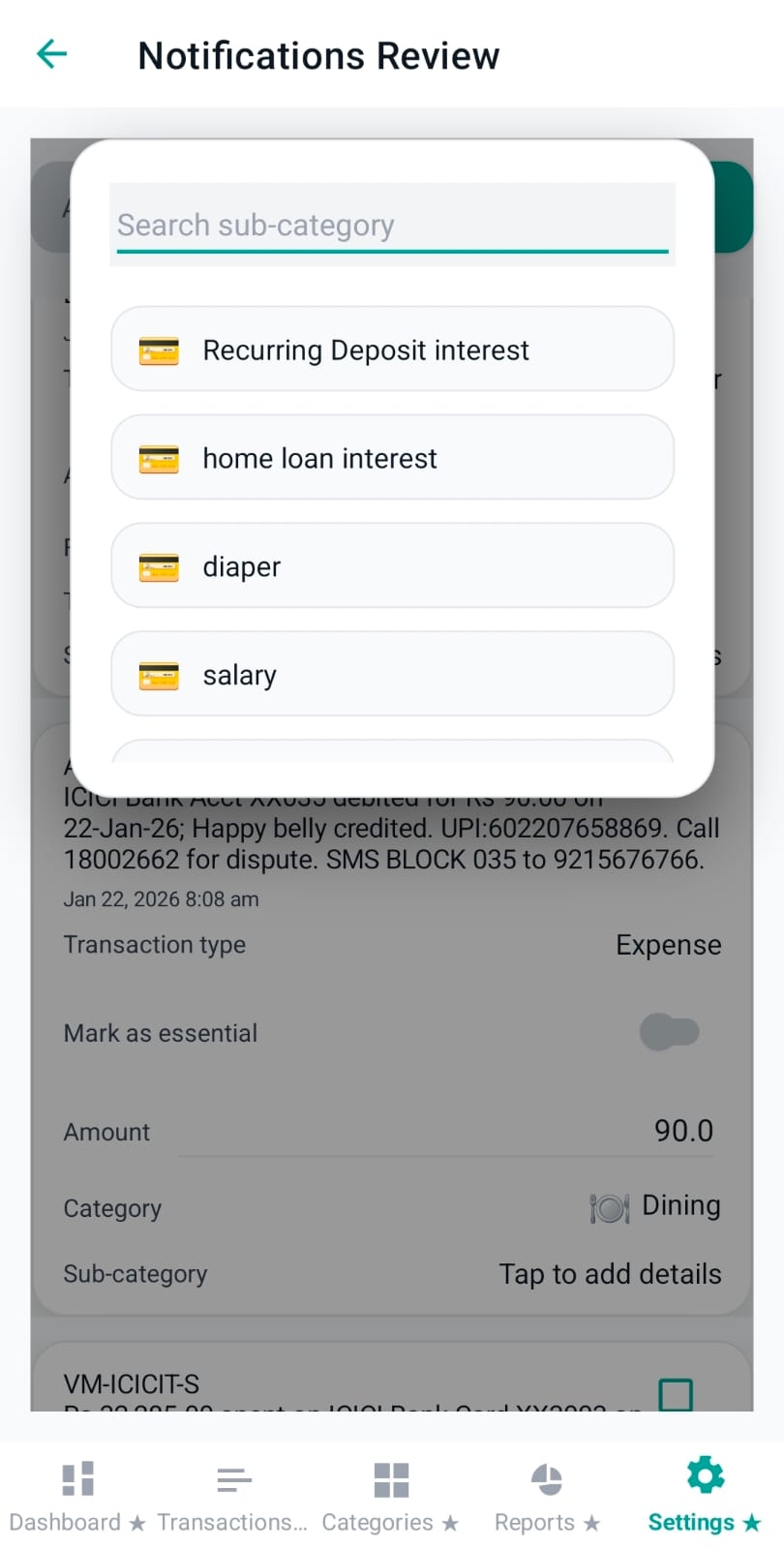
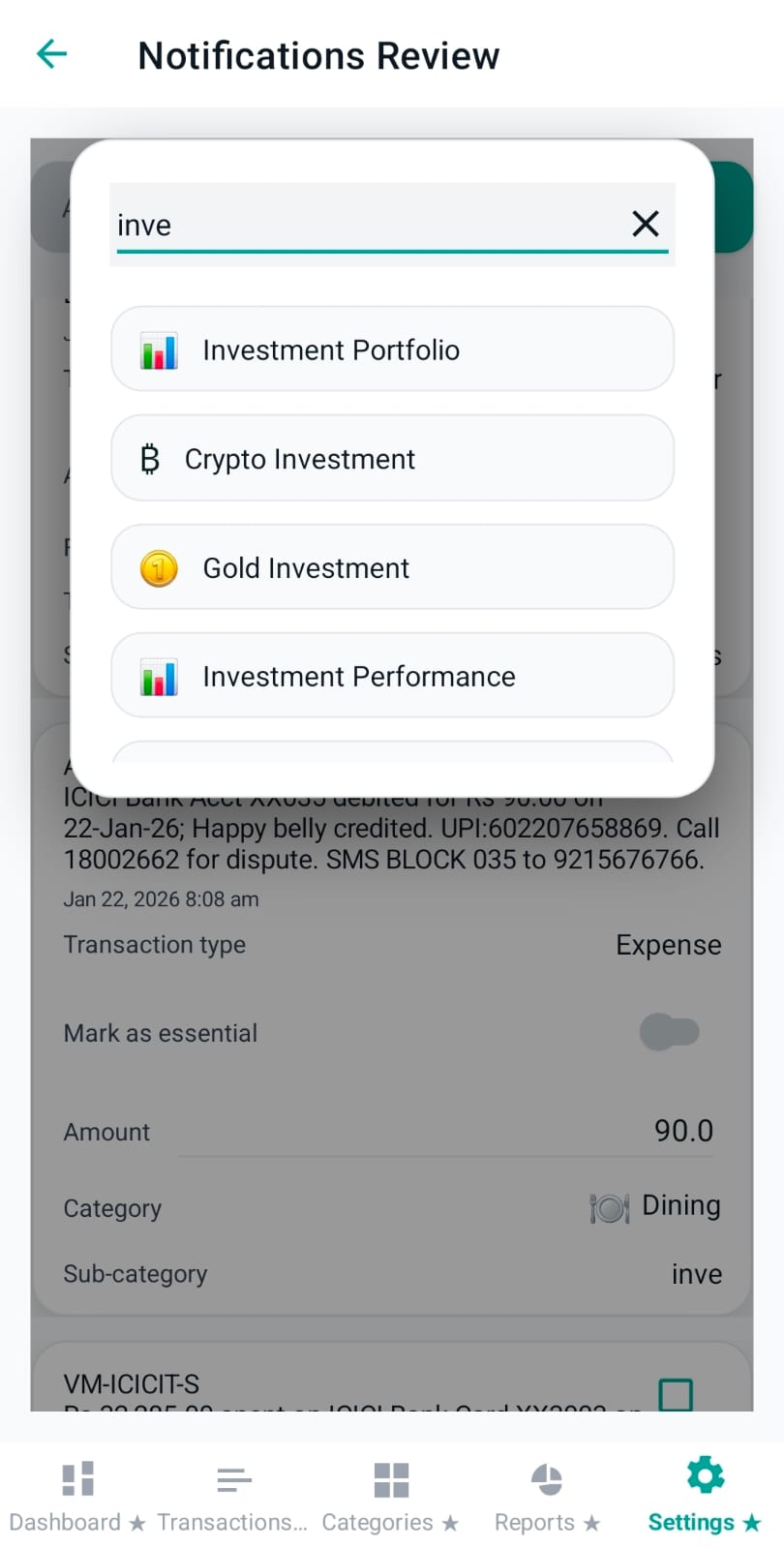
Sub-category is a lightweight enrichment field (e.g., store name, restaurant name, route). When tapped, Pennie opens an overlay dropdown with:
A search box
Suggestion list with icons
Fallback empty state (“Start typing to see suggestions”)
Note field (optional)
The note field is free-text and supports multi-line input. It’s useful for reminders context (e.g., “rent for Jan”, “split with friend”, “paid via UPI”).
Spending Type toggle (Essential / Non-essential)
When applicable, Pennie shows an “Essential / Non-essential” toggle. This classification is used for reporting and analysis, and can be constrained by the selected category (some categories may force a specific mode).
Subscription flag
Pennie can mark a transaction as a Subscription. This helps the Dashboard subscription panel understand recurring commitments and keep them visible.
Smart reminders: subject, frequency, start date, time
Enable Smart reminders for EMI-style follow-ups. Recurring reminders use a separate rewarded unlock for eligible free users; regular Premium skips the ad. The reminder card includes:
Toggle: enable/disable reminders for this transaction.
Subject: editable, with a “Same as Note” checkbox.
Starts on and Reminder time: when the reminder begins and at what time.
Validation: if the configuration is invalid, Pennie shows a warning message inside the card (for example, missing subject text).
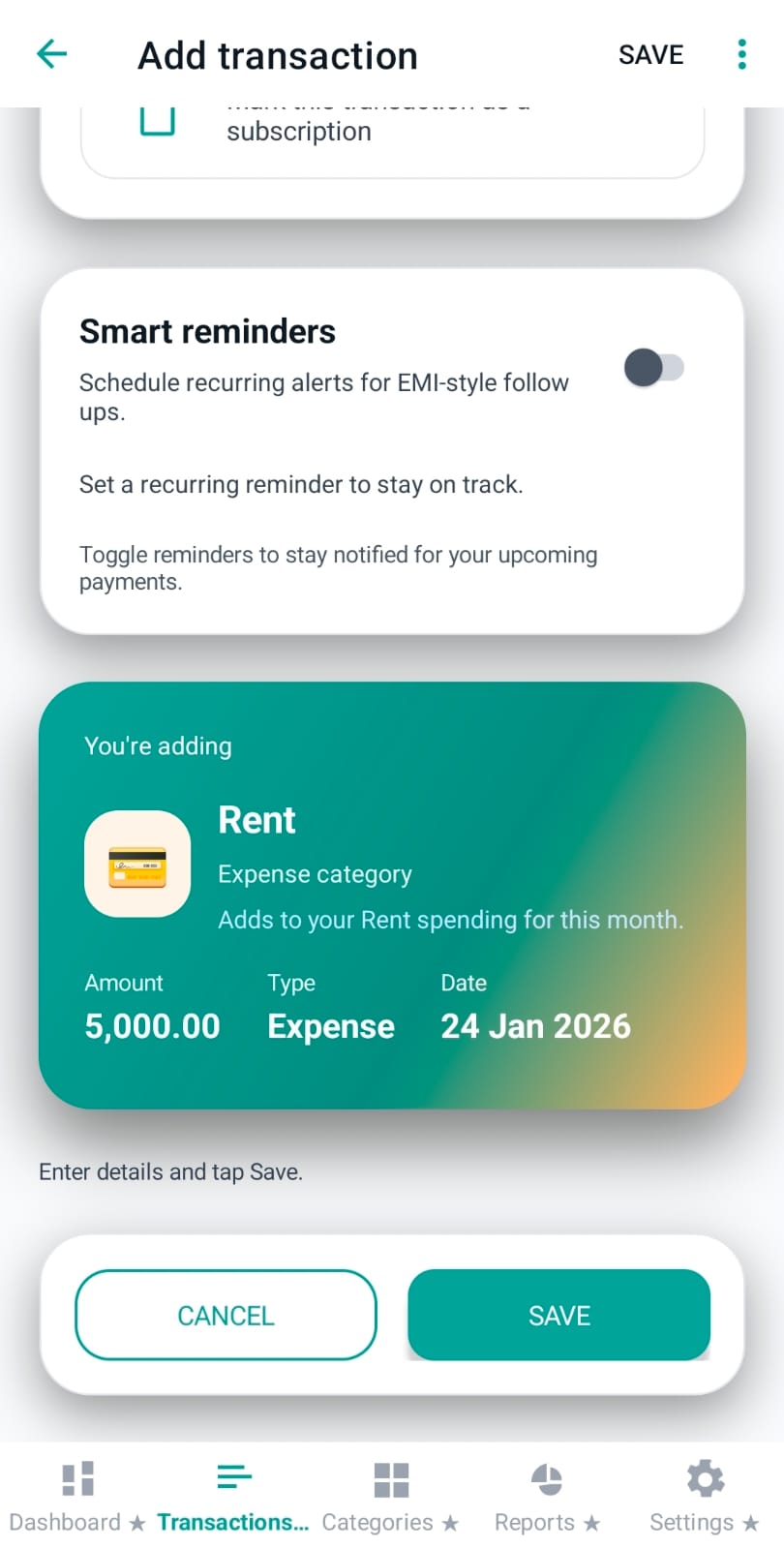
“You’re adding” summary card
Near the bottom, Pennie shows a colored summary card that mirrors what will be saved: category, amount, type, and date. This acts like a final confirmation before the user taps Save.
This tab is the control center for how Pennie interprets money. Budgets (expense planning), Savings goals, and Debt tracking are all configured here, and the rest of the app (Transactions, Dashboard, Reports) reads these settings.
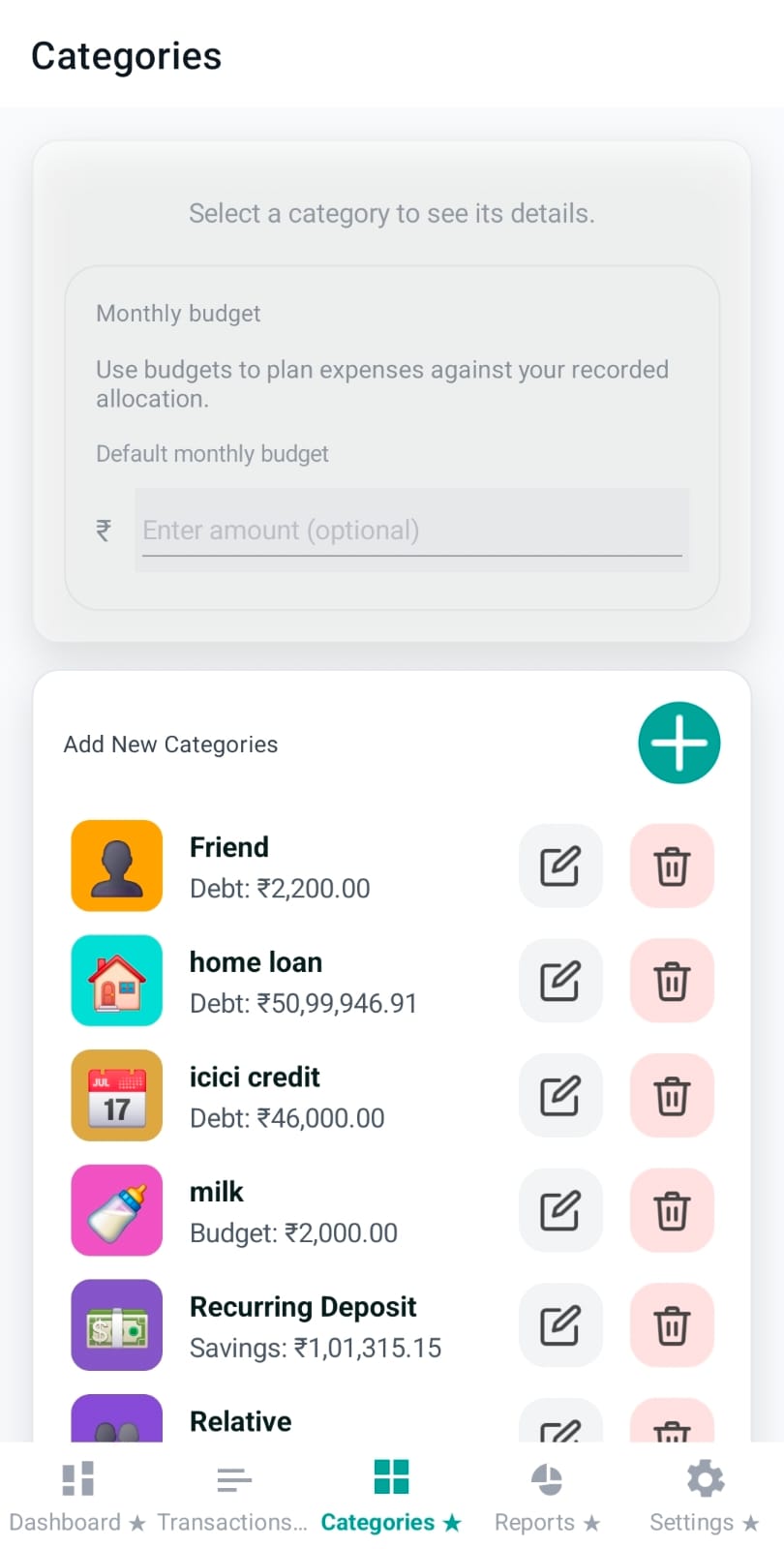
How the page is structured
Categories is intentionally split into two layers:
Editor (top card): select a category to edit its budget/plan; built-in categories have some fields locked.
Lists (below): your custom categories, default categories, and disabled categories.
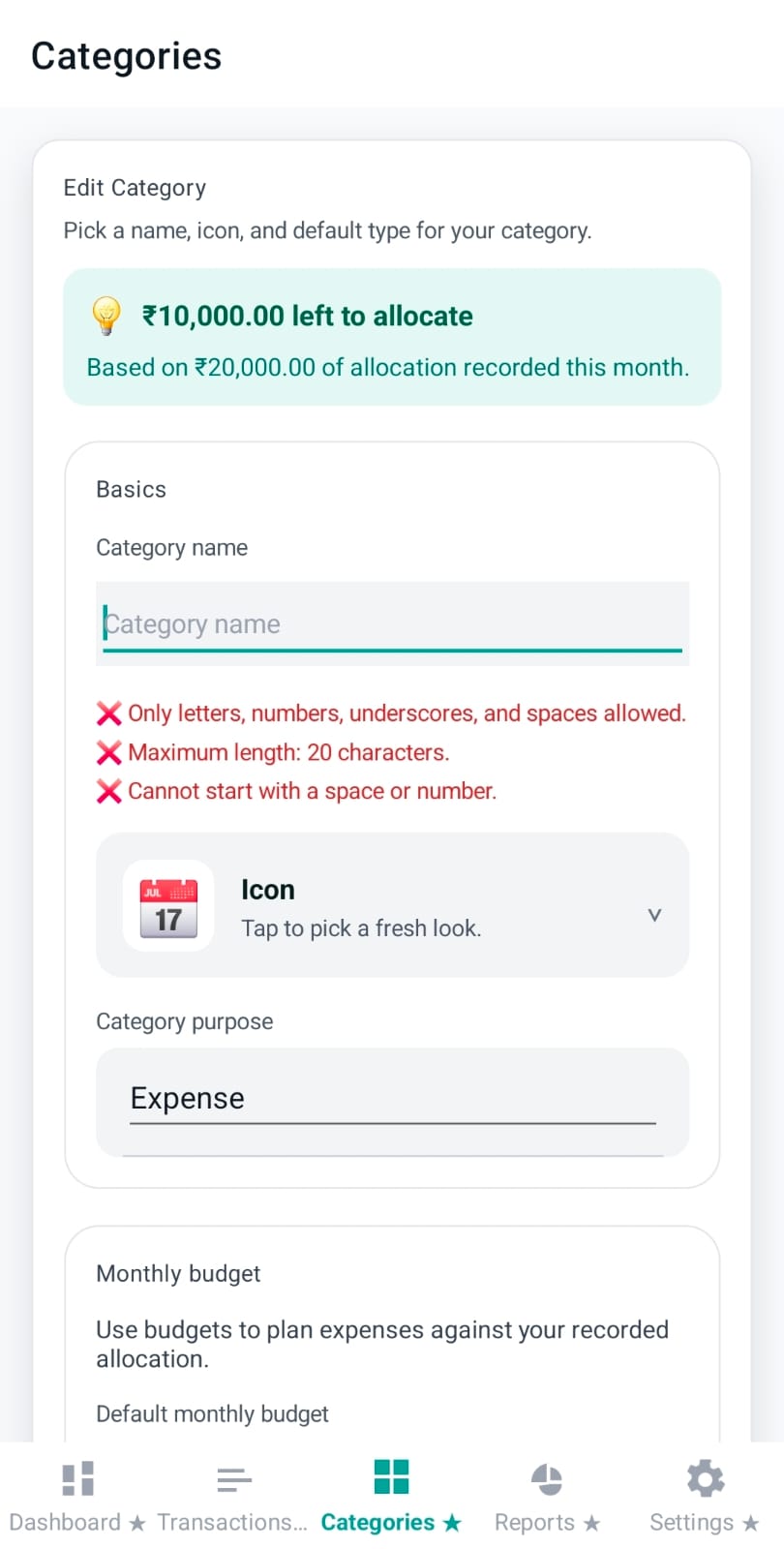
Workflow: You always start by selecting a category. That activates the editor, scrolls the page to the top, and focuses the most relevant field.
Image: categories-overview.jpeg
Default vs custom categories (and access choices)
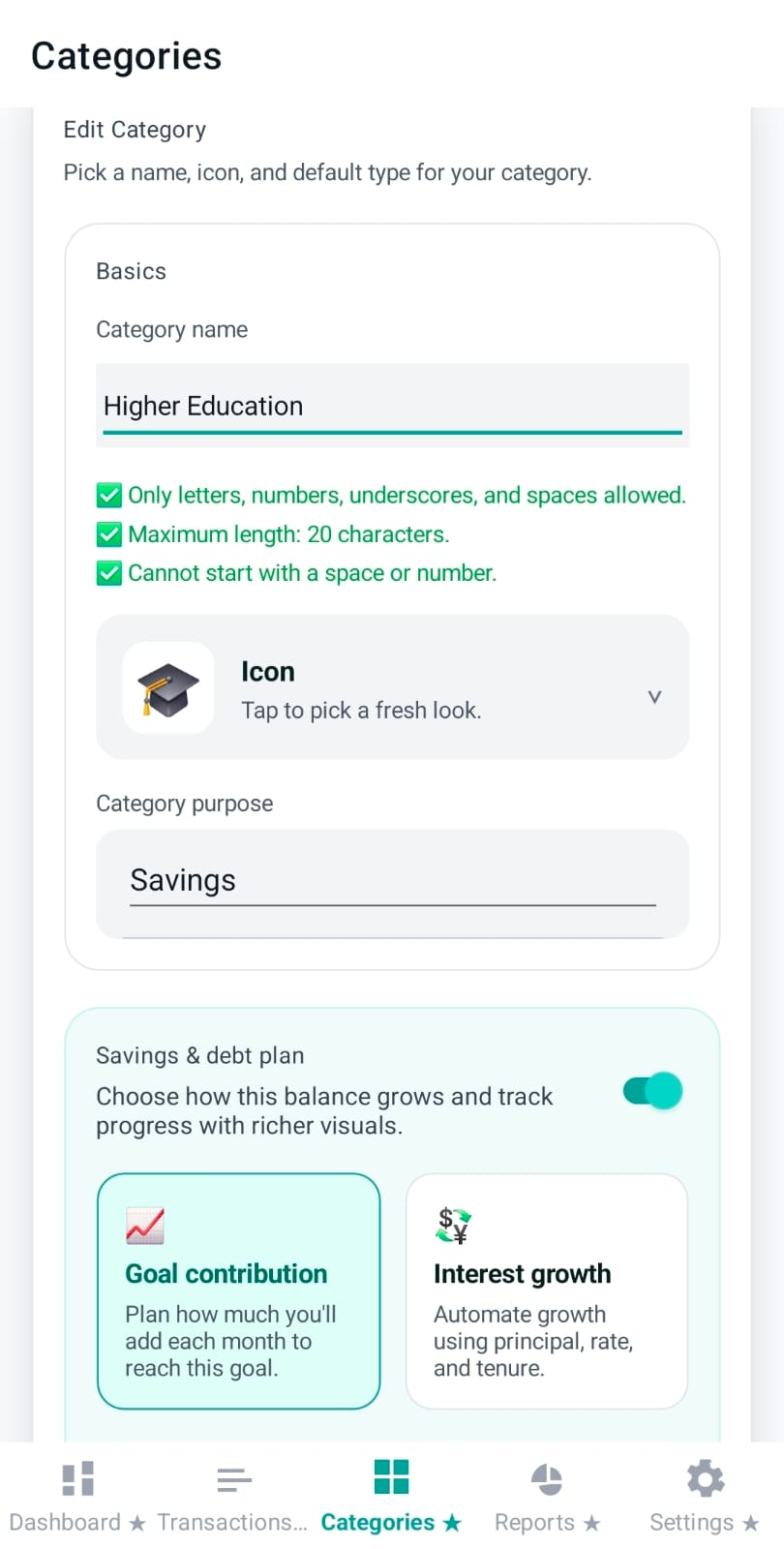
Pennie includes default categories out of the box. You can edit limited fields on them (for example, budgeting), but name and icon are fixed.
Creating and editing custom categories can be unlocked with a rewarded ad for the displayed period. Regular Premium skips this ad. Once access is available, use the editor described below to create or change a category.
Editing basics: name rules + icon picker
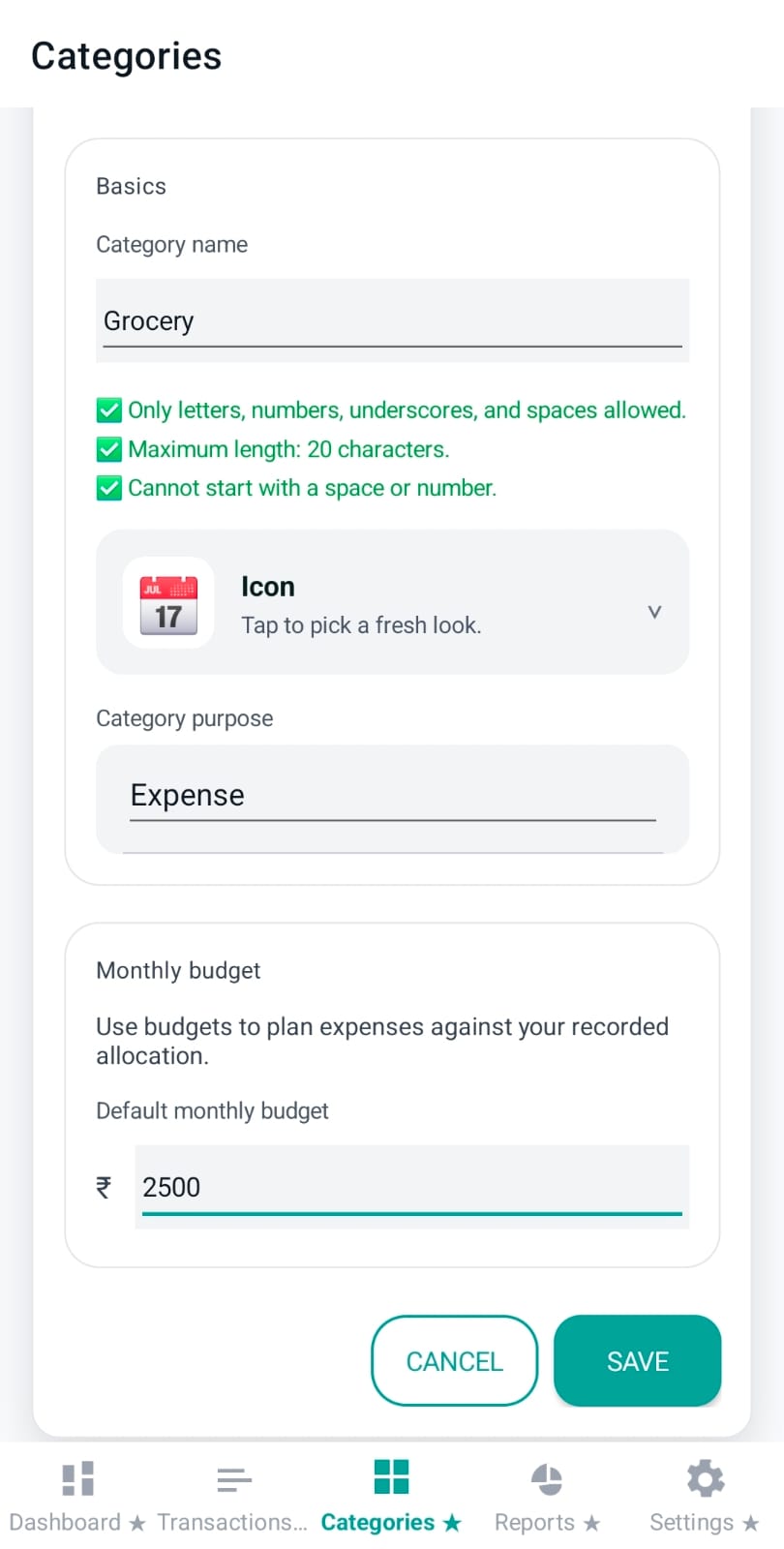
When editing a custom category, Pennie enforces simple, “safe” naming rules (so category labels remain clean everywhere):
Only letters, numbers, underscores, and spaces
Max 20 characters
Cannot start with a space or number
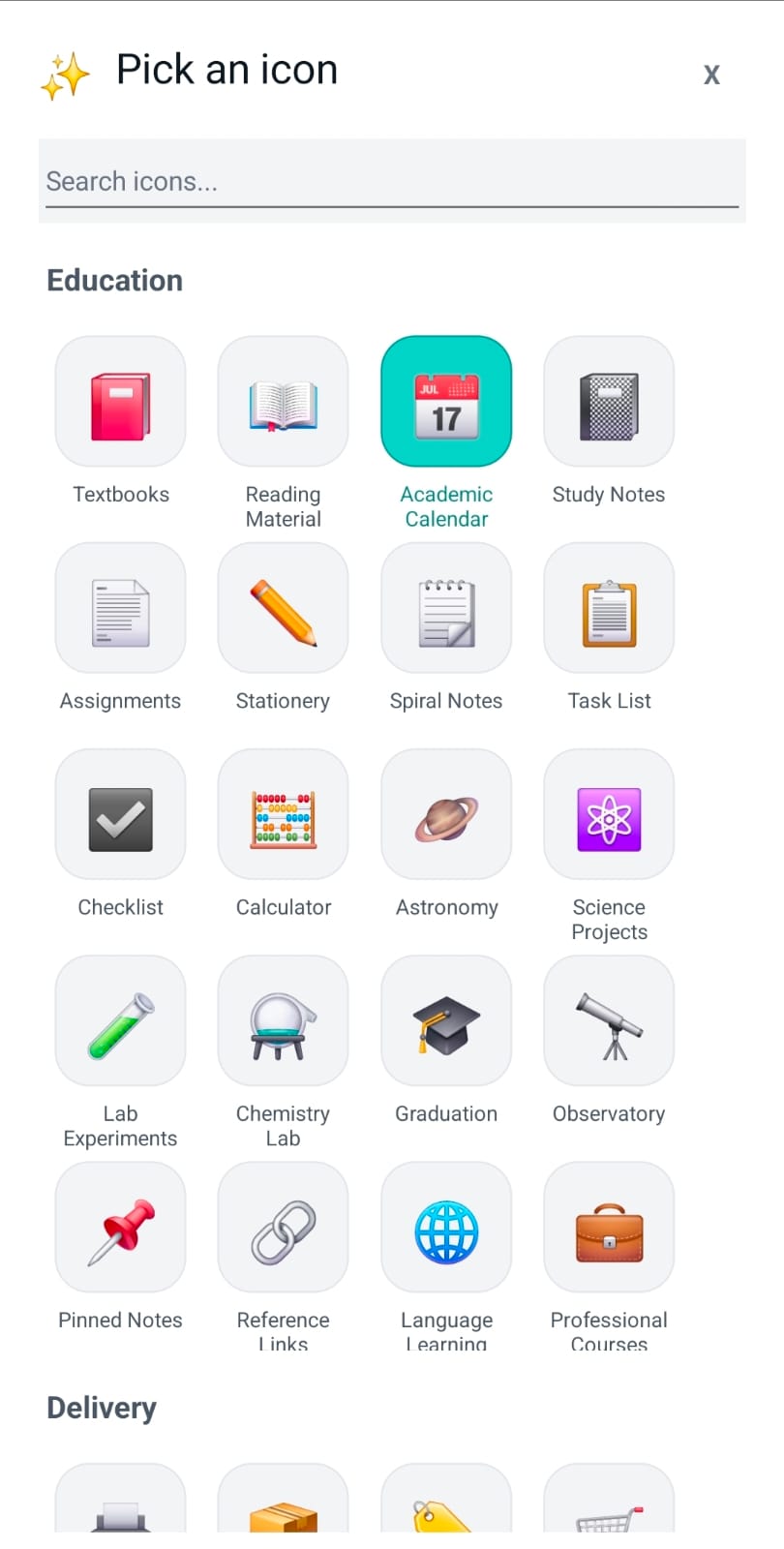
Custom categories can also pick an emoji/icon via the icon picker.
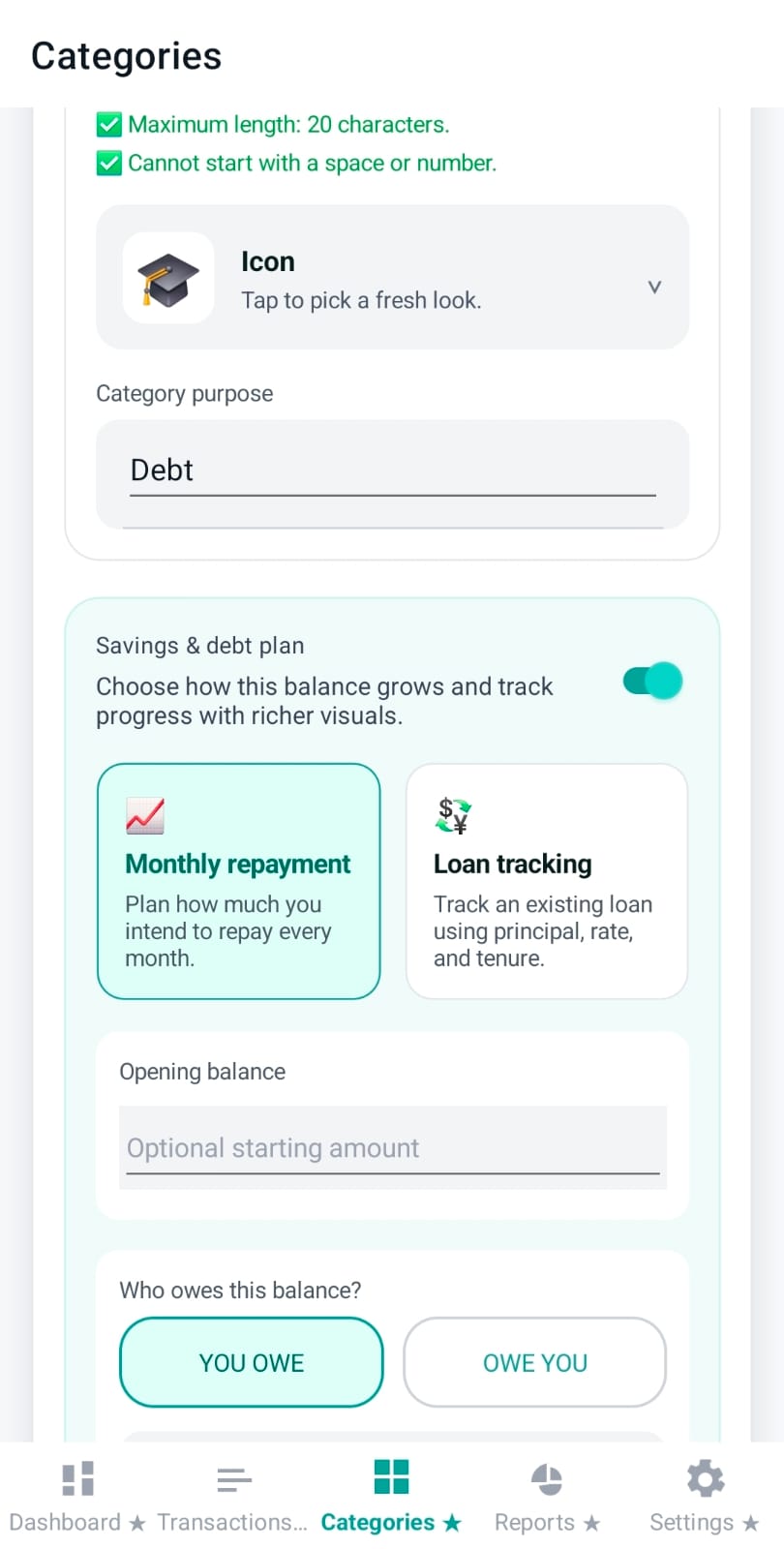
Every category has a “purpose” that changes how Pennie treats totals and planning:
Expense: used for day-to-day spending; supports monthly budgets.
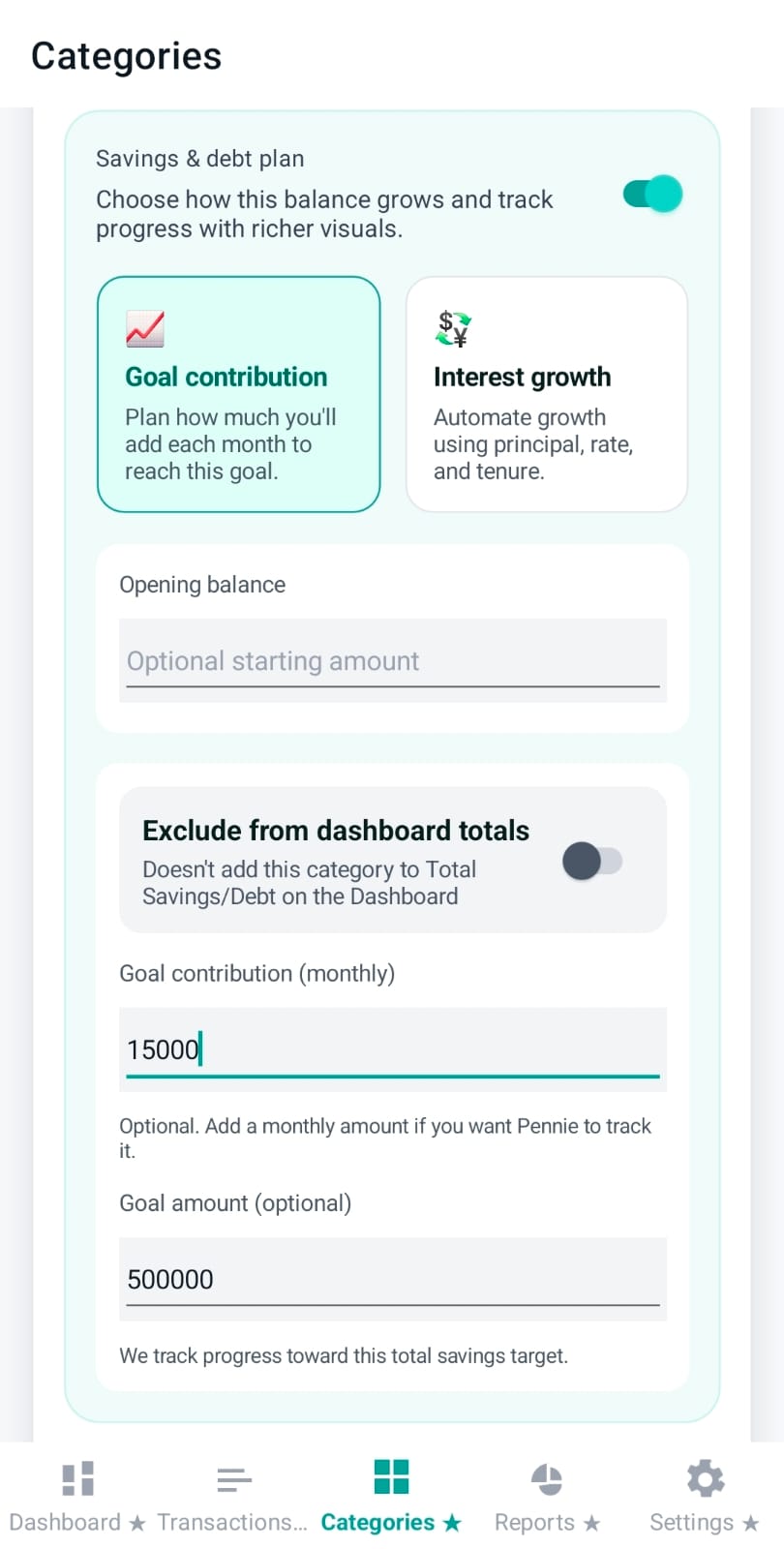
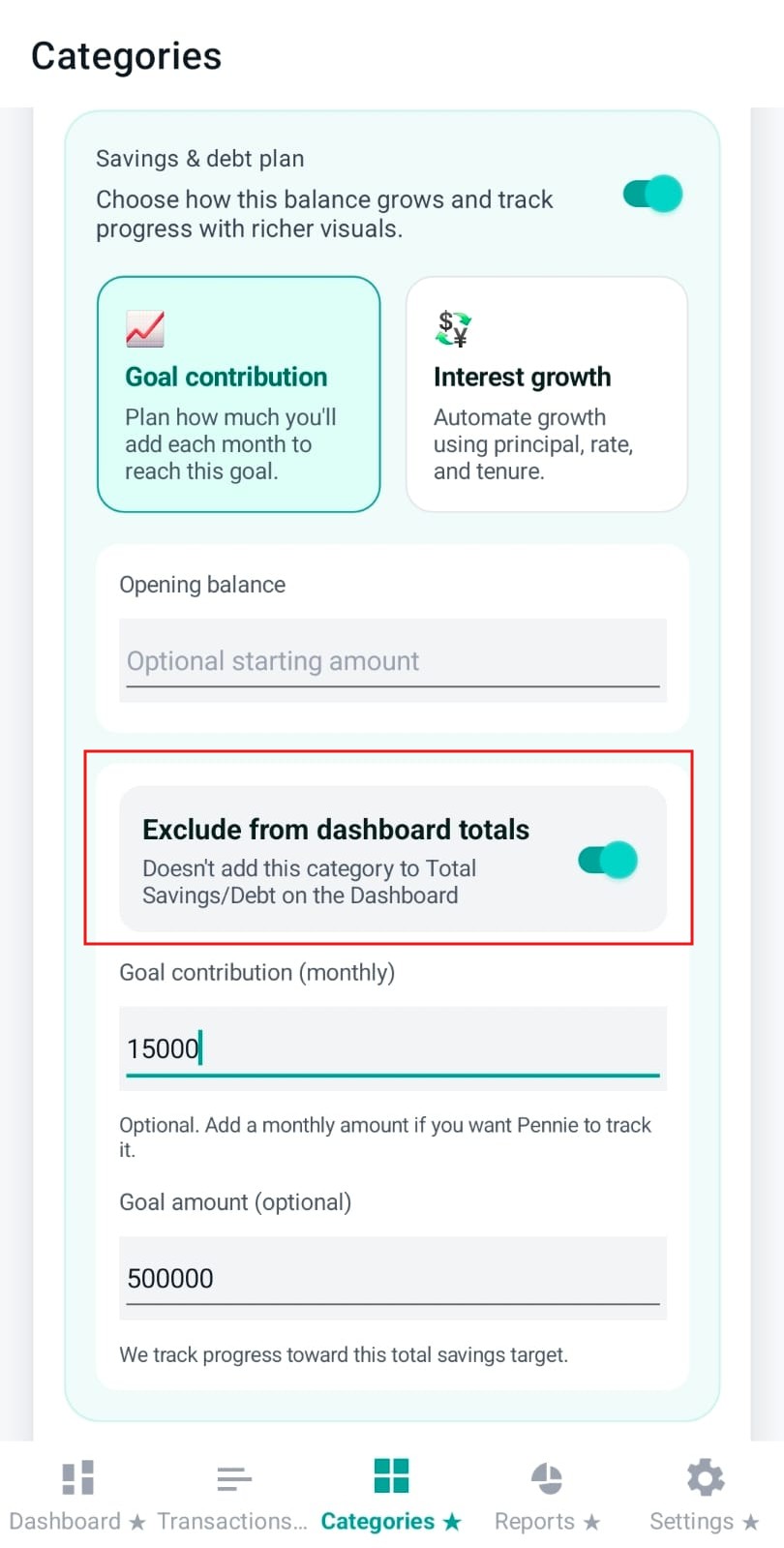
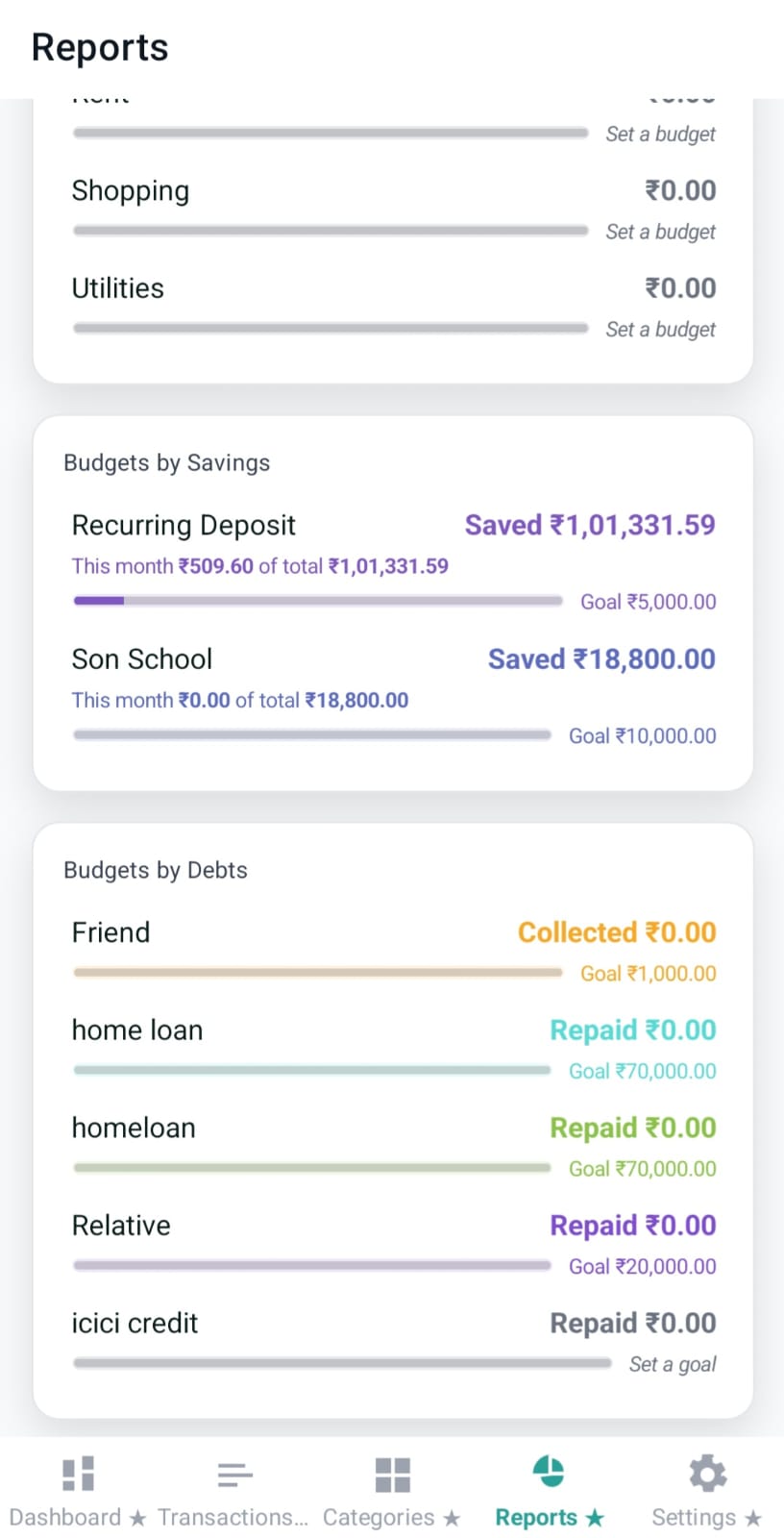
Savings: used for tracking a balance and progress (goal contribution or interest growth).
Debt: used for tracking amounts you owe or amounts owed to you (repayment/collection plans, optional loan tracking).
Important: Switching the purpose resets or hides fields that don’t apply (for example, Expense budgets are cleared when switching to Savings/Debt).
Expense budgeting (per category): budget amount + “remaining allocation” status
For Expense categories, Pennie supports an optional default monthly budget. This is used to plan spending against the allocation you’ve actually recorded for the current month.
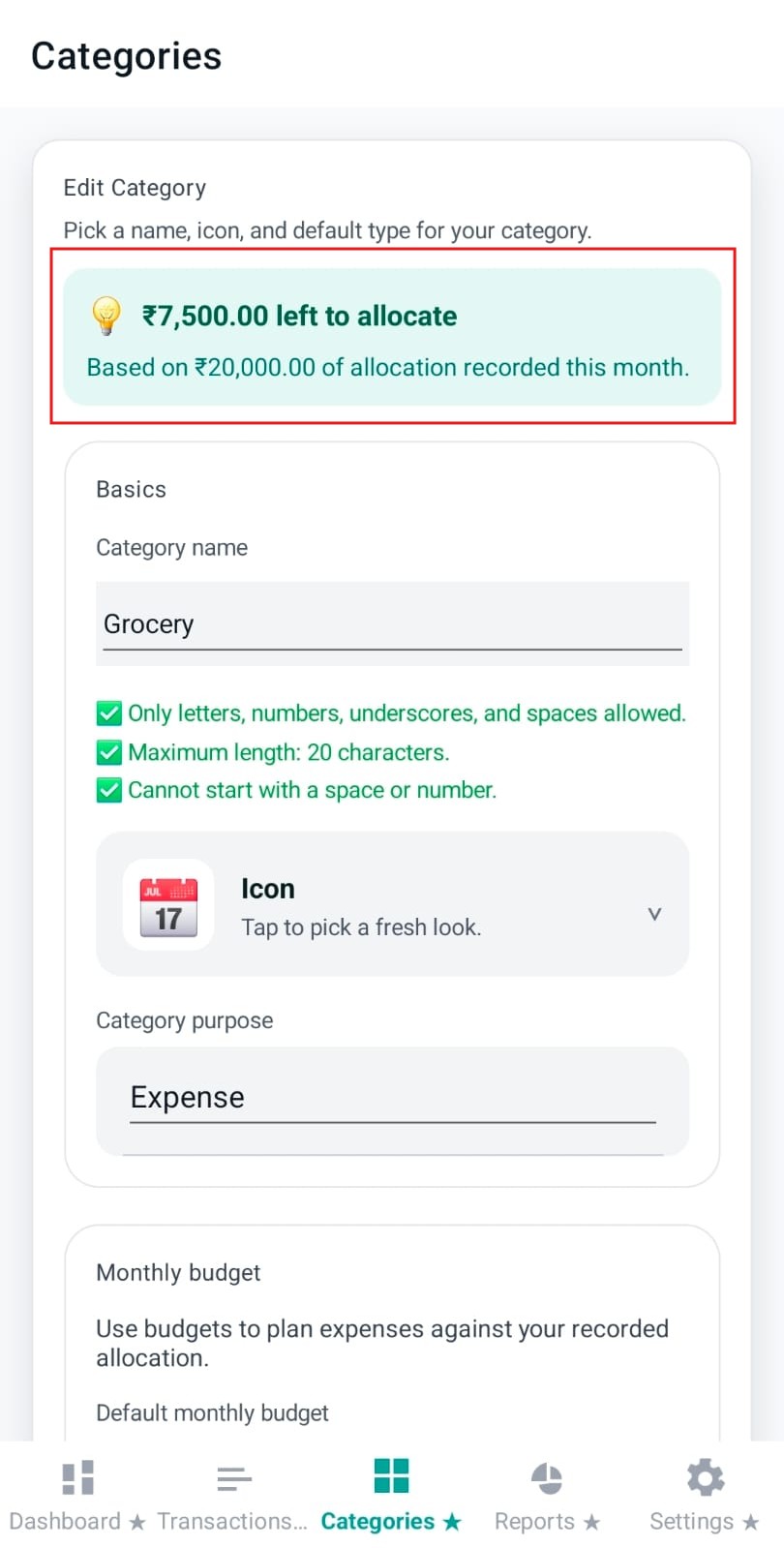
While editing an expense budget, a status banner explains the situation in real time:
Allocation missing: budgets are locked until at least one allocation transaction exists this month.
Money left to allocate: total budgets are under recorded allocation.
Over budget: total budgets exceed recorded allocation.
Exact match: budgets equal recorded allocation.
Insight: The banner evaluates the total budget across all categories, not only the one you’re editing, so you always know whether your overall plan is feasible.
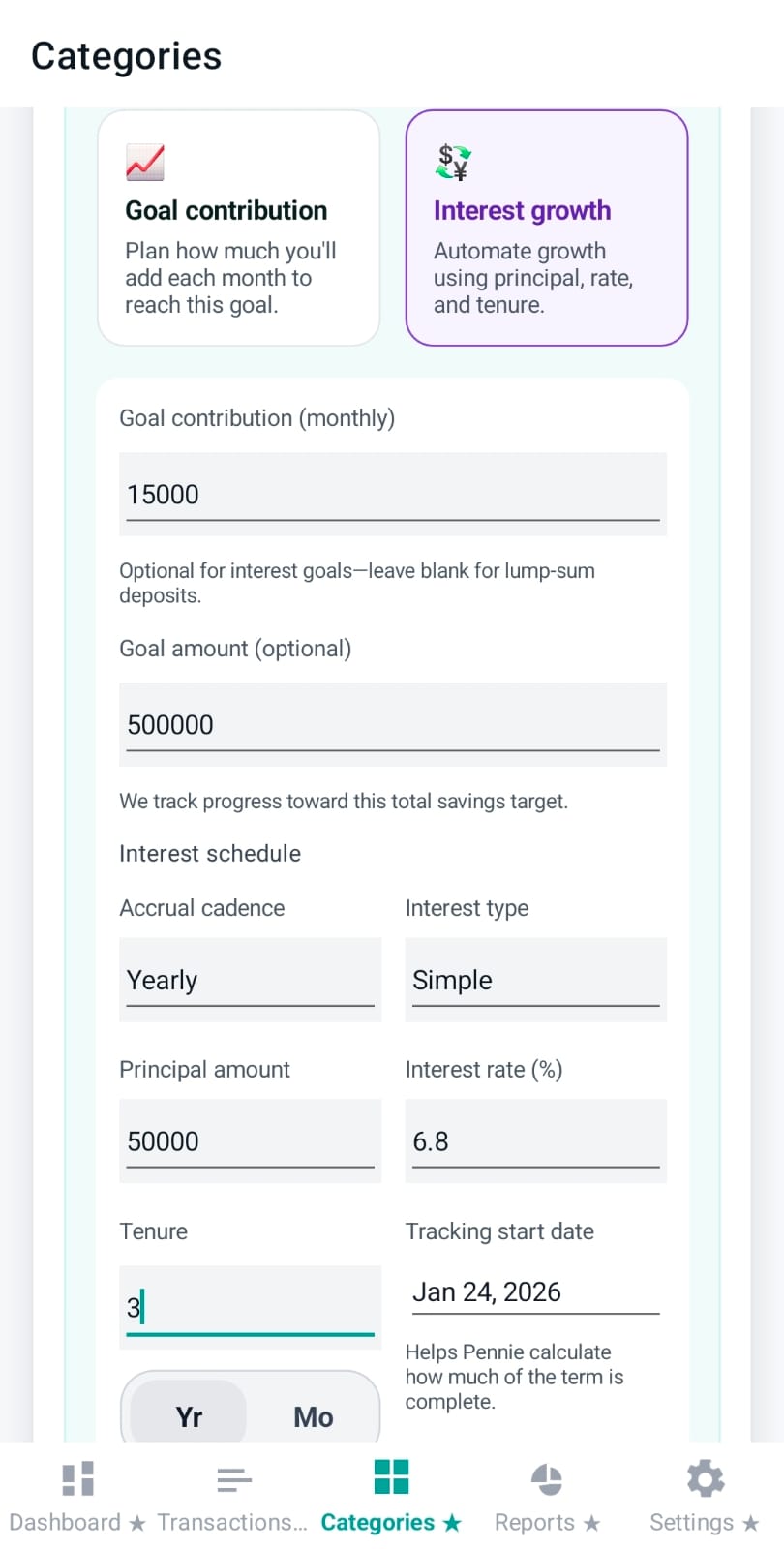
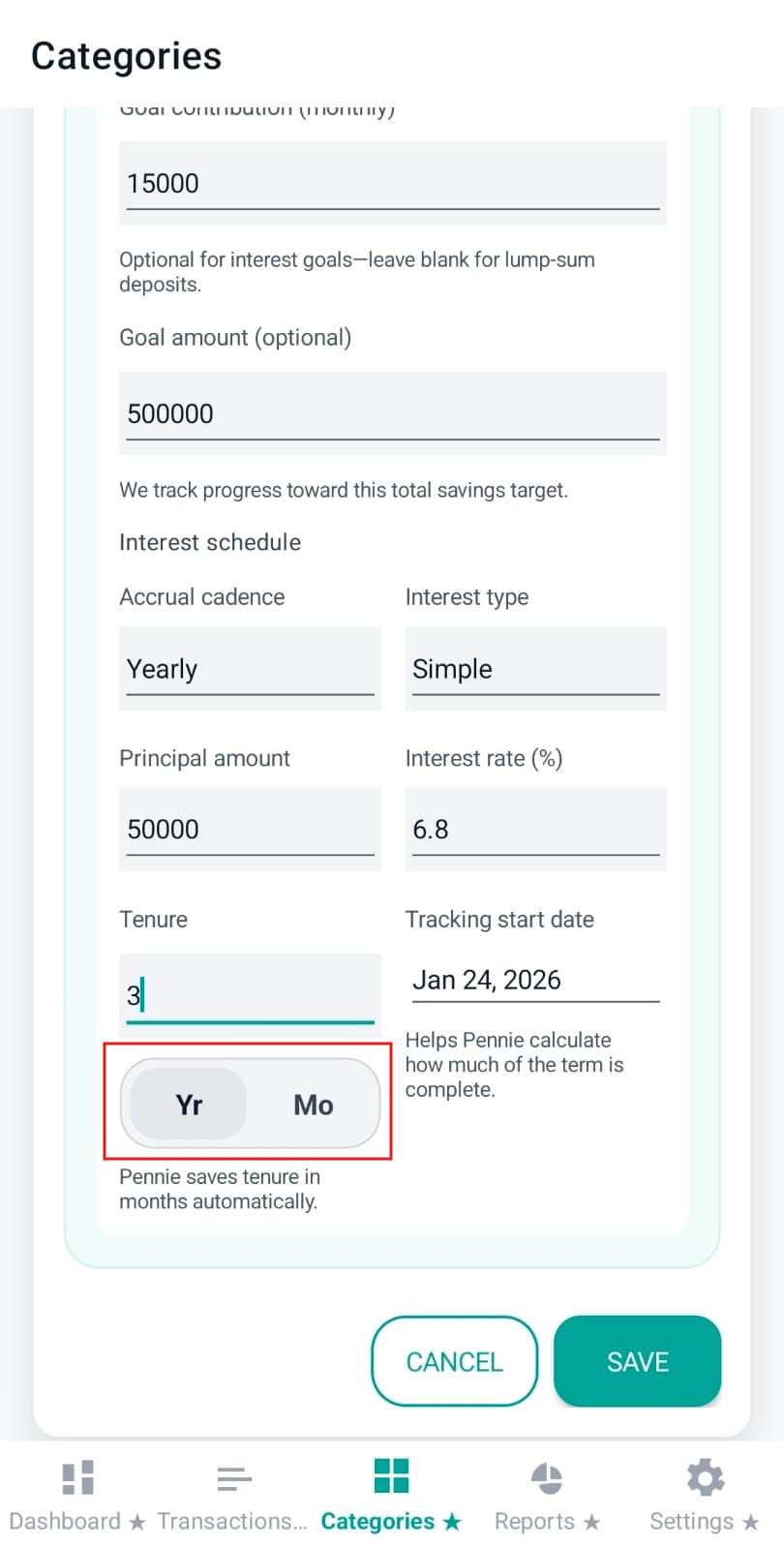
If you choose Interest deposit for a Savings category, Pennie exposes a loan/savings-style interest configuration so growth can be tracked more accurately over time.
Key fields:
Accrual cadence: how often interest is computed and “earned” (daily = every day, monthly = every month, quarterly = every 3 months, yearly = once per year). The annual rate is converted into the chosen cadence.
Interest type: simple vs compound.
Cumulative cadence (compound/deposits): when accrued interest is credited back into the corpus/principal (monthly/quarterly/yearly). This affects the next period’s interest calculation.
Principal amount: baseline amount the interest is calculated on.
Interest rate (%): annual rate.
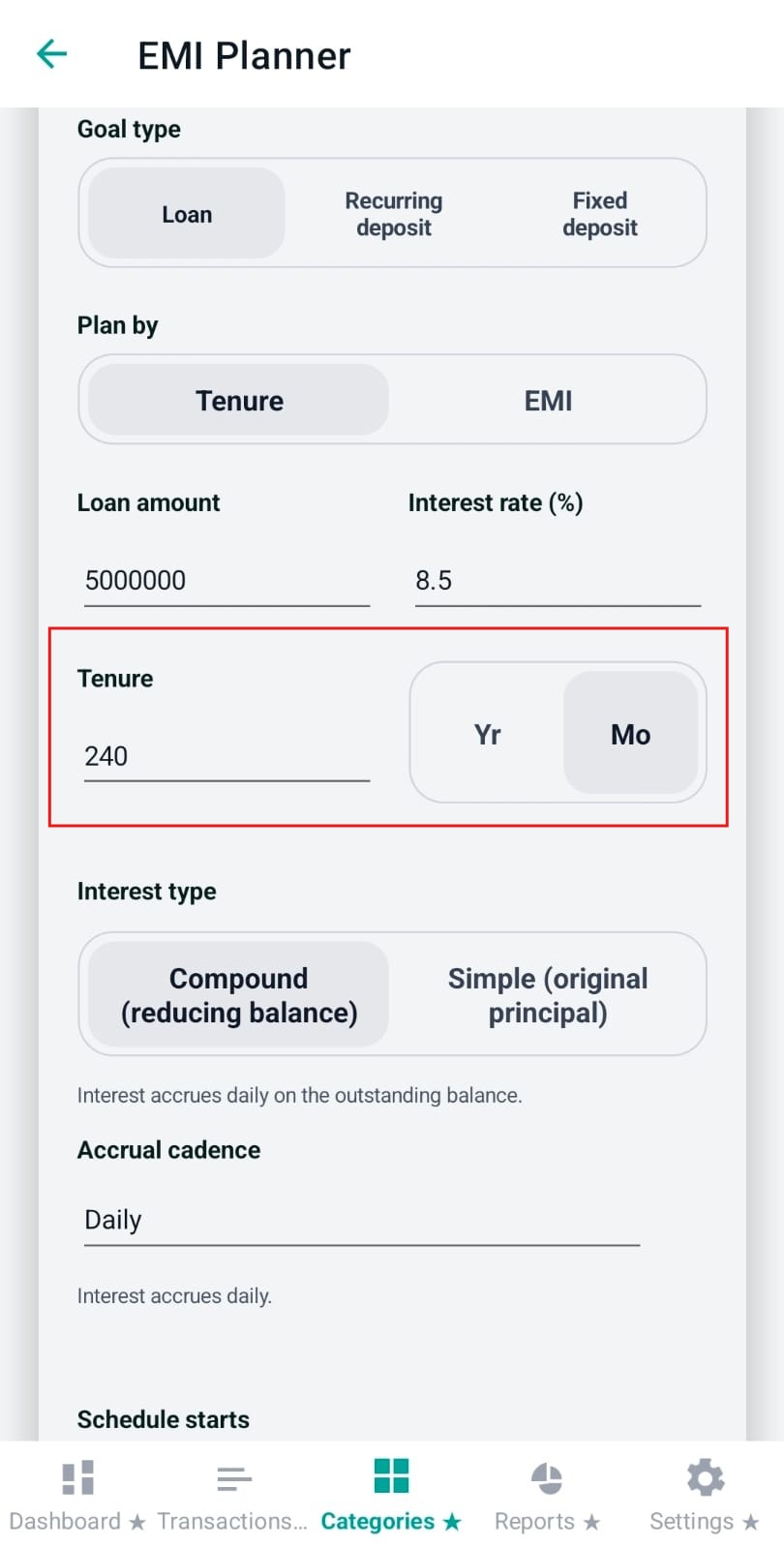
Tenure: months or years (Pennie stores tenure internally in months).
Convenience: When interest is enabled and the monthly target is empty, Pennie may suggest a monthly target (based on principal + rate) to help you plan contributions.
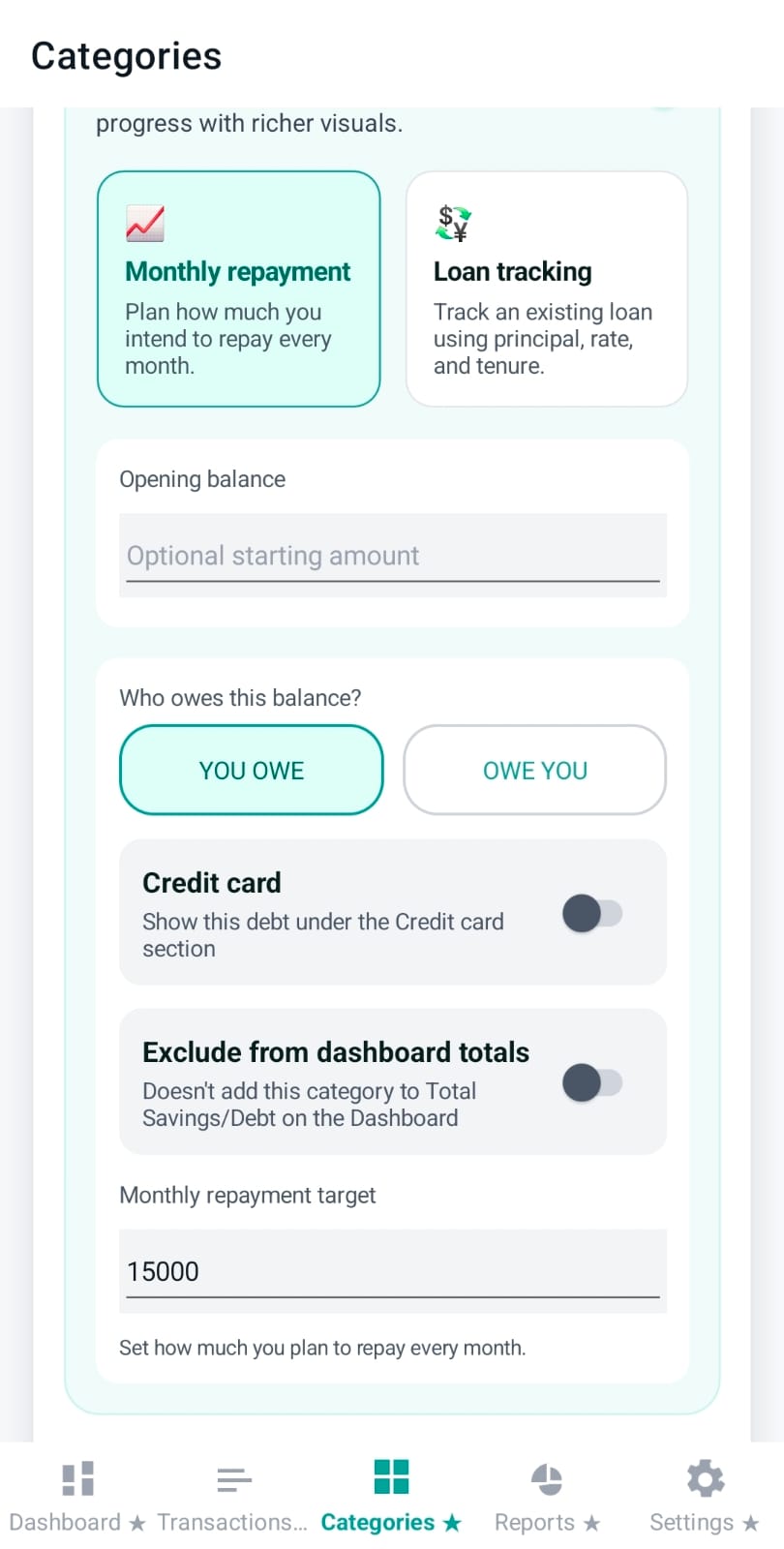
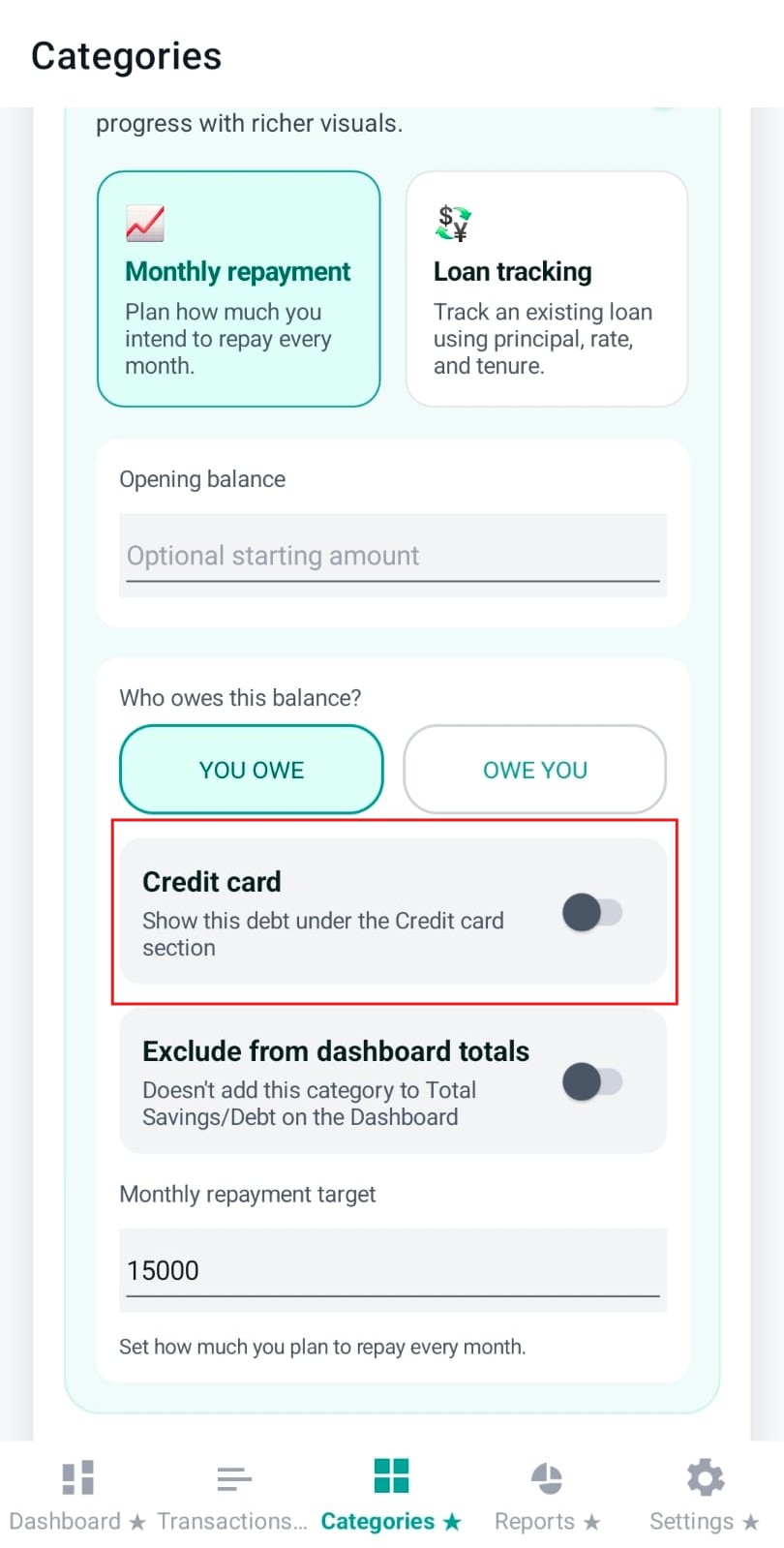
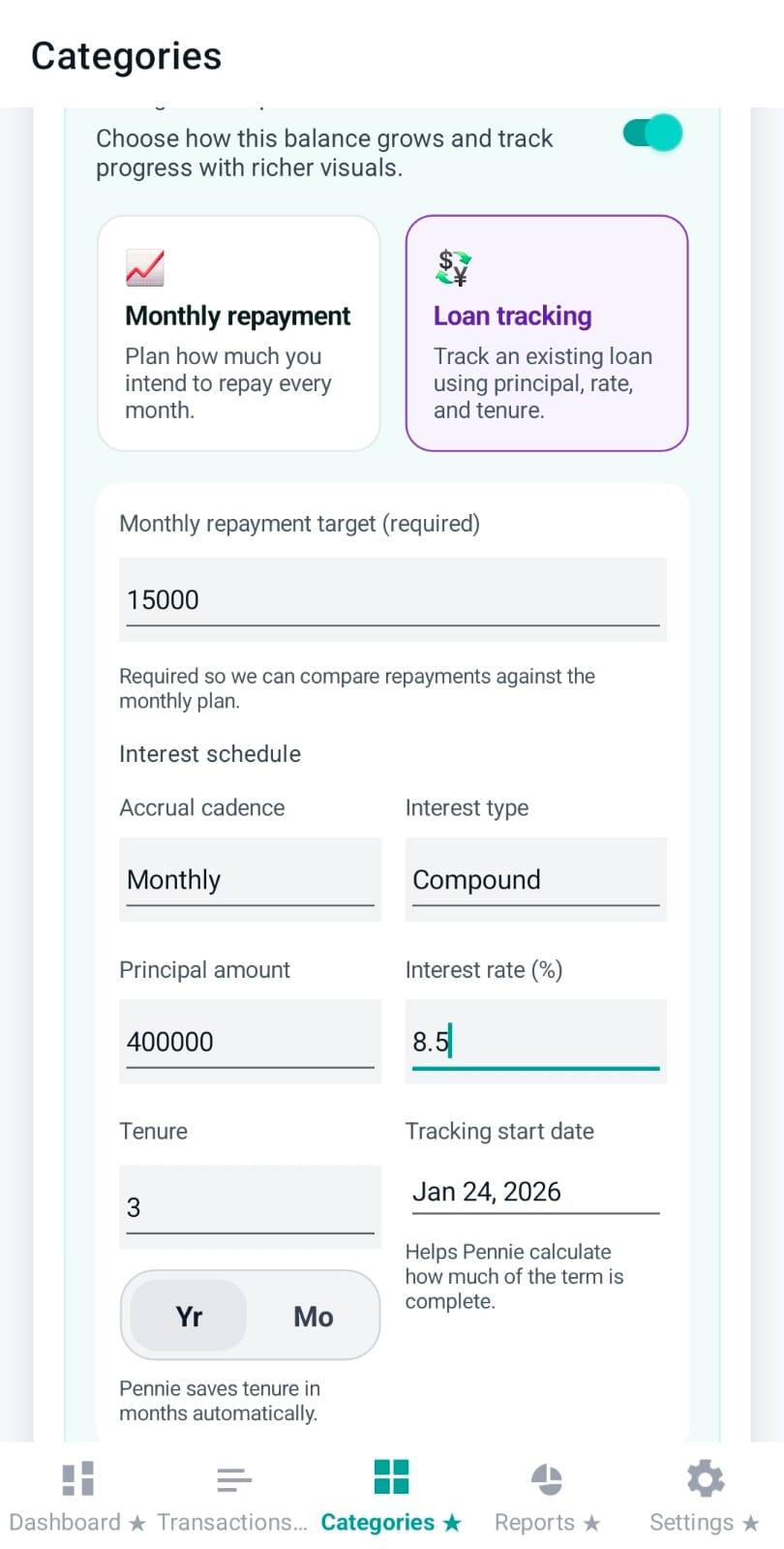
When interest tracking is enabled for a Debt category, Pennie treats it like a loan plan:
Interest settings (principal/rate/cadence/tenure/start date) become mandatory and are validated.
A positive monthly repayment target becomes required so Pennie can compare actual repayments against the plan.
Design detail: in interest mode, Pennie locks the debt direction to “You owe” to keep the math and labels consistent.
Image: categories-debt-interest-mode.png
Disabling categories (instead of deleting)
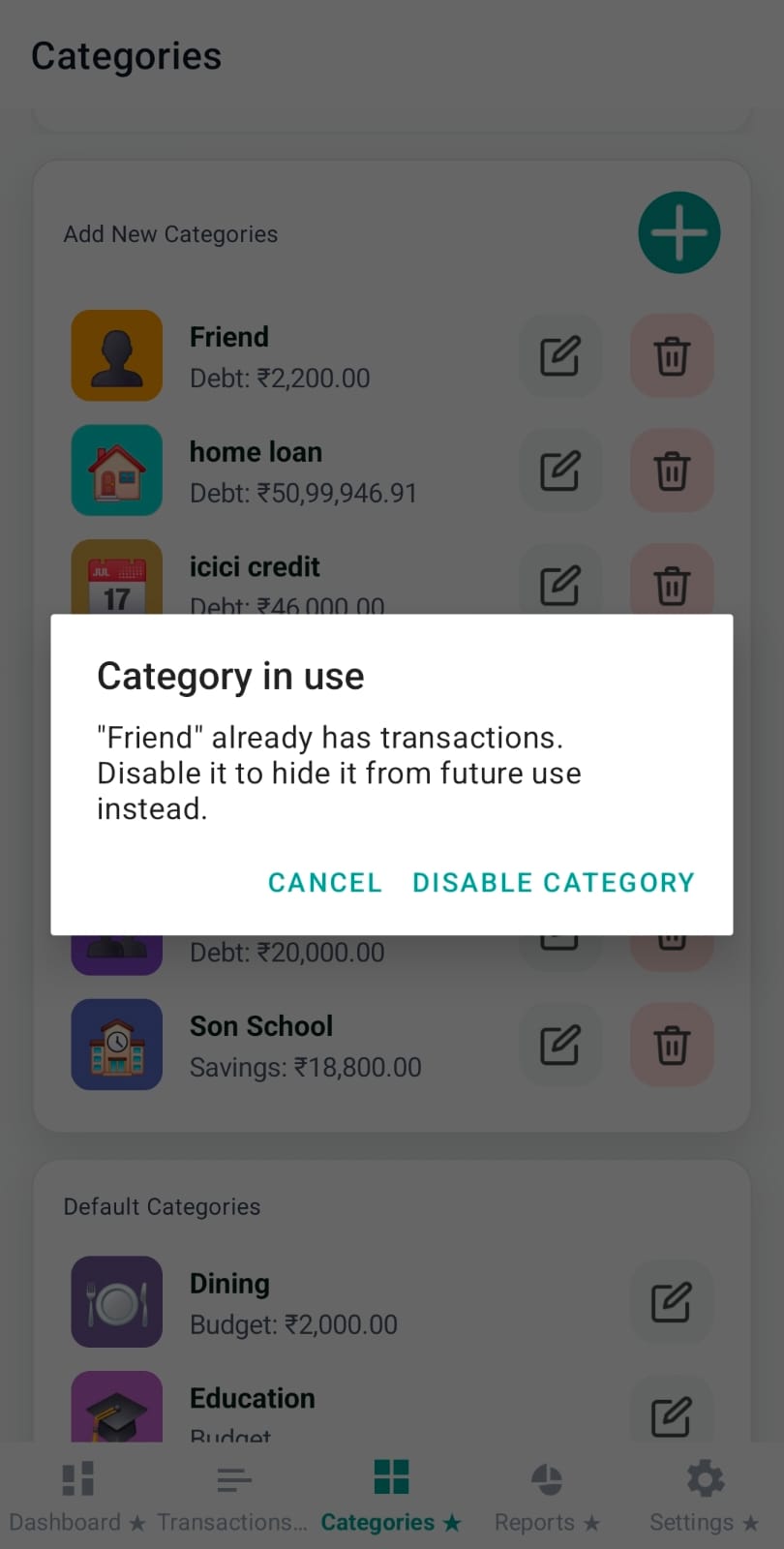
If a custom category already has transactions, Pennie encourages disabling it instead of deleting. Disabled categories:
stay hidden from new transactions, reports, and the dashboard
can be re-enabled later
Image: categories-disabled-list.png
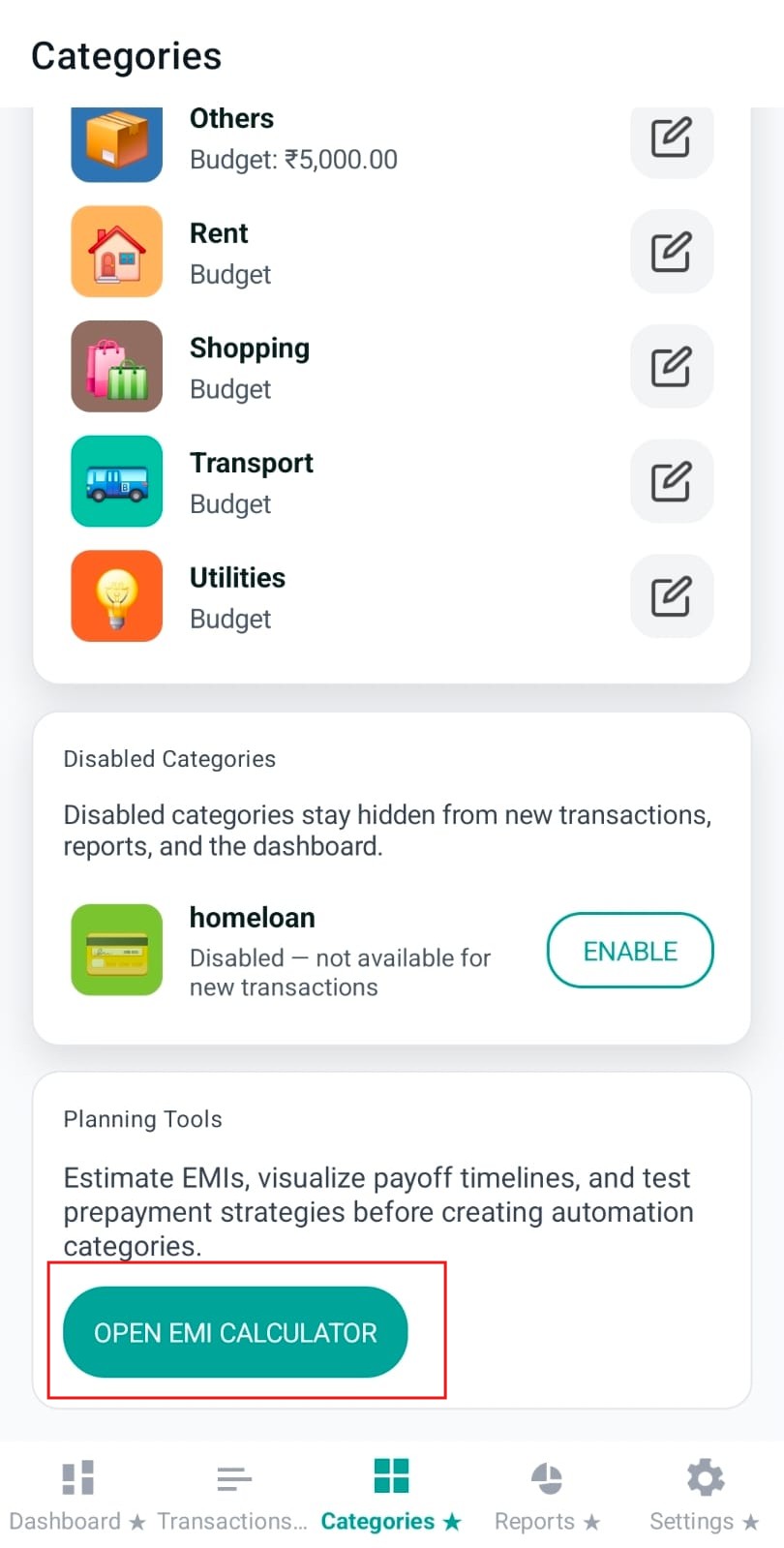
Planning tools: EMI calculator
The EMI planner is now opened from Settings rather than Categories. Estimate loan payments and explore payoff strategies before setting up debt automation. Eligible free users can unlock the planner with a rewarded ad; the same active unlock covers calculations, download and sharing.
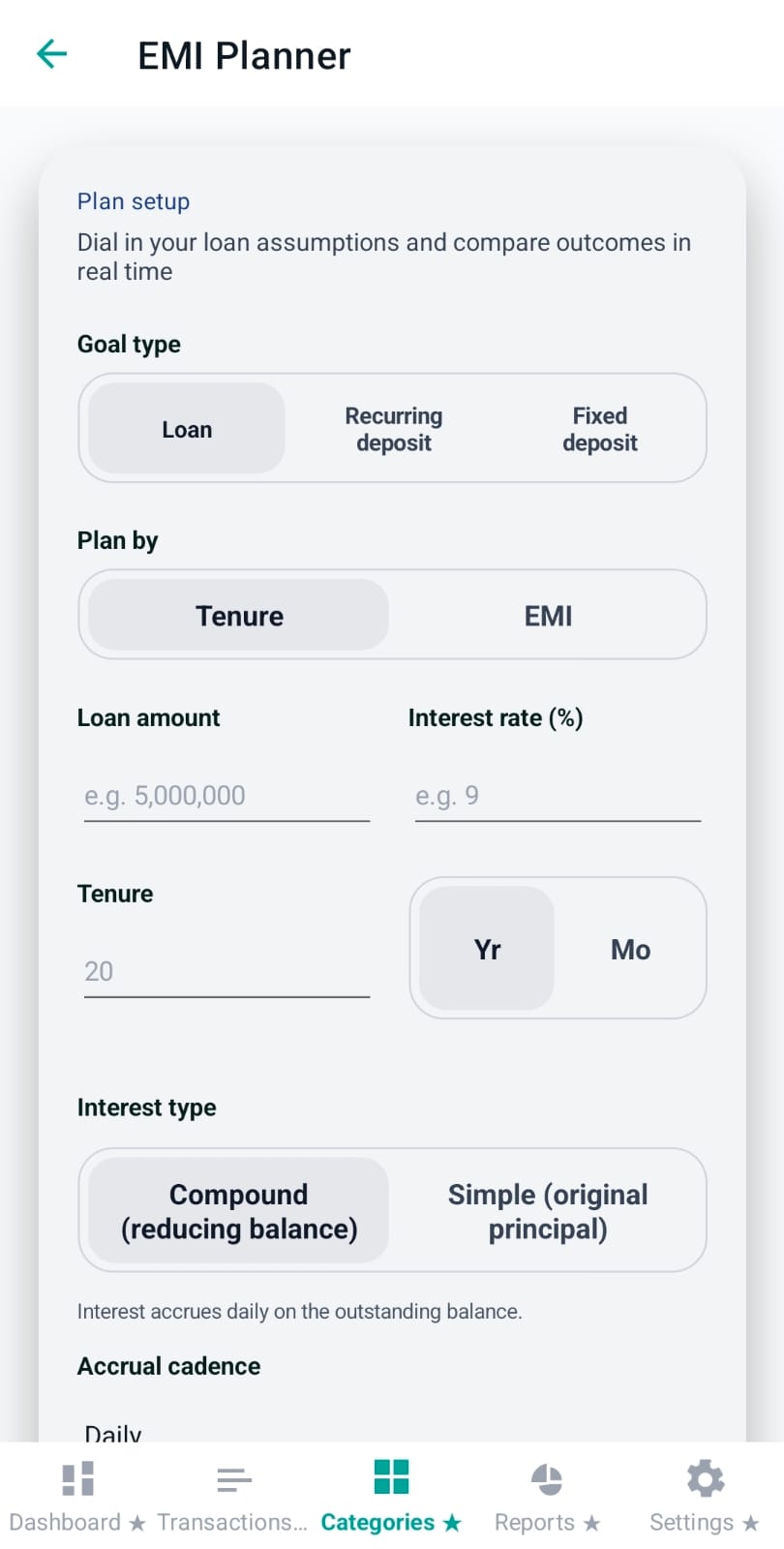
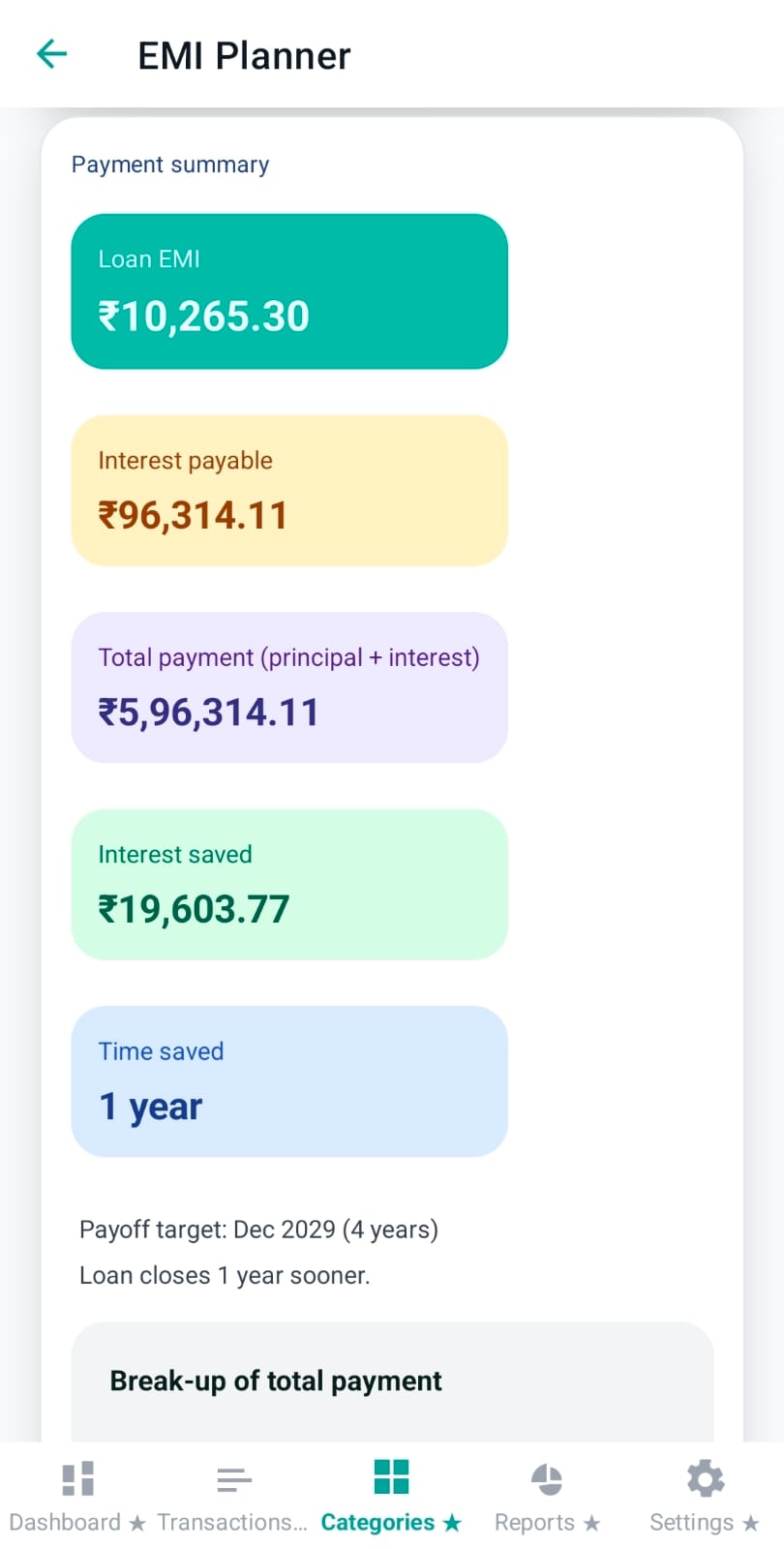
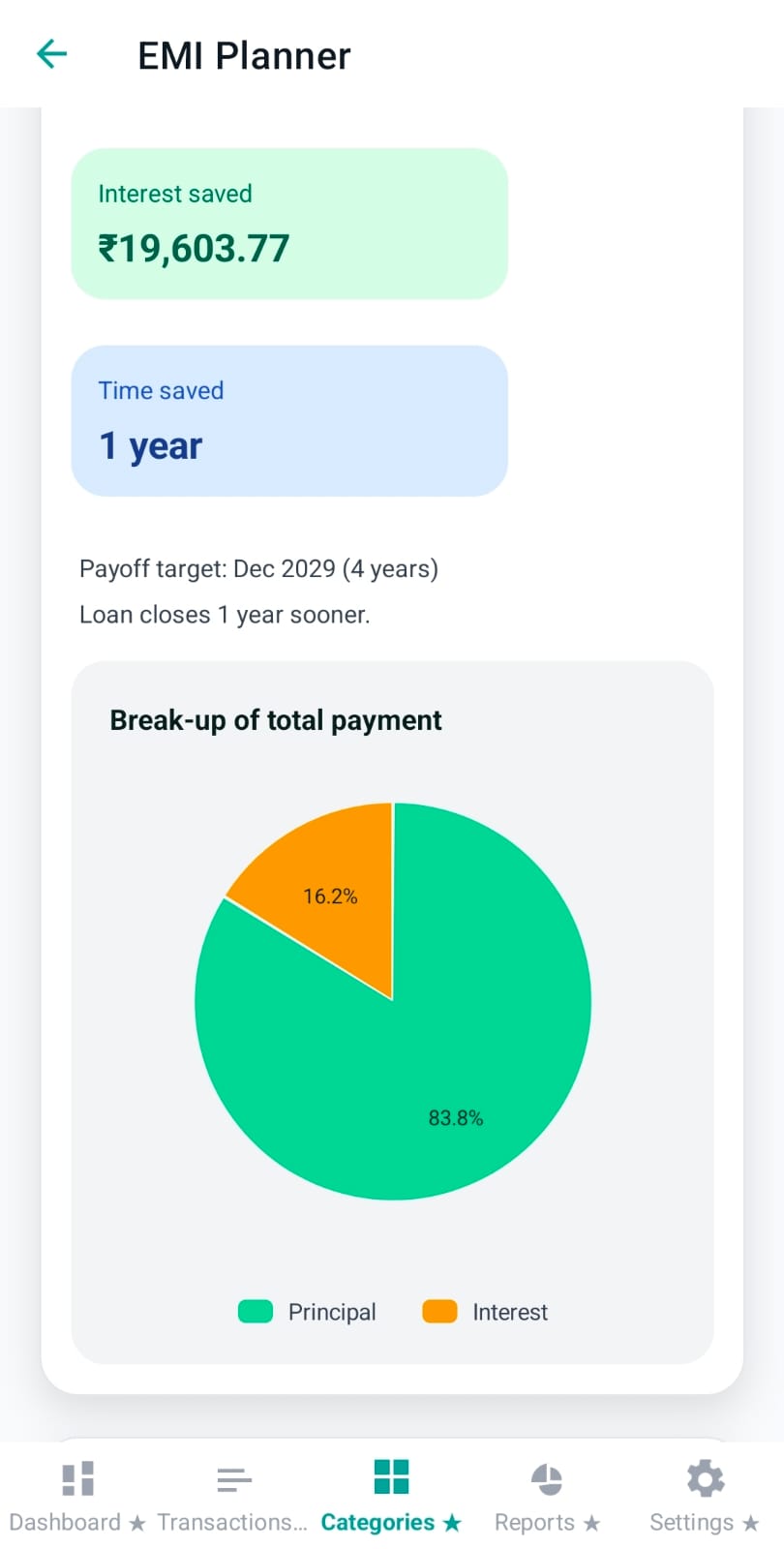
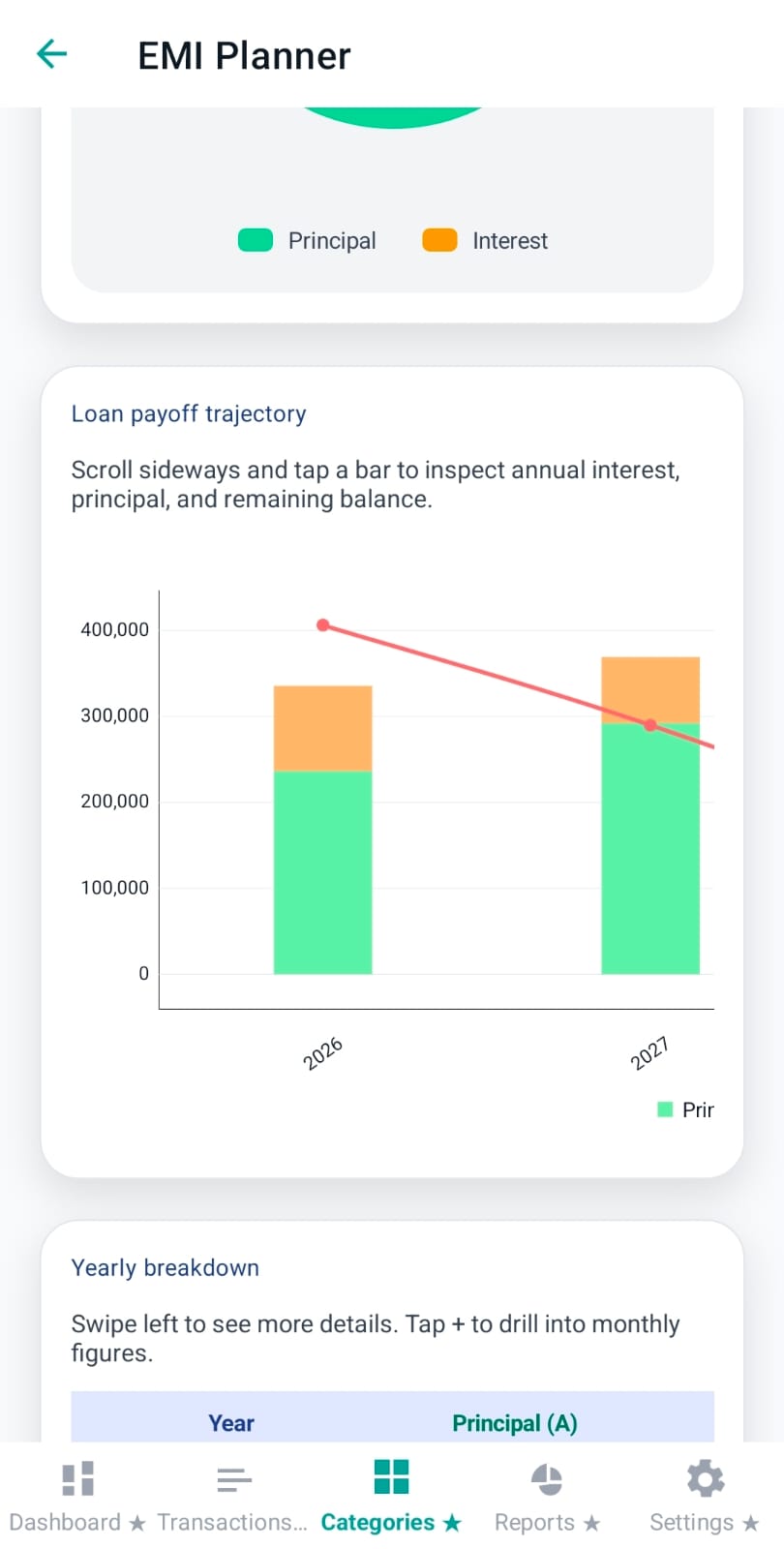
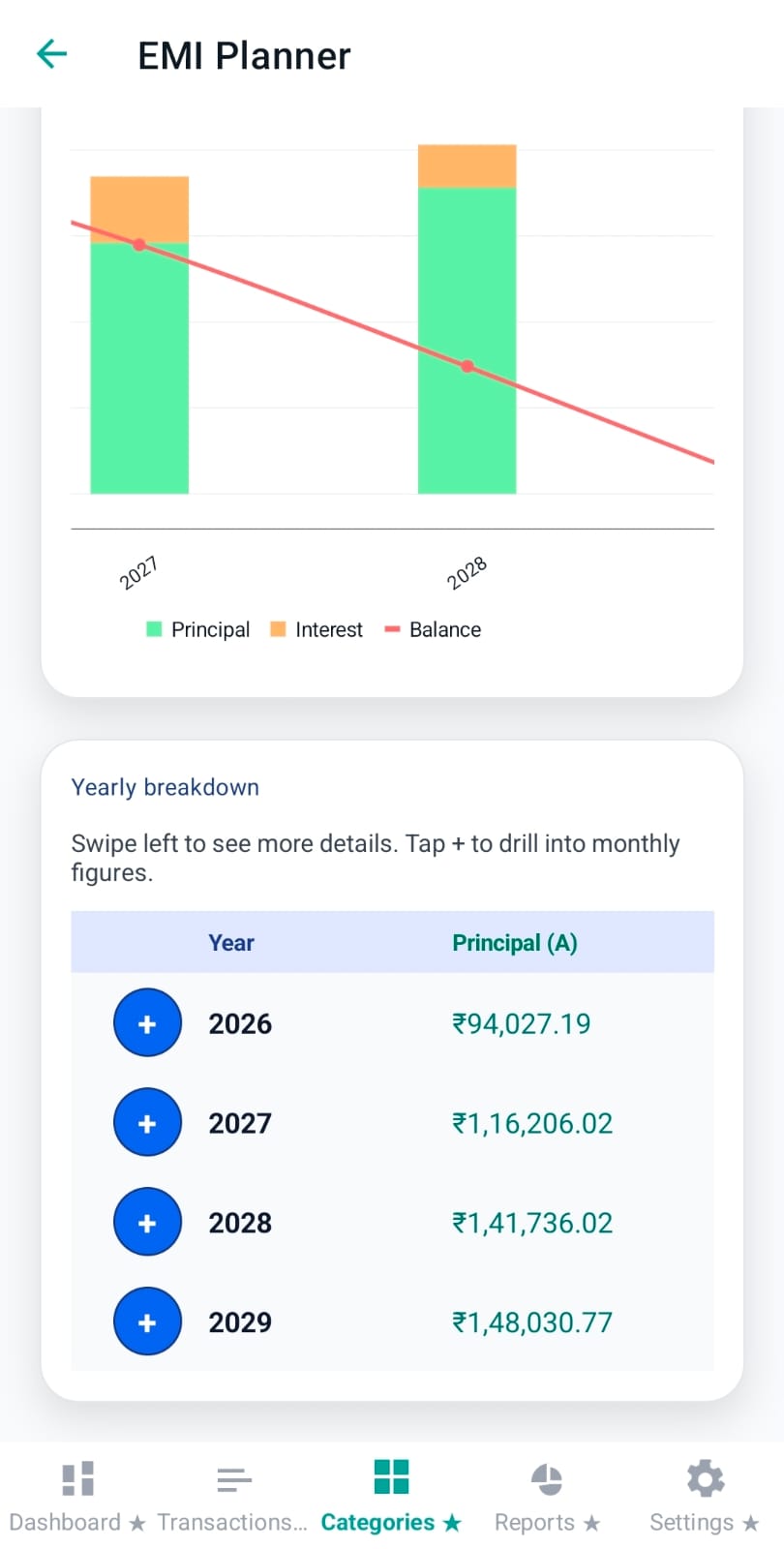
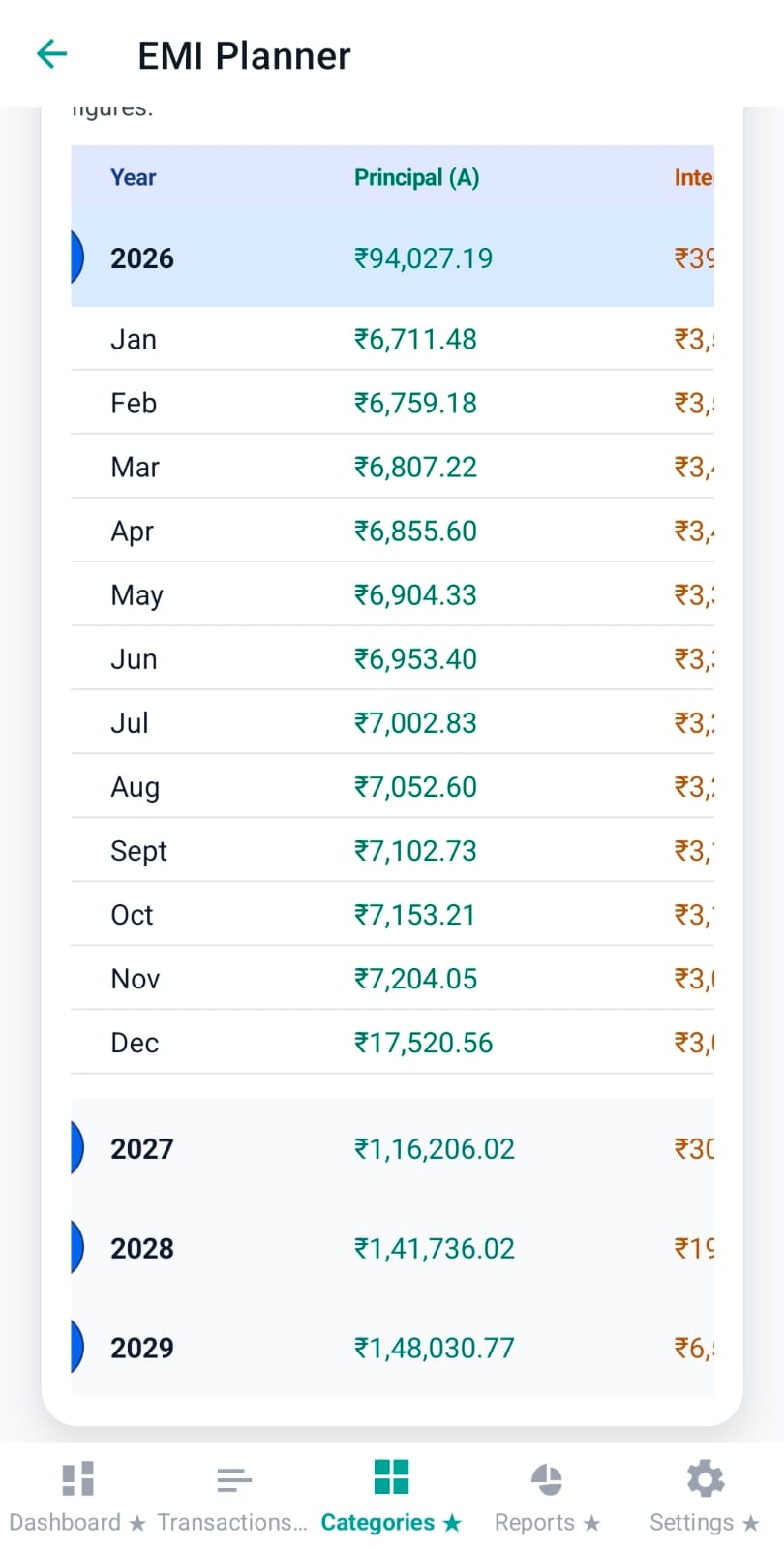
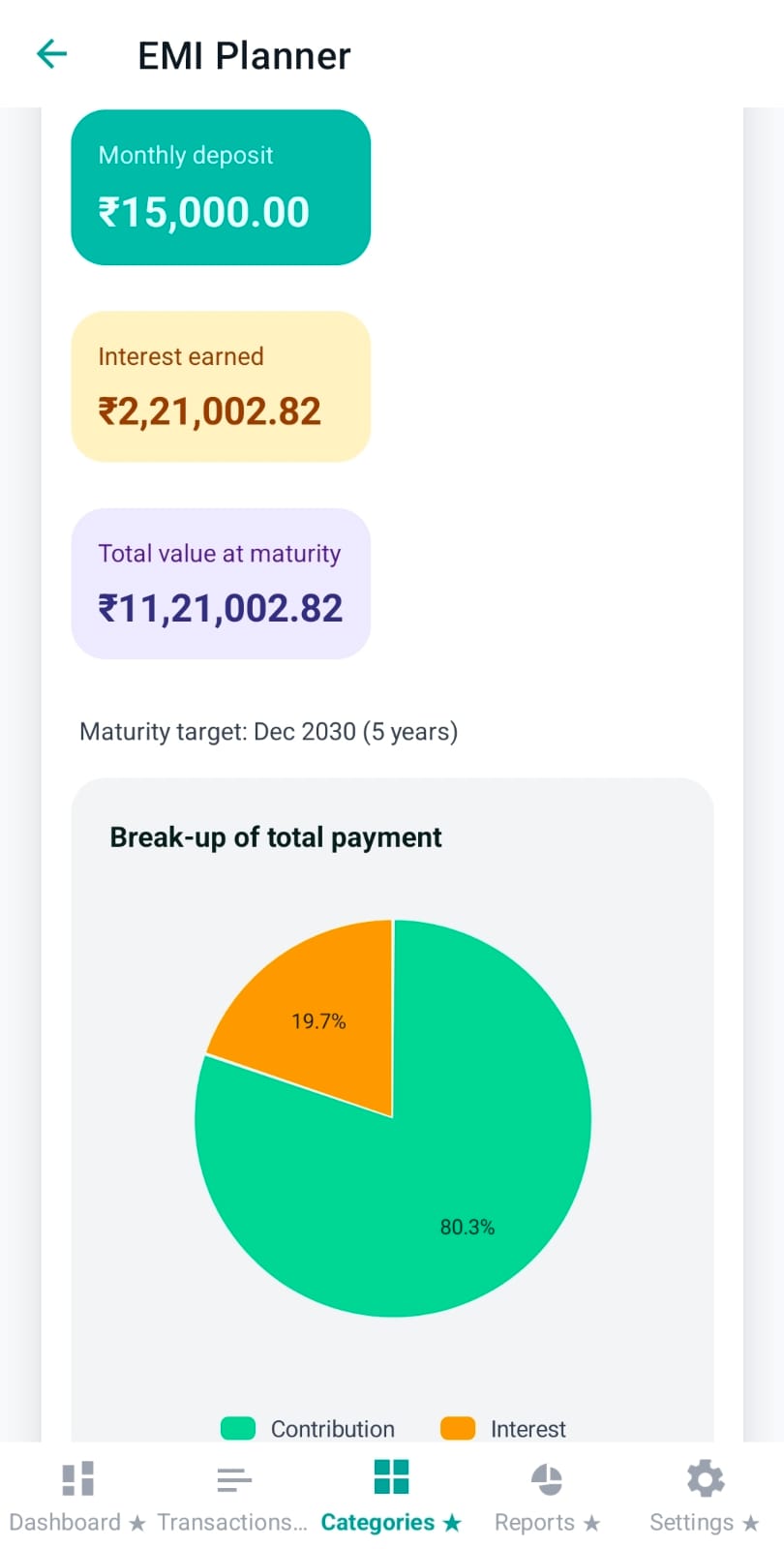
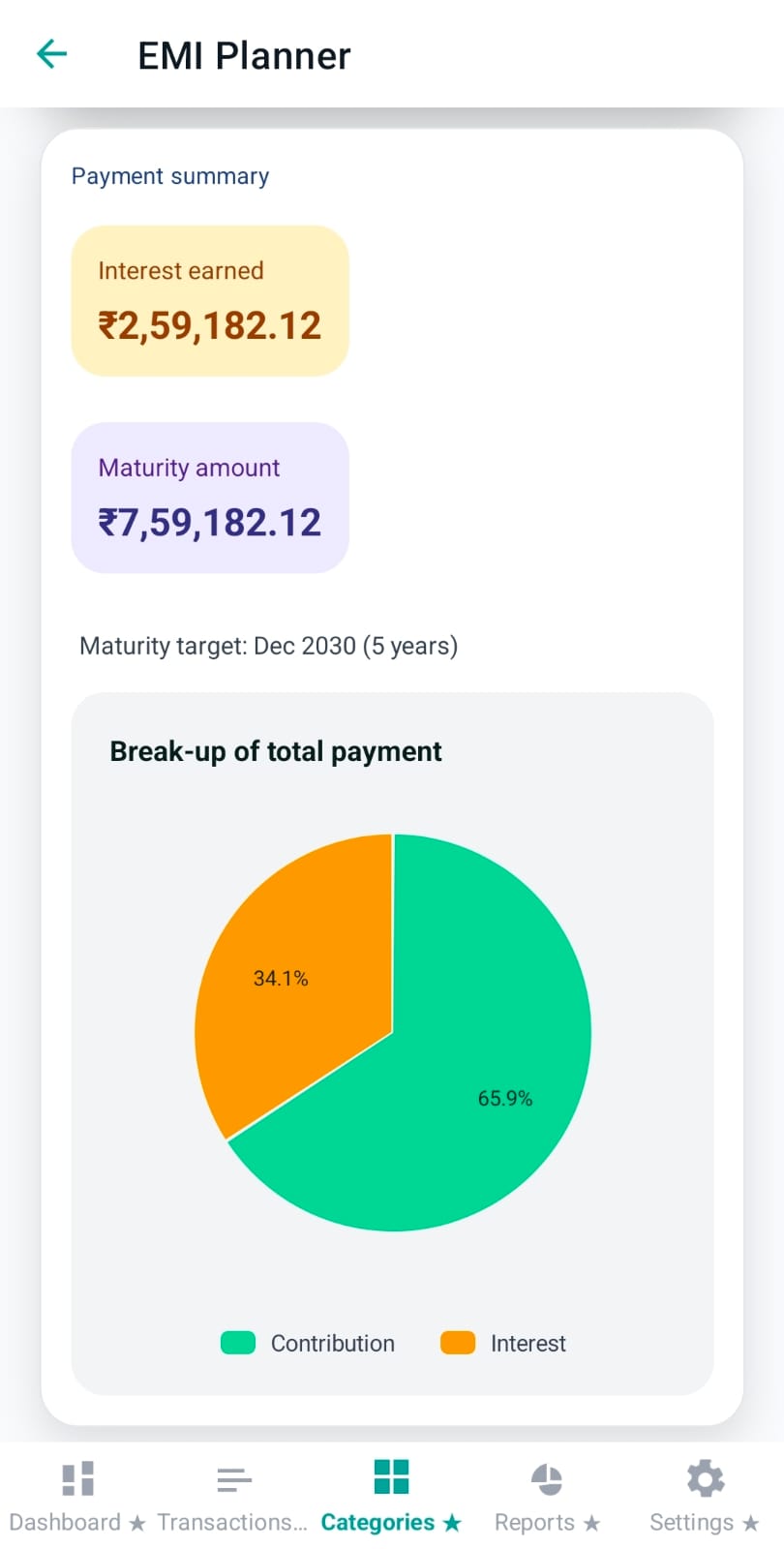
Pennie’s EMI Planner helps users model three goal types: Loan payoff, Recurring deposit (save monthly toward a goal), and Fixed deposit (park a lump sum and see maturity). The planner is interactive: you adjust fields, tap Calculate, and compare outcomes before you commit to a budget or a debt plan.
Where this fits in the Pennie workflow
Most users will use the EMI Planner after they’ve set up categories (especially a Debt category). It’s a “what-if” tool that helps answer questions like:
Loan payoff: “If I pay ₹X per month, when will I close this loan? How much interest will I pay?”
Acceleration: “If I increase my EMI each year and add one extra payment, how much time/interest do I save?”
Goal to buy something: “If I invest ₹X monthly (RD) or ₹X once (FD), what value will it reach and when?”
Image: emi-planner-overview.png
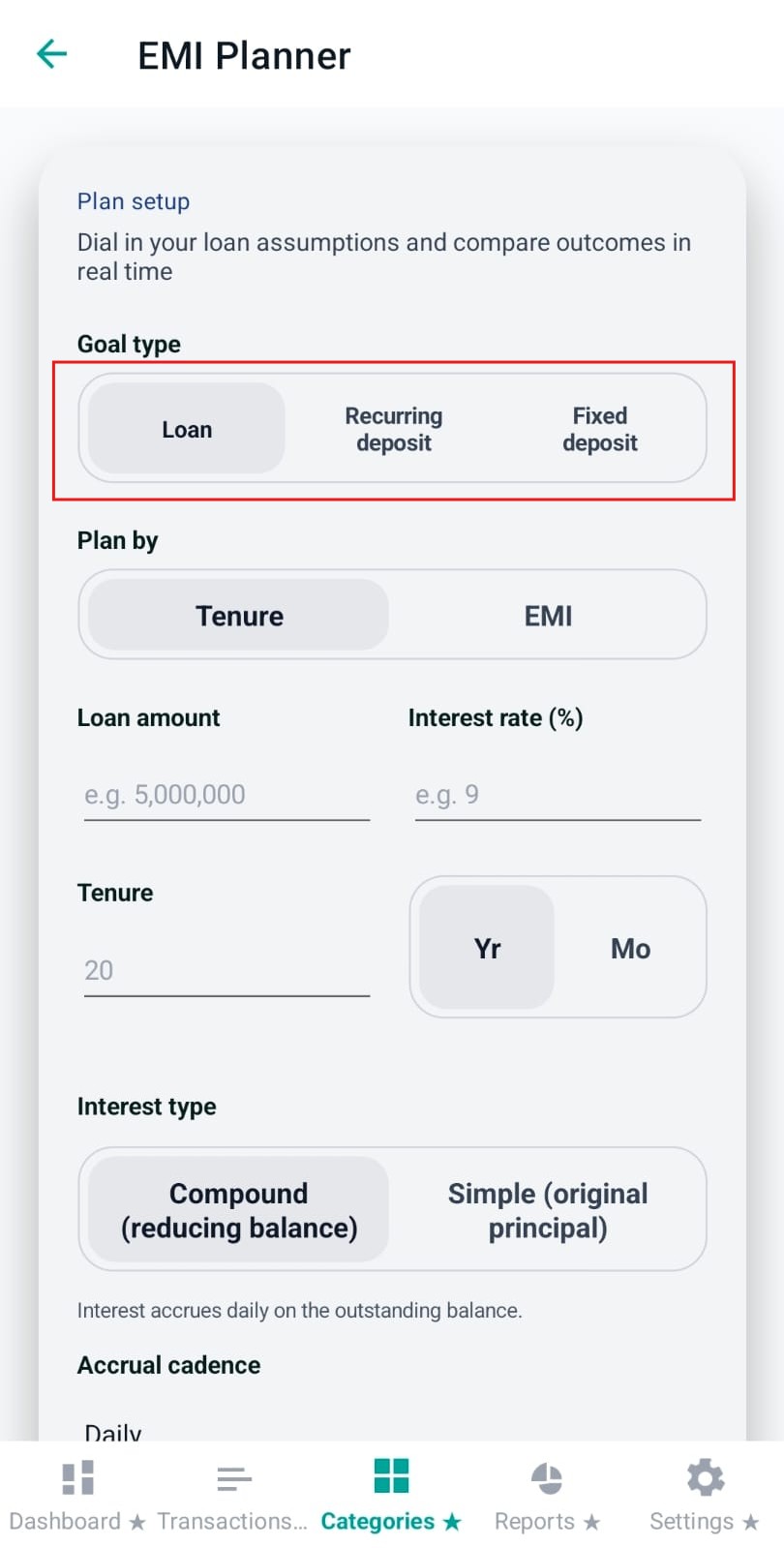
Goal type (Loan / Recurring deposit / Fixed deposit)
This segmented control changes the meaning of the entire form. It is the first decision because it changes both the input labels and the interpretation of results.
Loan: you’re paying down an outstanding balance. “Interest payable” and “Loan payoff” insights are shown.
Recurring deposit: you contribute each month and interest grows a corpus toward your goal.
Fixed deposit: you deposit once and model maturity / monthly payout style outcomes based on tenure.
Image: emi-goal-type-toggle.png
Planning tip: For “goal to buy something”, Recurring deposit is the simplest way to translate your goal into a monthly habit (what you need to put away each month).
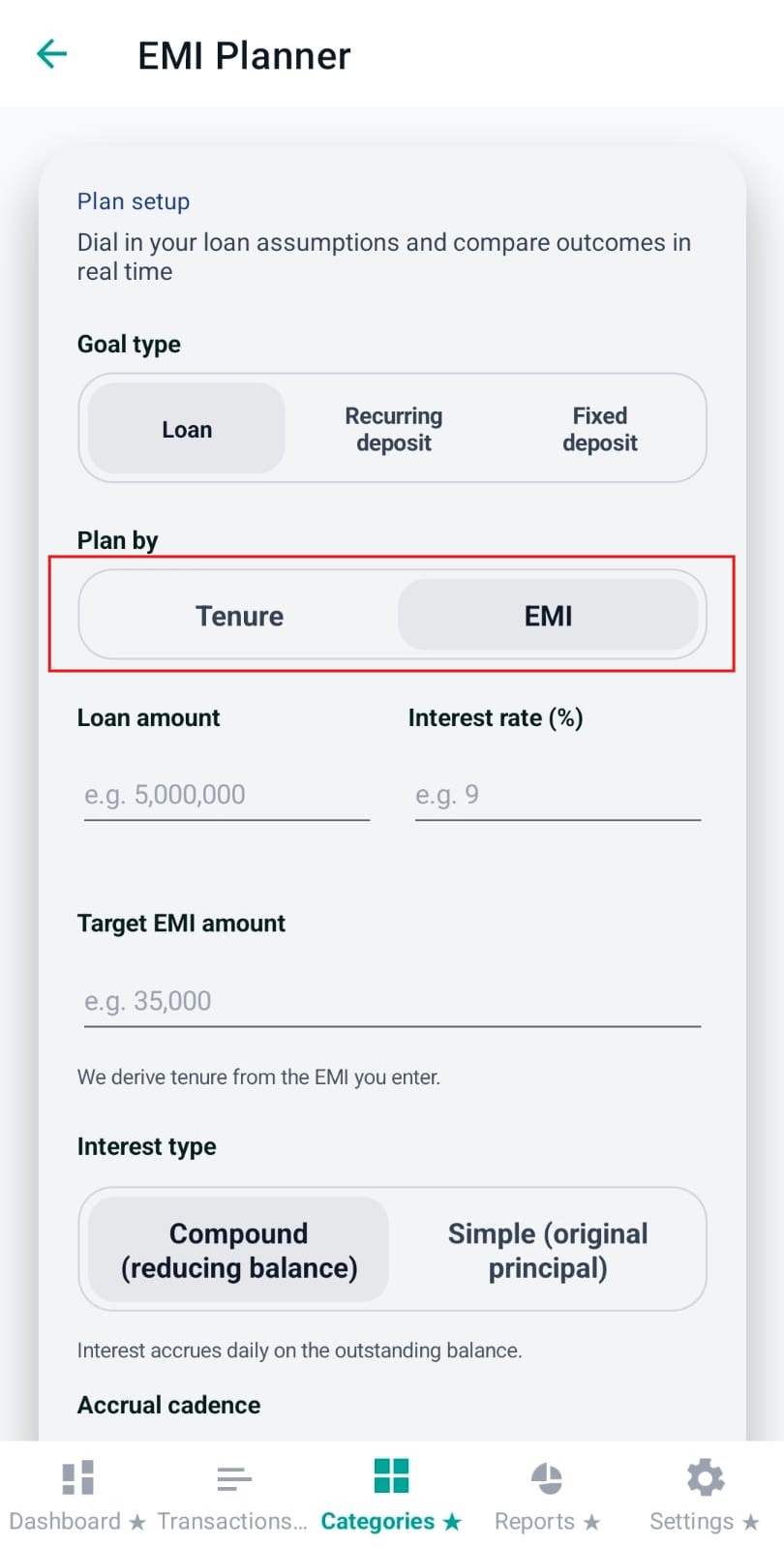
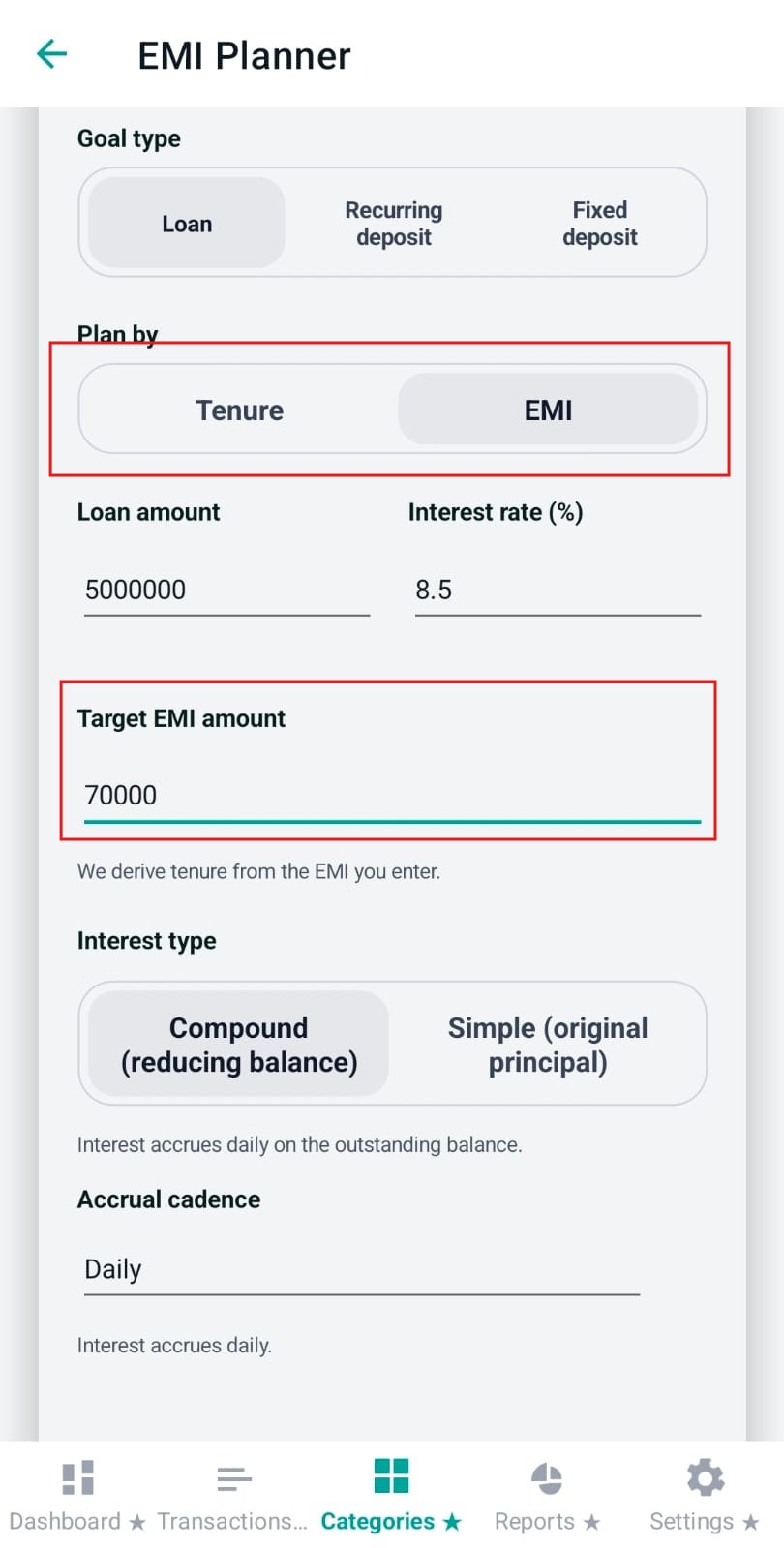
Plan by (Tenure vs EMI) — Loan mode only
When Goal type is Loan, Pennie lets you choose the calculation basis:
Tenure: you enter “how long”, and Pennie computes the EMI needed.
EMI: you enter “how much per month”, and Pennie derives the tenure required.
Image: emi-plan-by-toggle.png
Planning tip: Use EMI mode if your monthly cashflow is fixed. Use Tenure mode if you have a hard deadline (e.g., close before child’s school fee cycle starts).
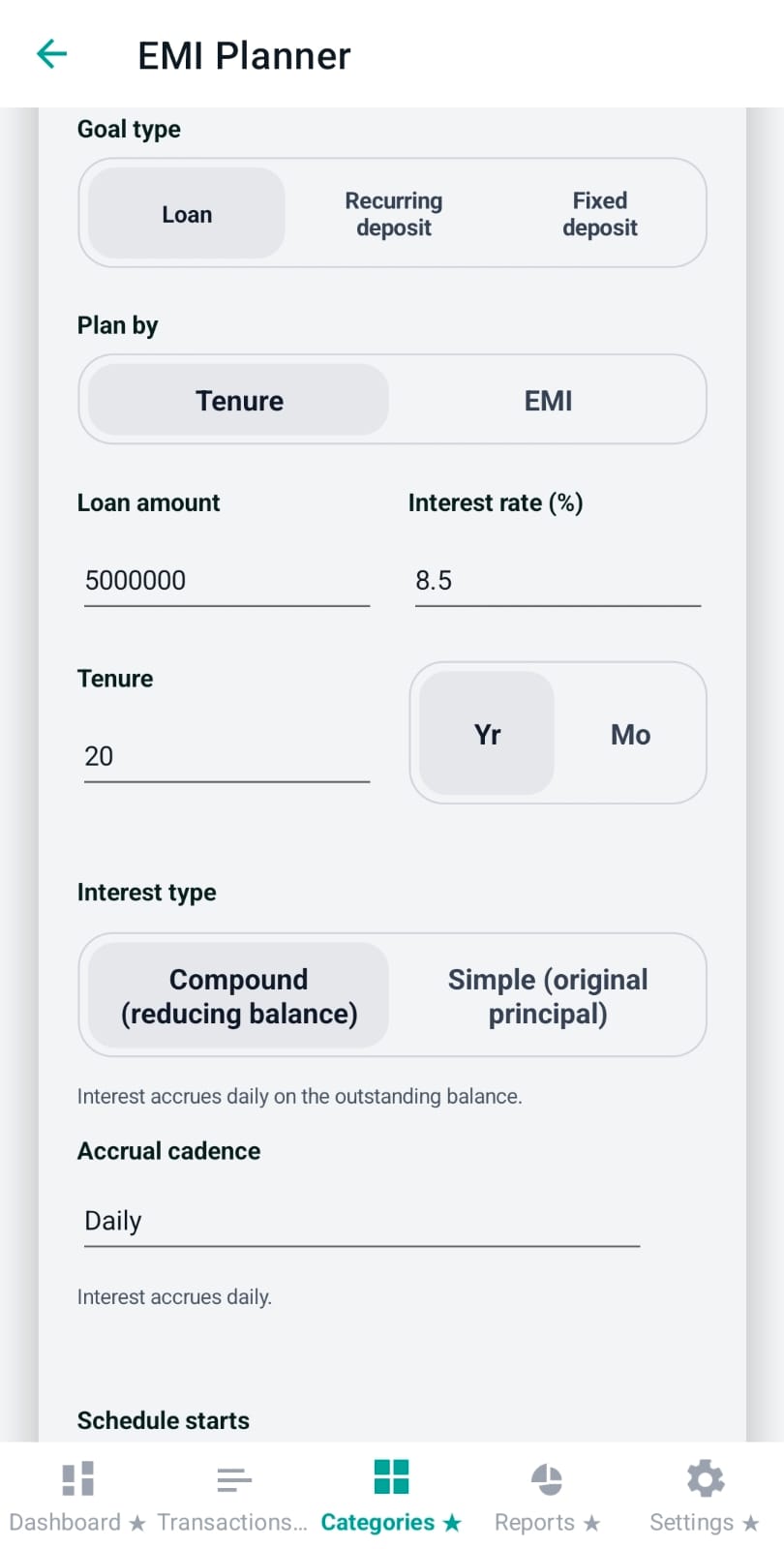
Primary inputs (amounts + interest rate)
The top grid is always the “core math” of your plan:
Validation detail: In EMI mode for loans, Pennie requires EMI to exceed the upcoming interest amount; otherwise, the balance would never reduce.
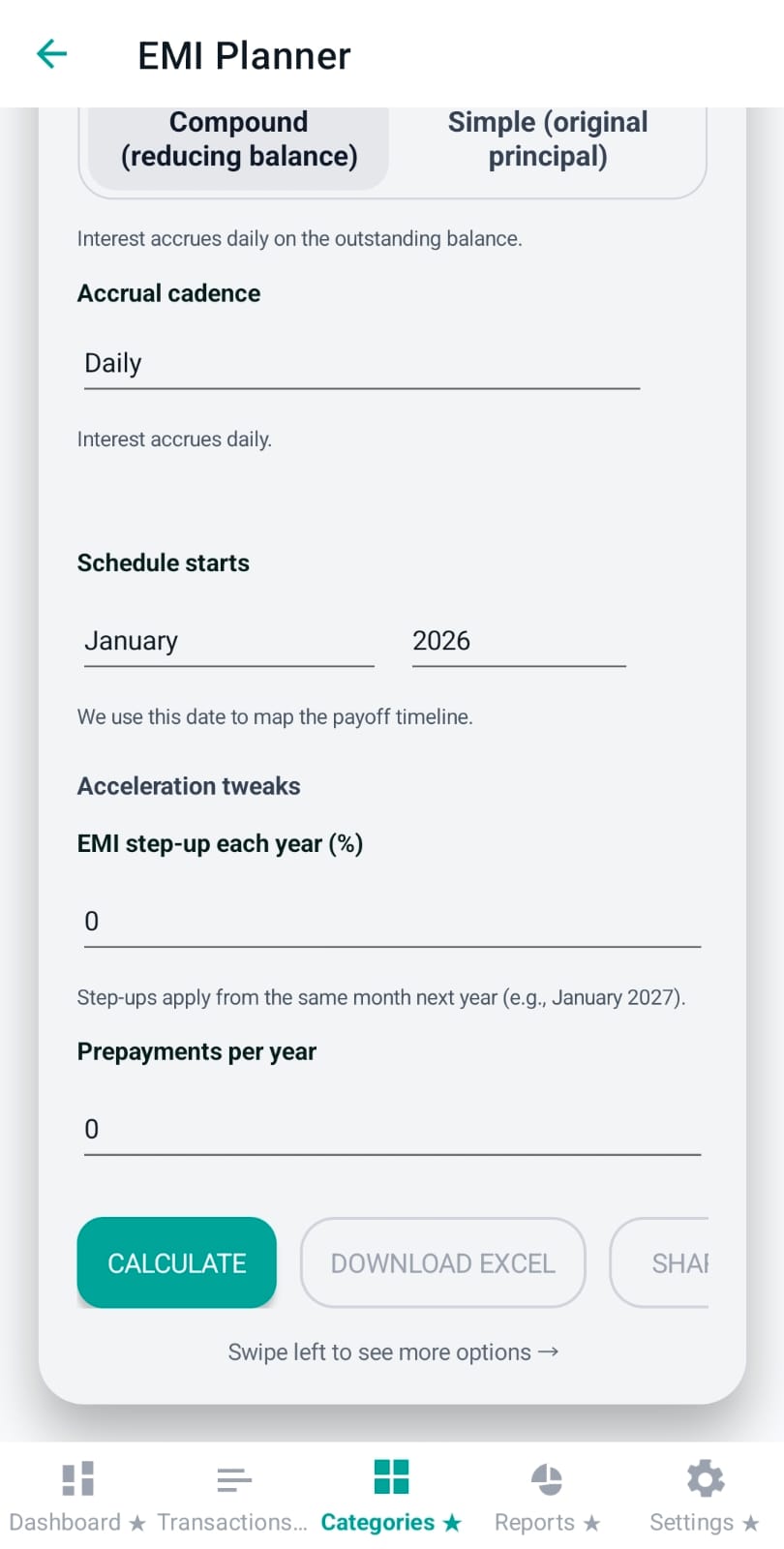
Interest type: Compound vs Simple
This toggle decides how Pennie models interest:
Compound: interest accrues on the changing balance/corpus. Loan balances reduce; deposit corpus grows.
Simple (original principal): interest is charged on the original principal (no compounding).
Planning tip: Choose the interest type that matches your lender/product sheet. Many loans behave like compounding on reducing balance; some “flat rate” products behave closer to simple interest.
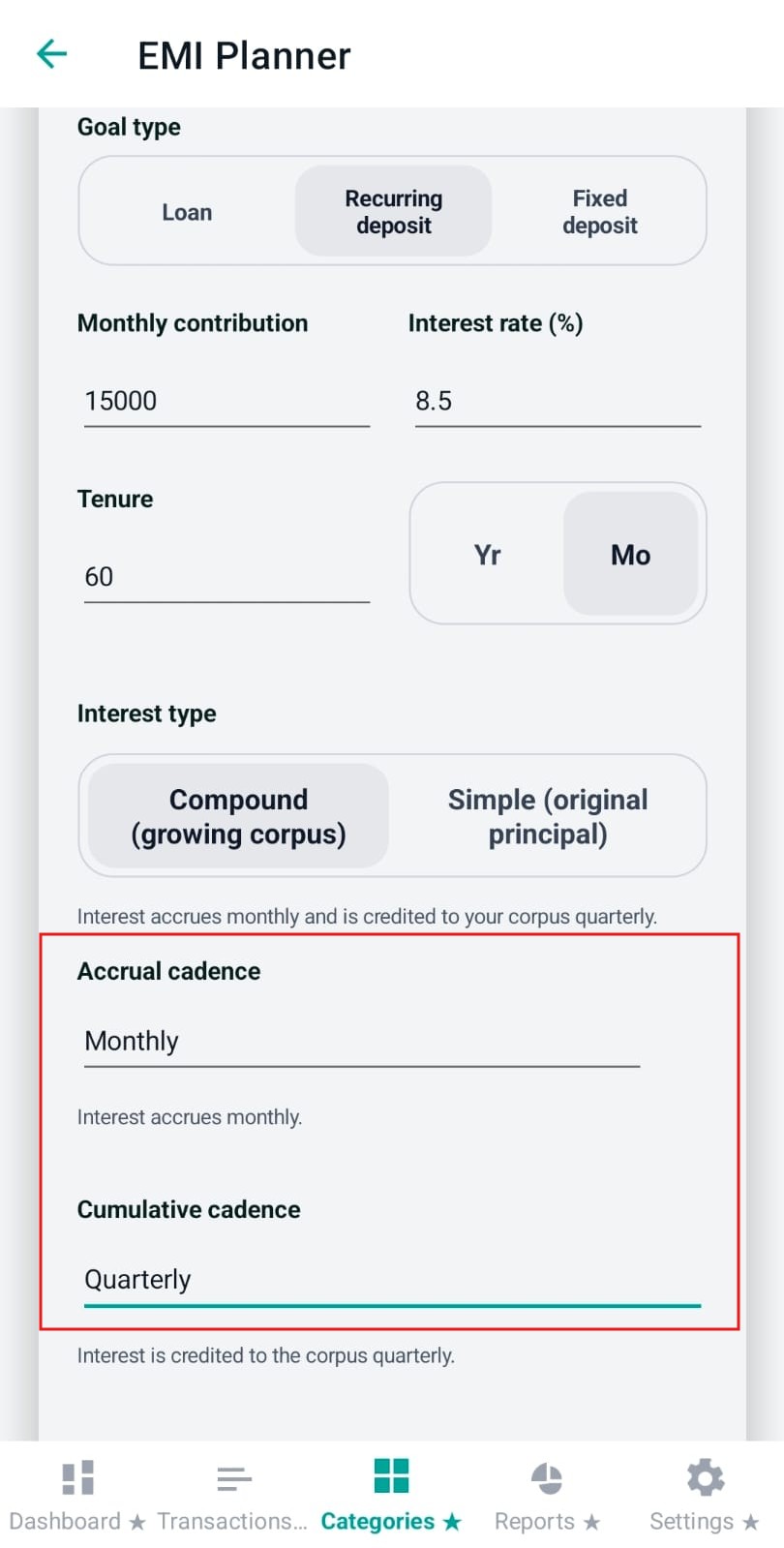
Accrual cadence (and cumulative cadence for deposits)
The planner can simulate how often interest accrues:
Accrual cadence: how often interest is computed and “earned” (monthly = every month, quarterly = every 3 months, yearly = once per year). The annual rate is converted into the chosen cadence.
Cumulative cadence (Deposits + compound): when accrued interest is credited back to the corpus/deposit (monthly/quarterly/yearly)
These are important because they change the effective growth/interest pattern even at the same annual rate.
Image: emi-accrual-cadence-picker.png
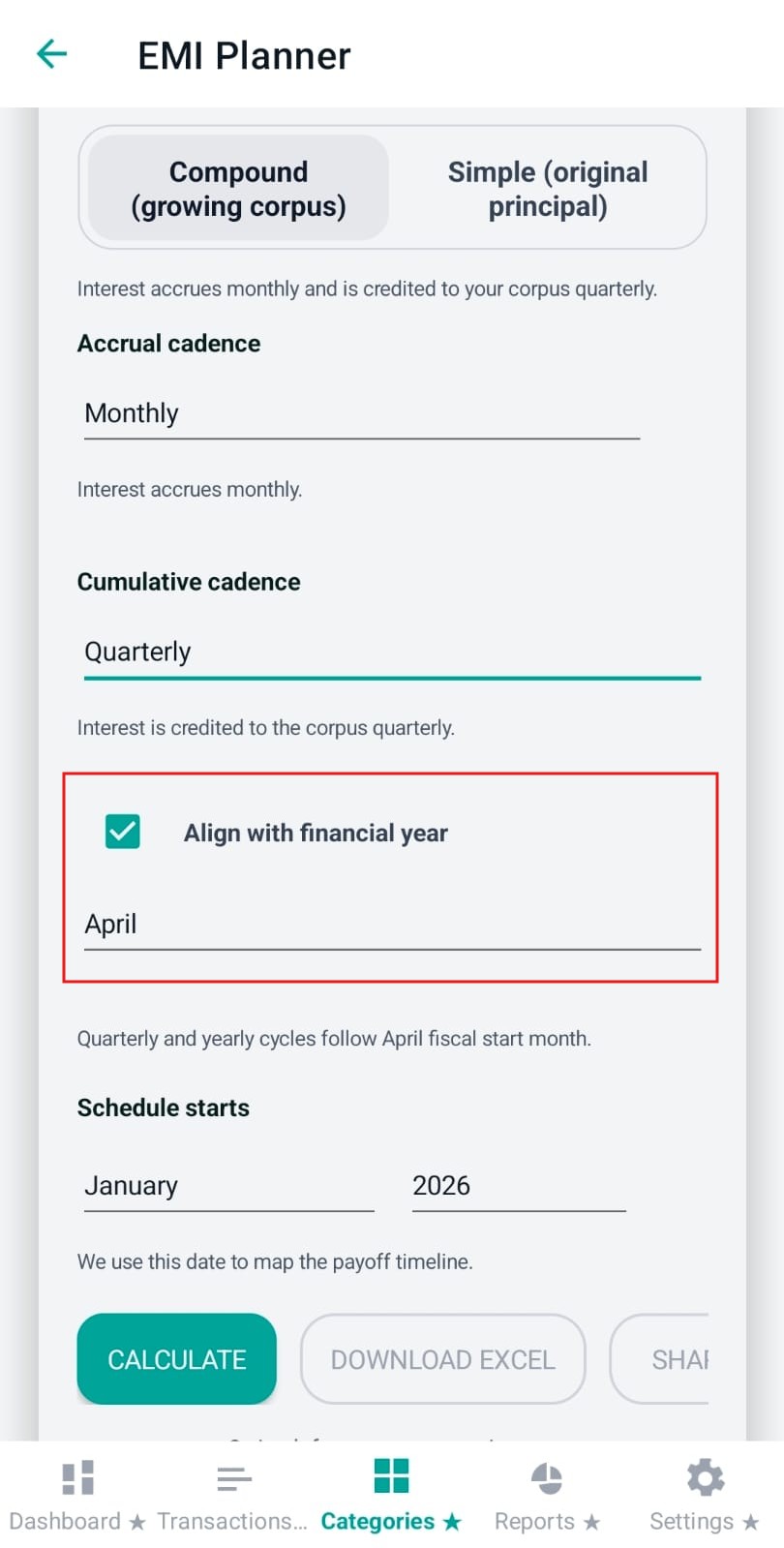
Align with financial year (quarterly/yearly cycles)
When you pick quarterly or yearly cycles, Pennie can align those cycles with a specific fiscal year start month (useful for India-style FY planning or when products accrue quarterly from a fixed FY boundary).
Align with financial year: enables fiscal alignment
Financial year starts: month picker (only when alignment is enabled)
Image: emi-fiscal-alignment-toggle.png
Planning tip: If you budget around yearly bonuses/appraisals, fiscal alignment makes the timeline “feel” like your real life.
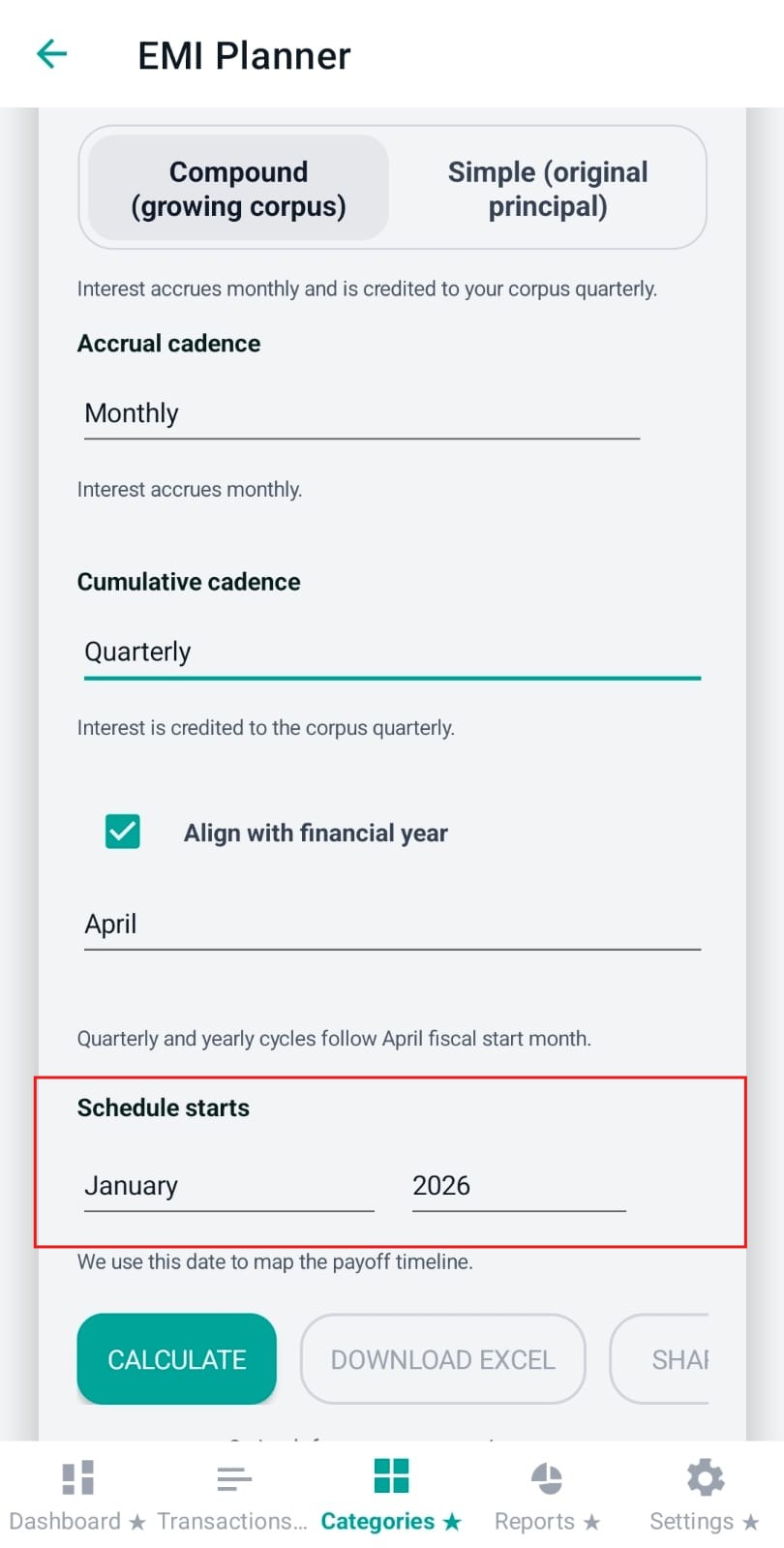
Schedule starts (Month + Year)
This is the calendar anchor for the entire schedule. Pennie uses this to label each month/year in the payoff table and charts.
Image: emi-schedule-start-pickers.png
Planning tip: Set this to your next EMI date month so the timeline matches your actual lender schedule.
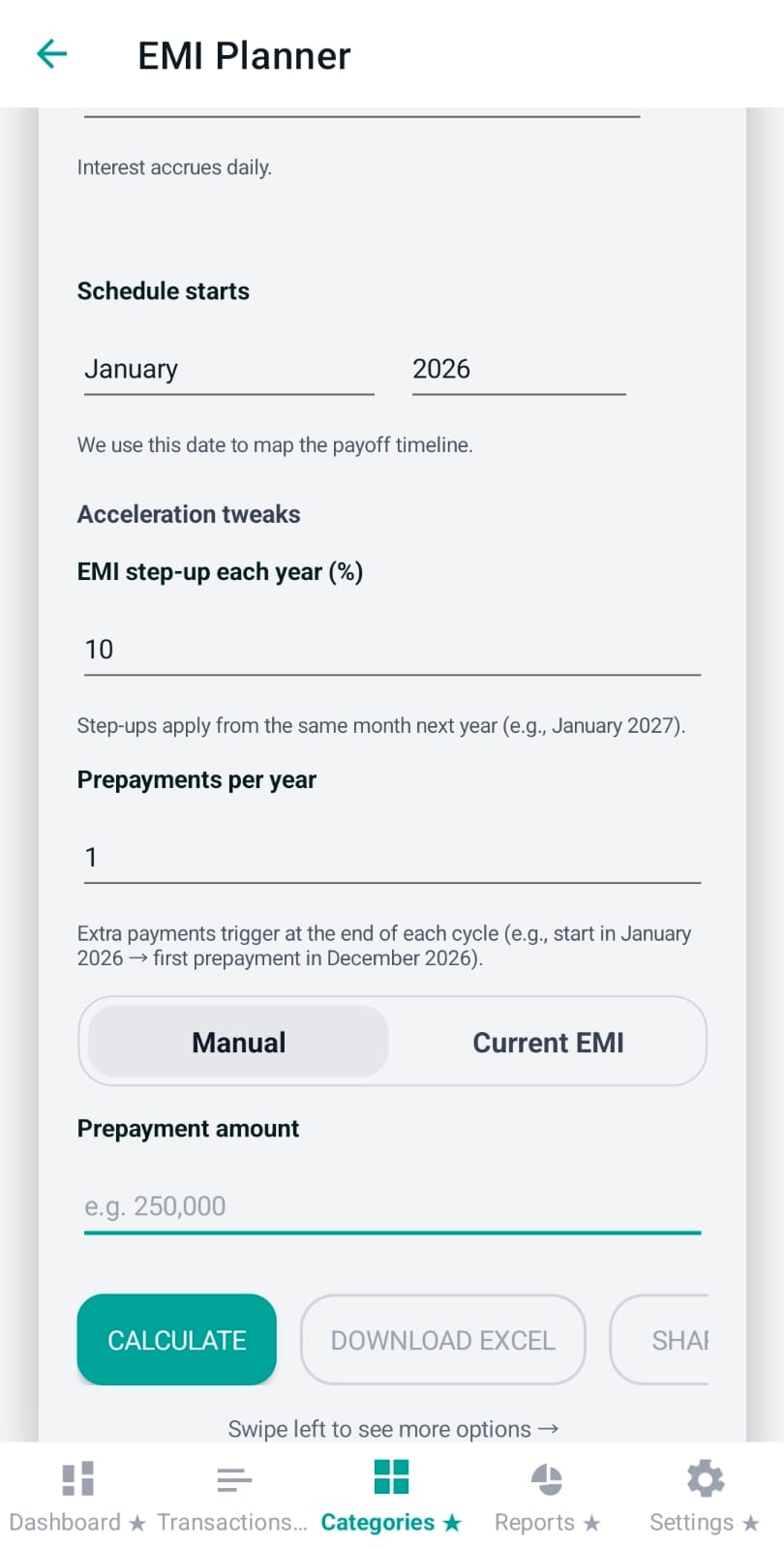
Acceleration tweaks (Loan + Compound only)
These fields help users simulate “closing early” strategies. They appear only when:
Goal type is Loan, and
Interest type is Compound
EMI step-up each year (%): increases EMI annually from the same start month next year (useful when income grows).
Prepayments per year: number of extra payments in a year (0–12). Pennie schedules them at the end of each cycle.
Prepayment mode:
Manual: you enter a fixed prepayment amount.
Current EMI: each prepayment equals the EMI in effect for that year (after step-ups).
Next step: Once you pick a monthly contribution that works, you can mirror it in the Categories tab by creating a Savings category with a matching monthly target.
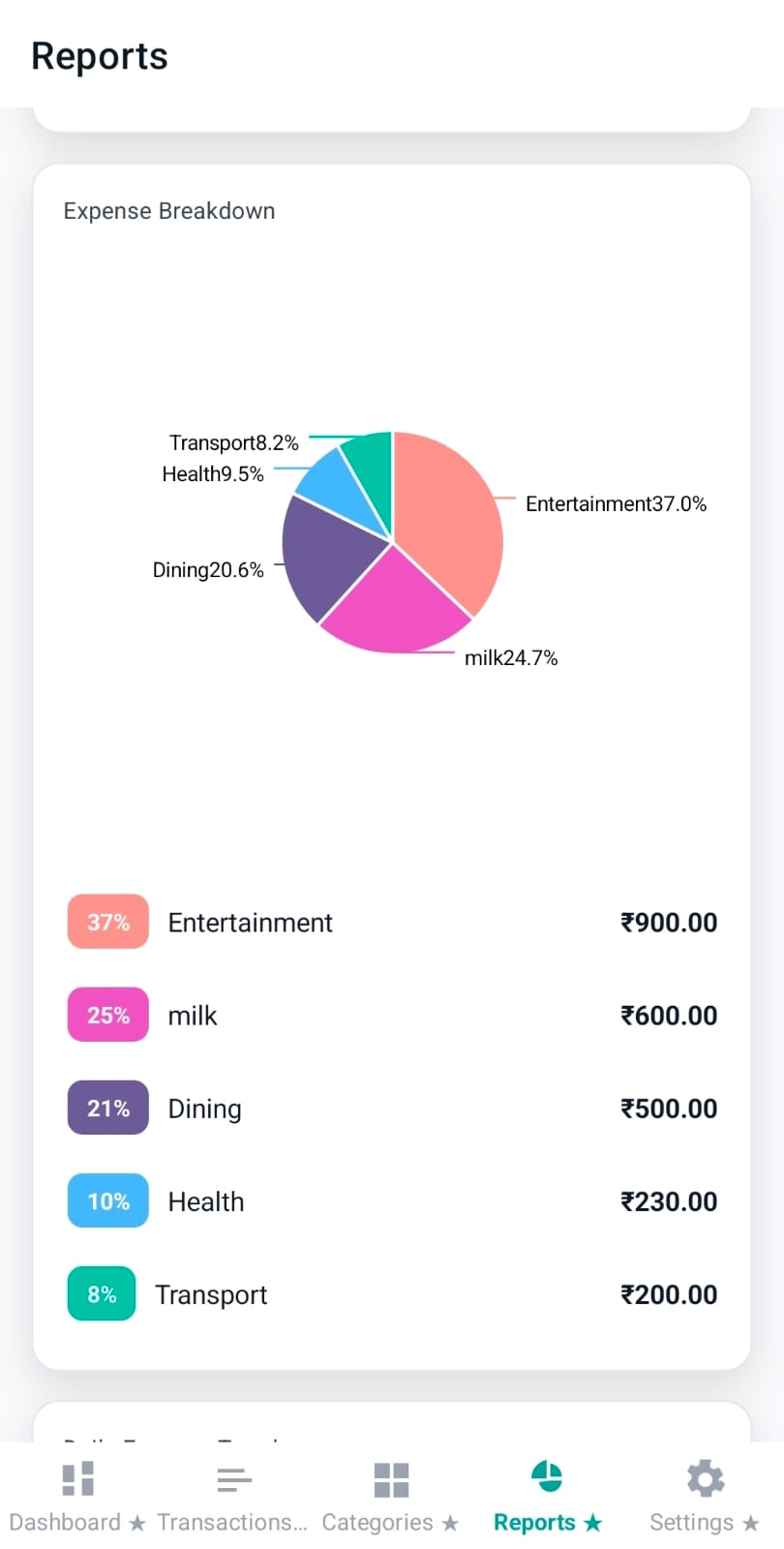
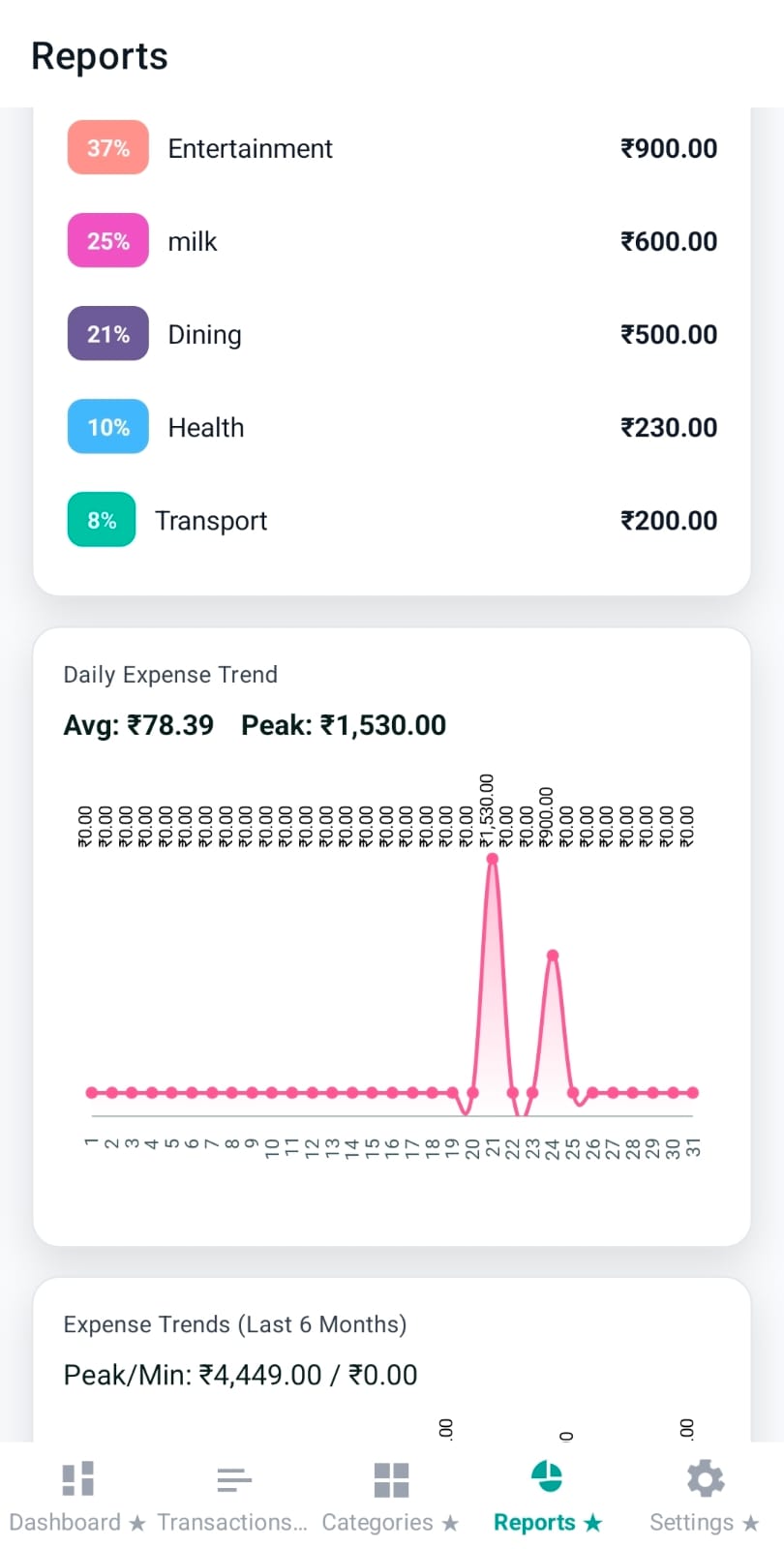
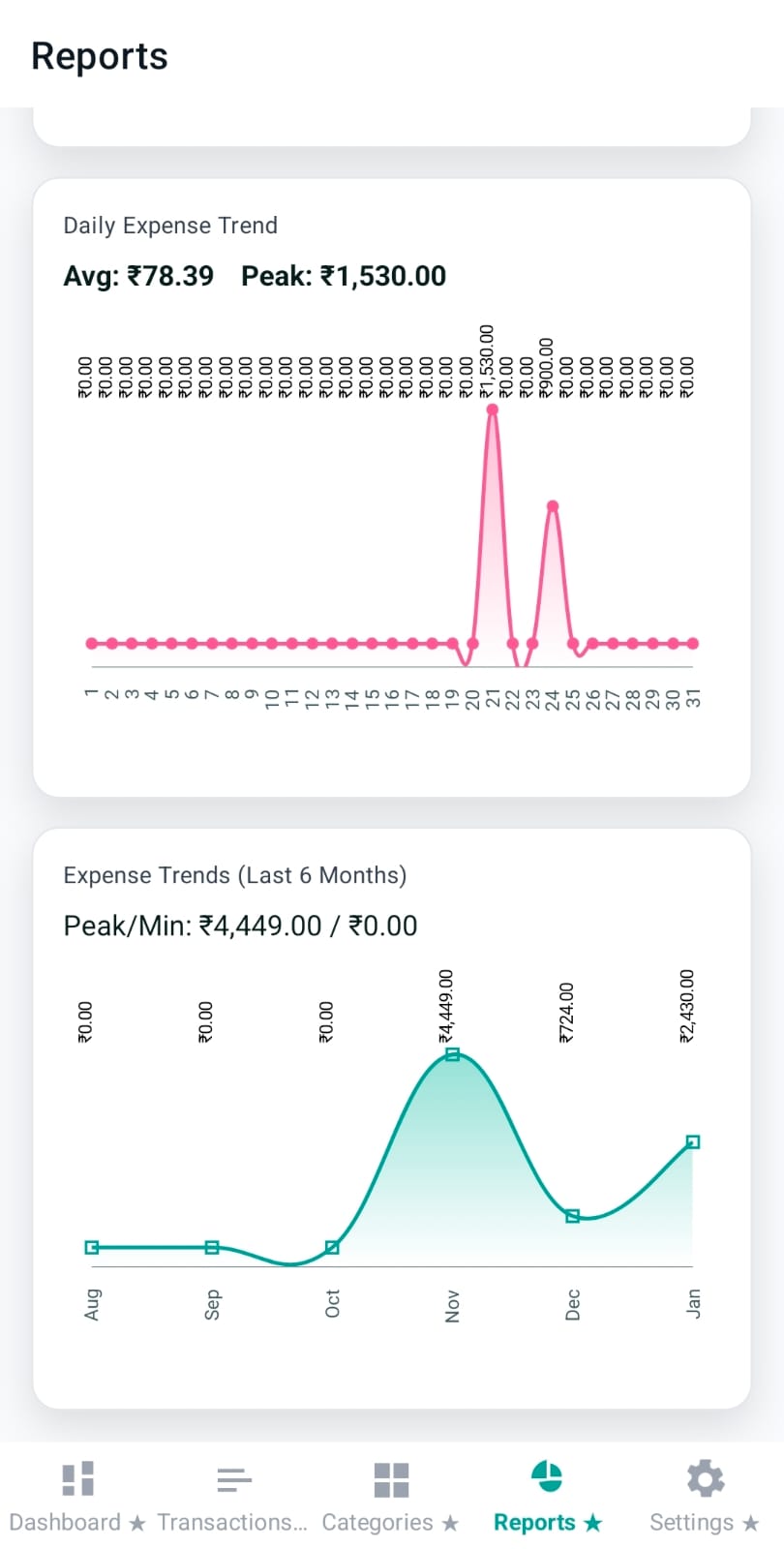
Reports is Pennie’s analytics workspace. It runs entirely on-device: Pennie queries your local SQLite database, applies the time range + essential filters, and then renders charts (donuts, trend lines, breakdown pies) for fast scanning.
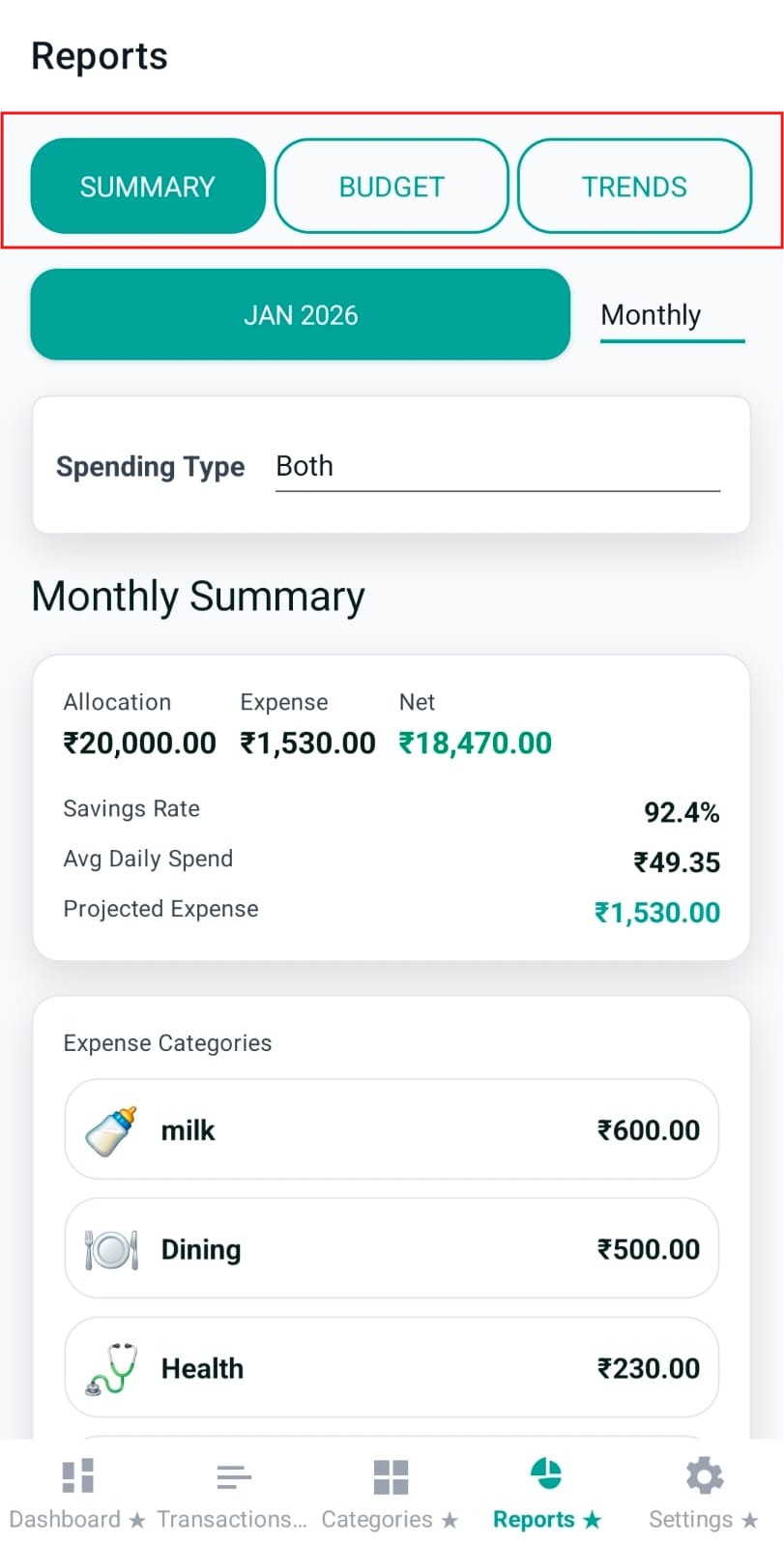
Reports navigation: Summary / Budget / Trends
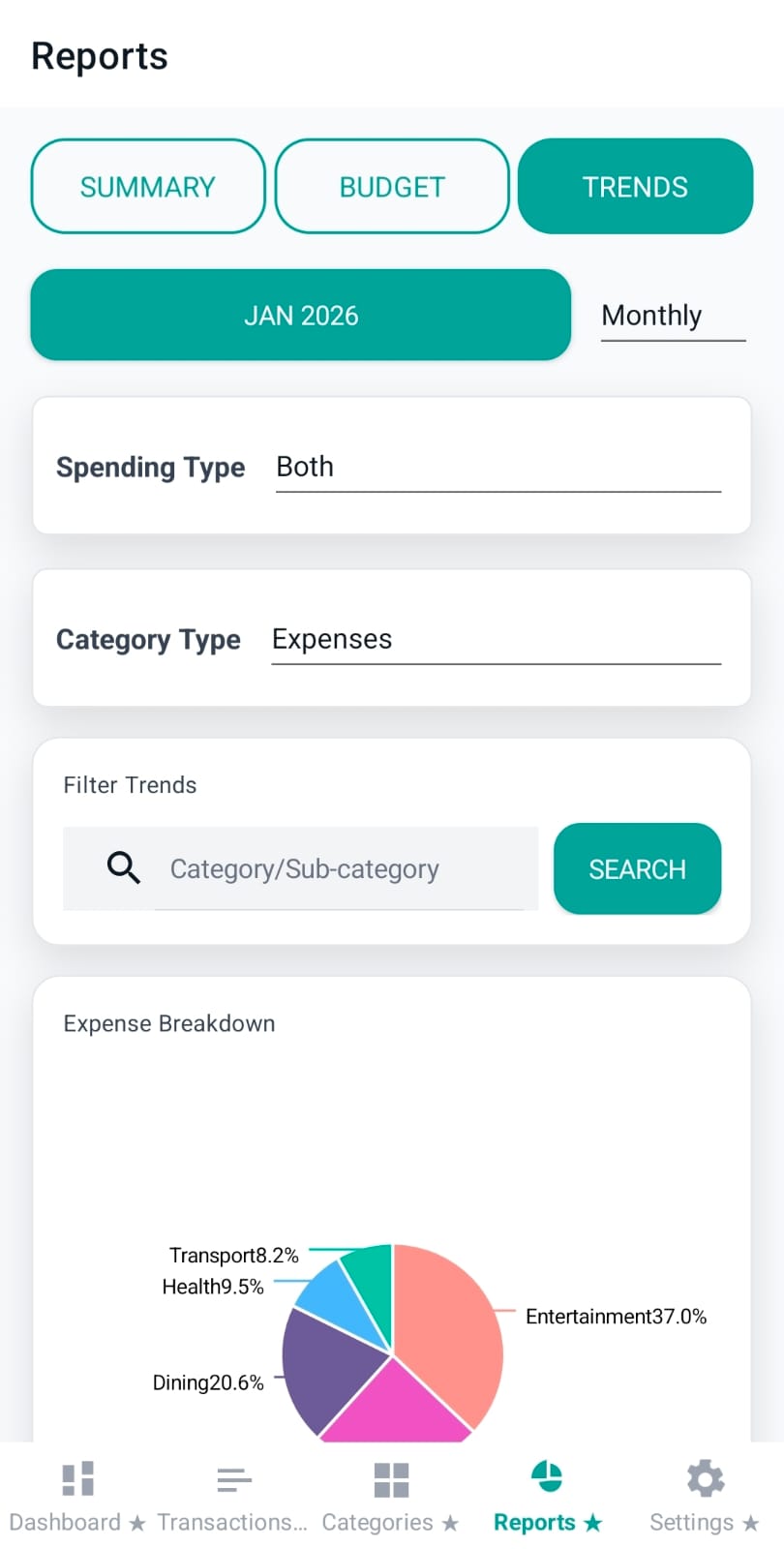
The Reports header uses a segmented selector. Each segment changes the section content below, but they share the same idea: pick a time range and focus the data.
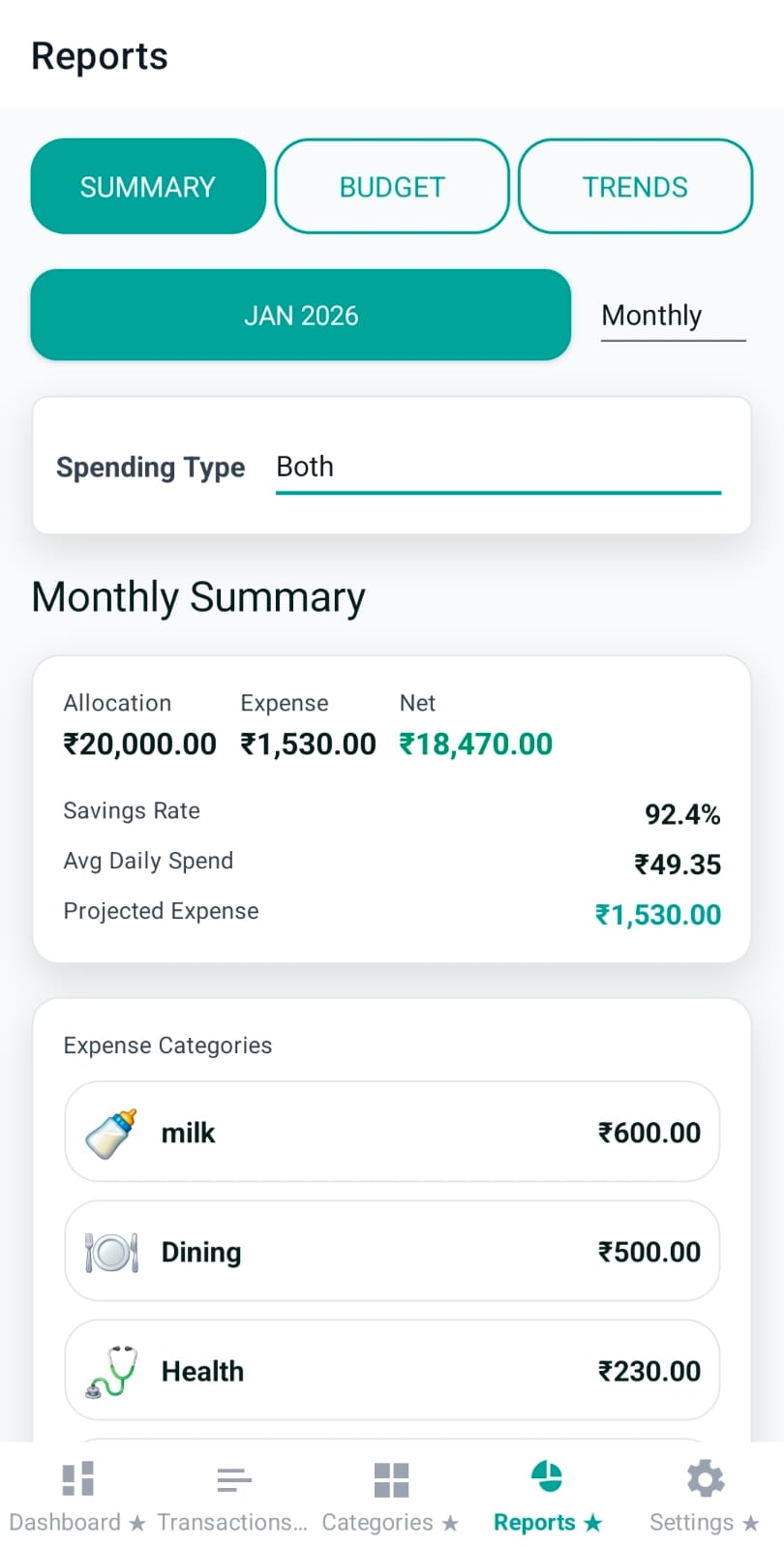
Summary: period totals + expense composition + top categories.
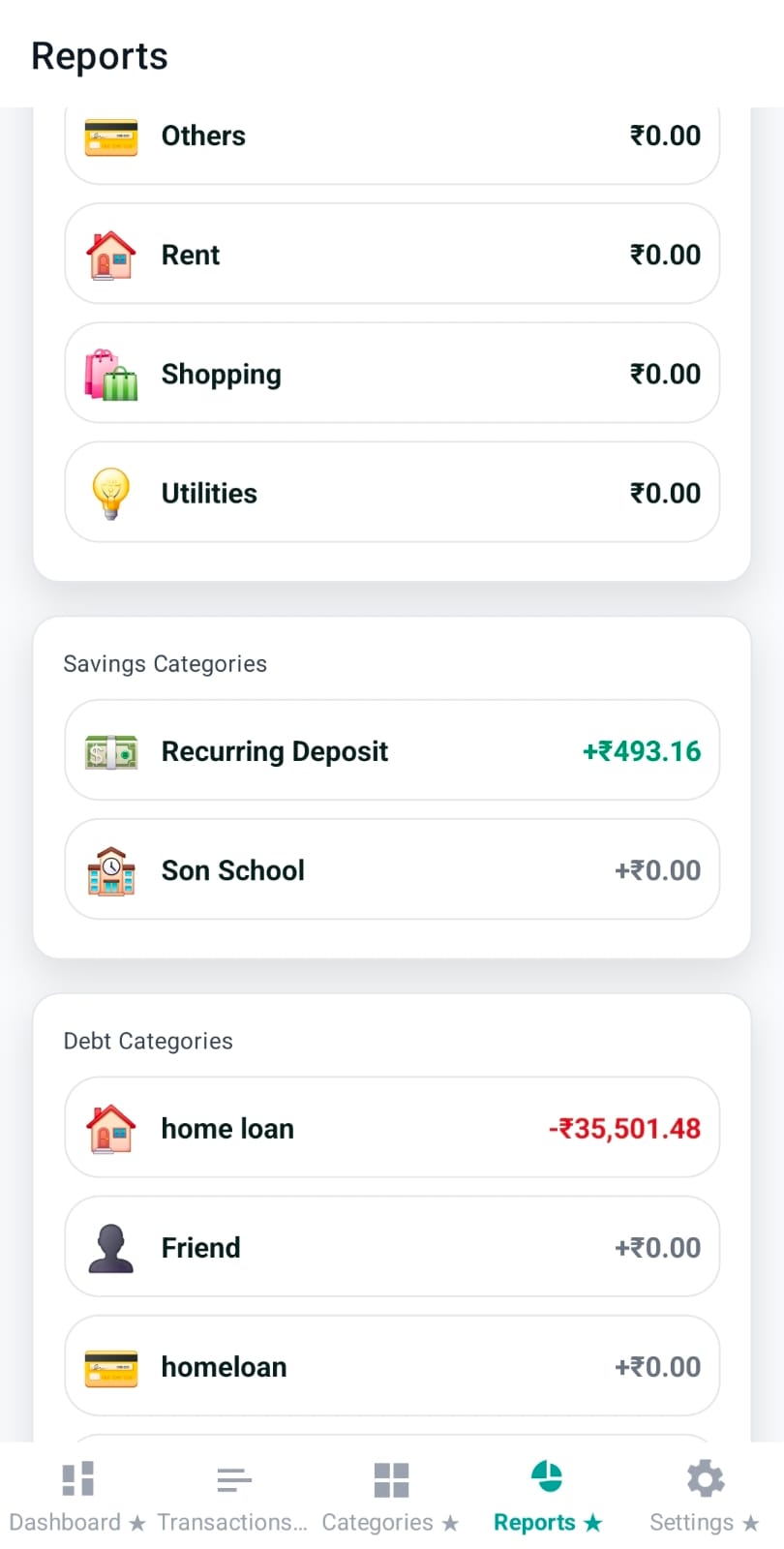
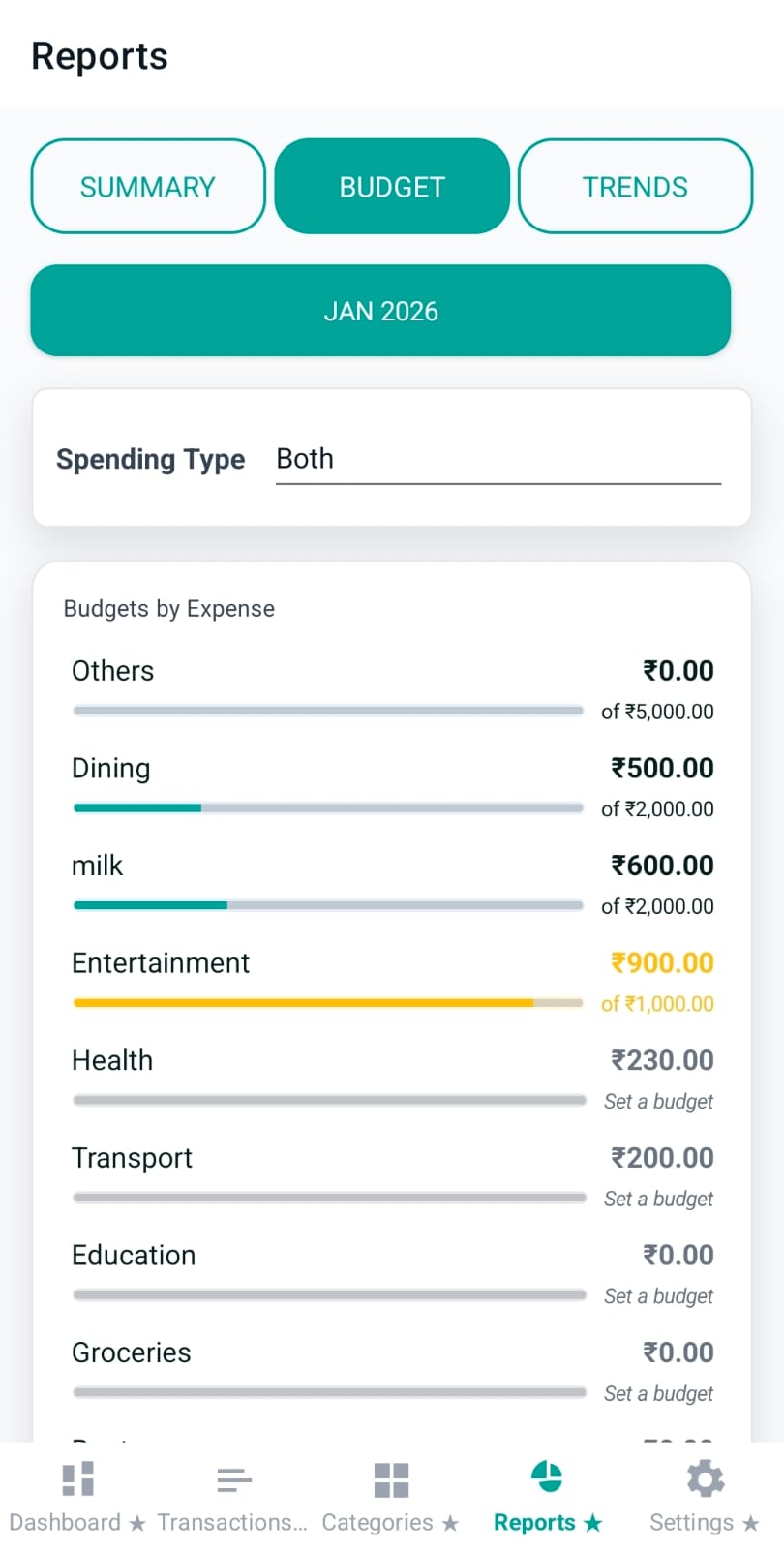
Budget: category-level “budget usage” rows for Expense, Savings, and Debt.
Trends: daily/monthly trends + breakdown charts, with category-type and search filters.
Image: reports-sections-segment.png
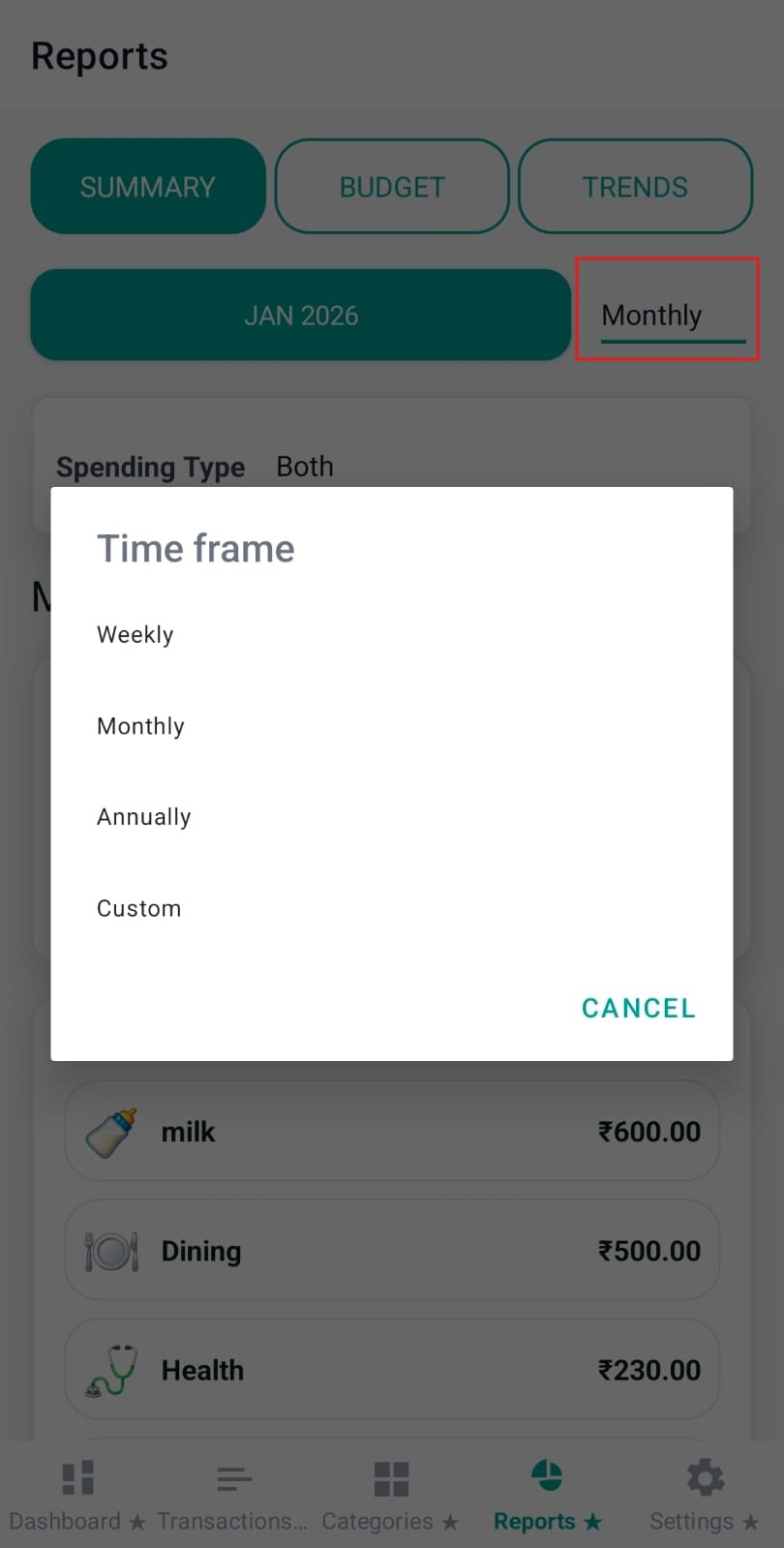
Time frame picker (Weekly / Monthly / Annually / Custom)
The time frame changes the active date range used for every chart. Pennie supports:
Weekly: current week range.
Monthly: a selected month (month/year picker).
Annually: current calendar year.
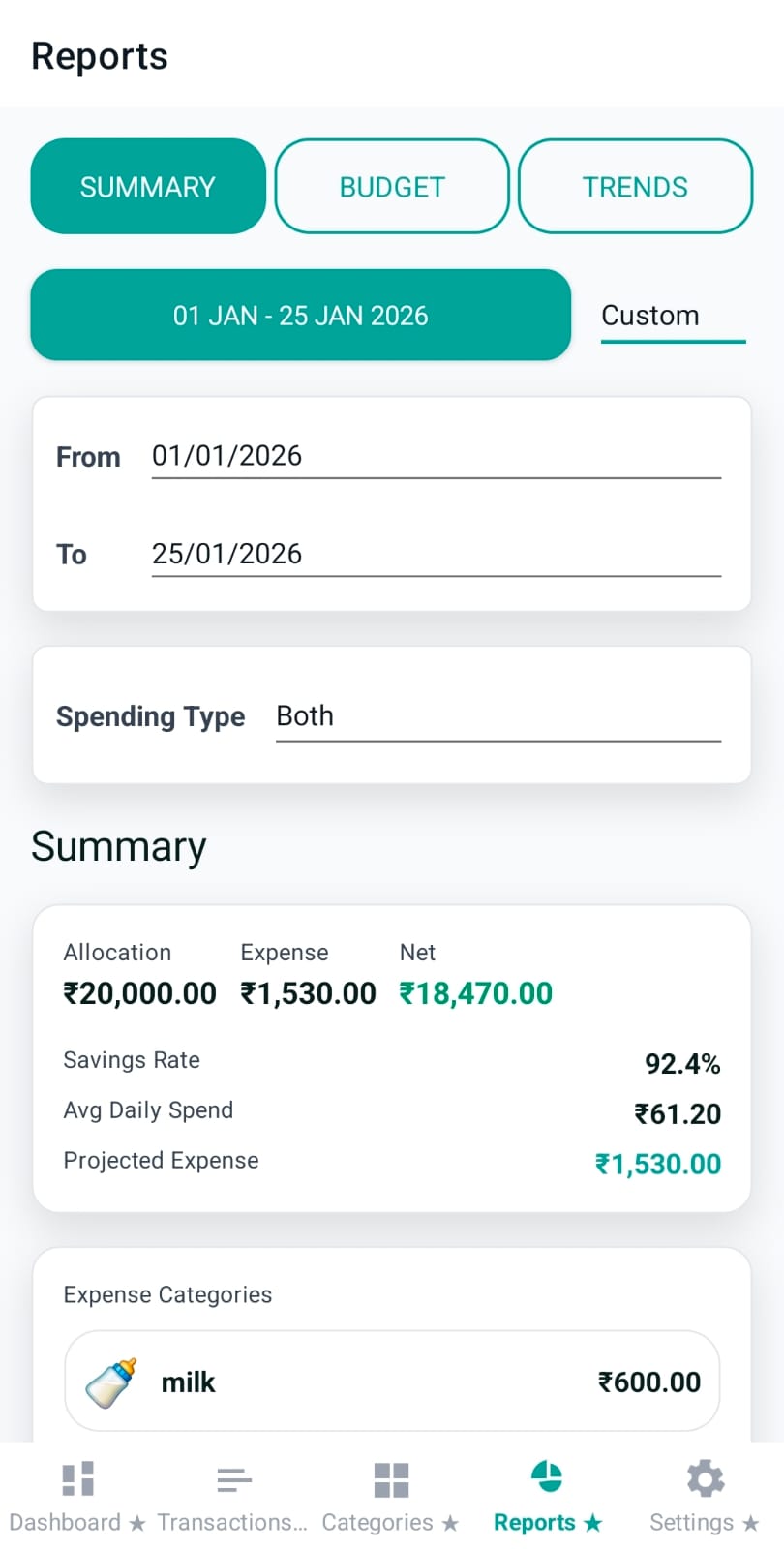
Custom: choose start date and end date (inclusive; end is treated as end-date + 1 day internally).
This filter narrows the dataset before charts are computed:
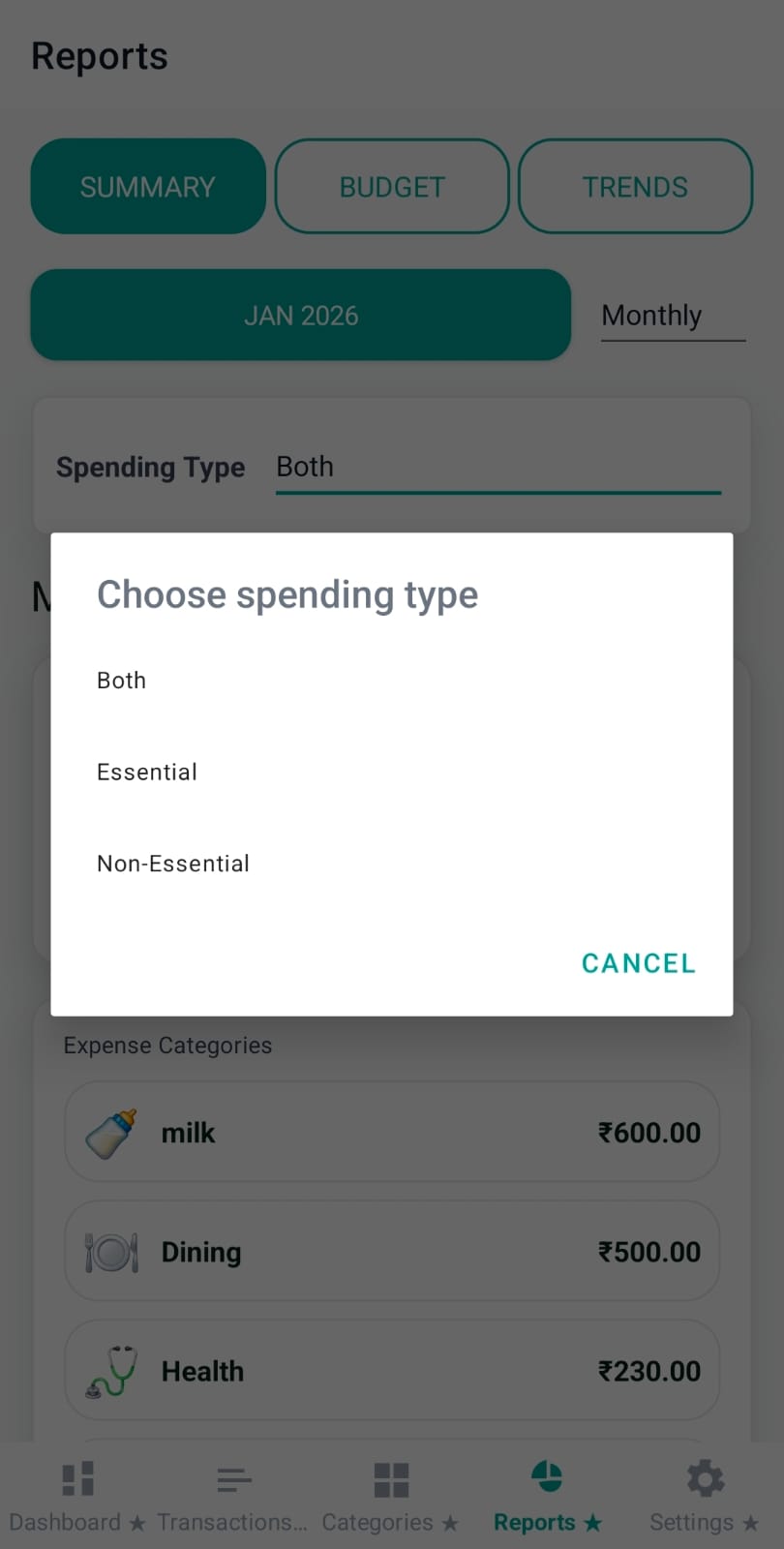
Both: includes all expenses.
Essential: includes only transactions marked essential.
Non-Essential: includes only transactions marked non-essential.
Important: Essential filtering impacts totals, category charts, and trend charts together (it is not “cosmetic”).
Image: reports-essential-filter.png
Summary section
Summary focuses on “how this period went” and “where money went”. Internally, Pennie computes an overall period summary and (when you apply an essential filter) a filtered summary for the same range.
Period totals: income/expense/net for the selected range.
Transaction Type: Different categories are grouped by transaction type.
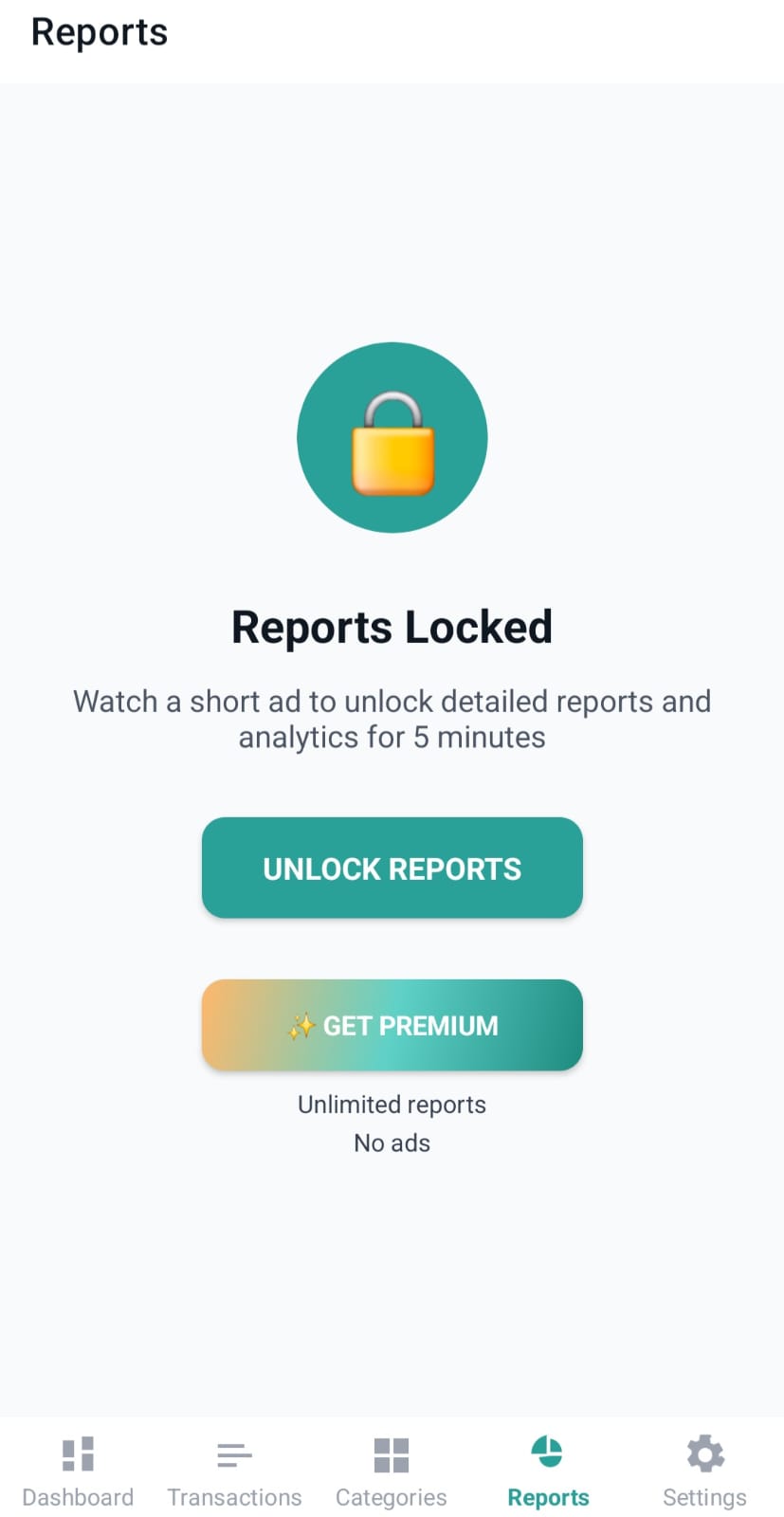
Pennie includes an access-gate flow for Reports. Eligible free users can complete a rewarded ad for the period shown in the app; regular Premium bypasses this gate. See Download local Excel reports for the separate workbook export flow.
Open Settings > Reports and select the available reporting period/options.
Generate the Excel export from your saved transactions.
Use the device's save/share options to keep the workbook or open it in a compatible spreadsheet app. Exports contain financial data; share them only with intended recipients.
The workbook is generated locally, without sending your history to an AI model. New AI-generated monthly reports are retired; supported legacy report read/delete options remain.
The detailed Reports-tab guide explains the interactive charts and summaries. Free Reports can also show dynamic recommendations for other Prayo apps, rotating when several are available. Regular paid Premium hides those recommendations; AI-only and referral rewards do not.
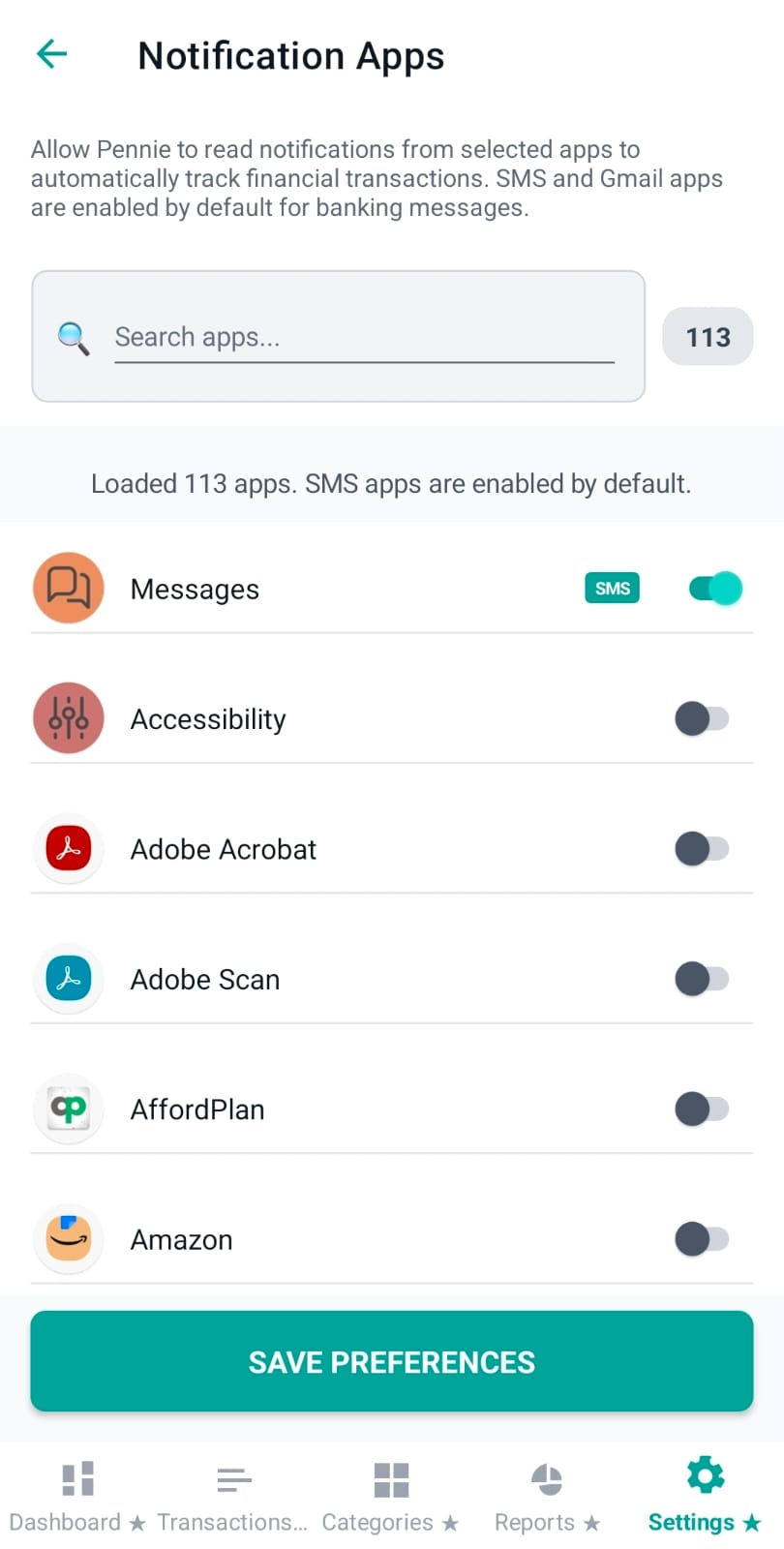
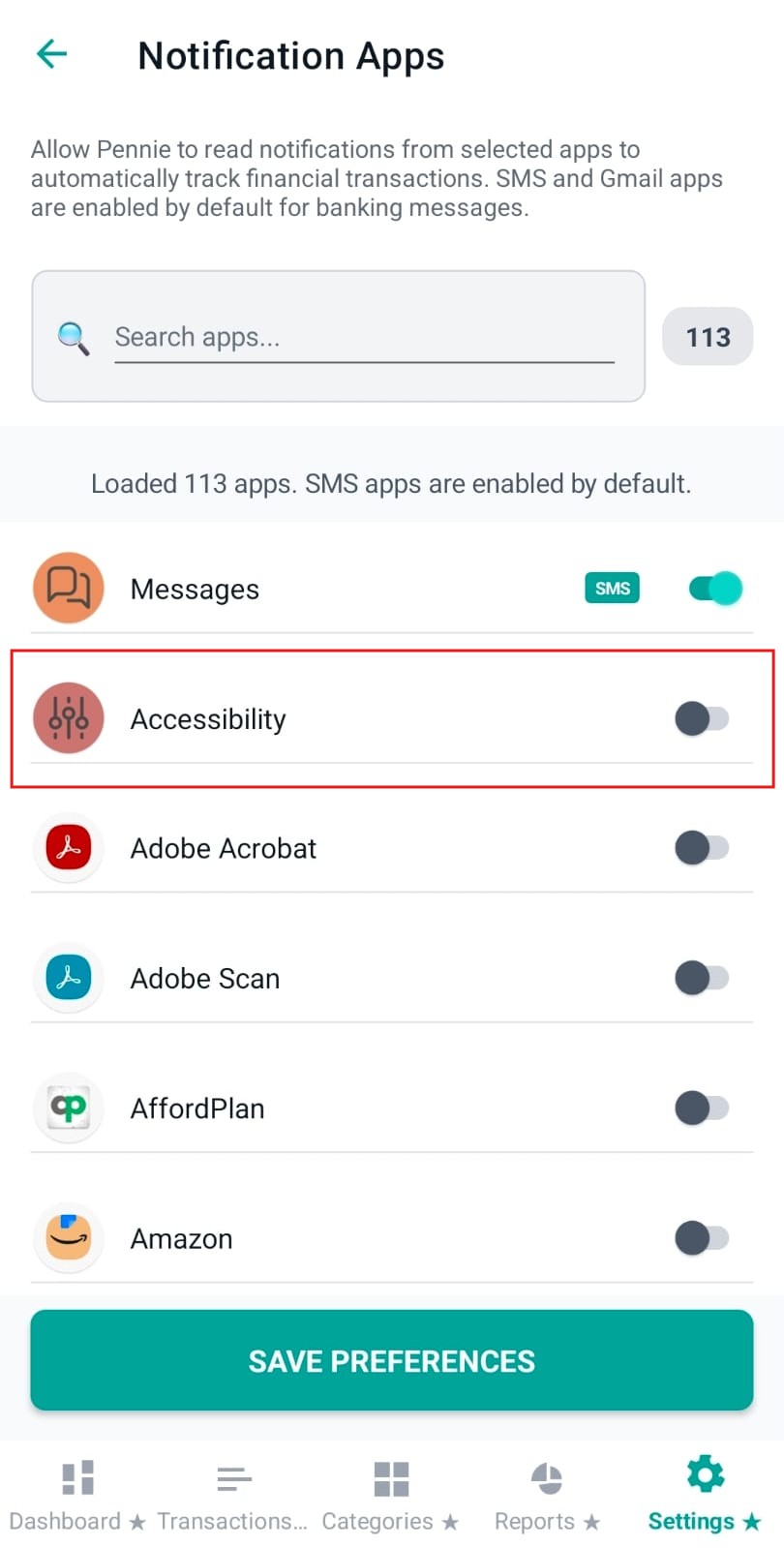
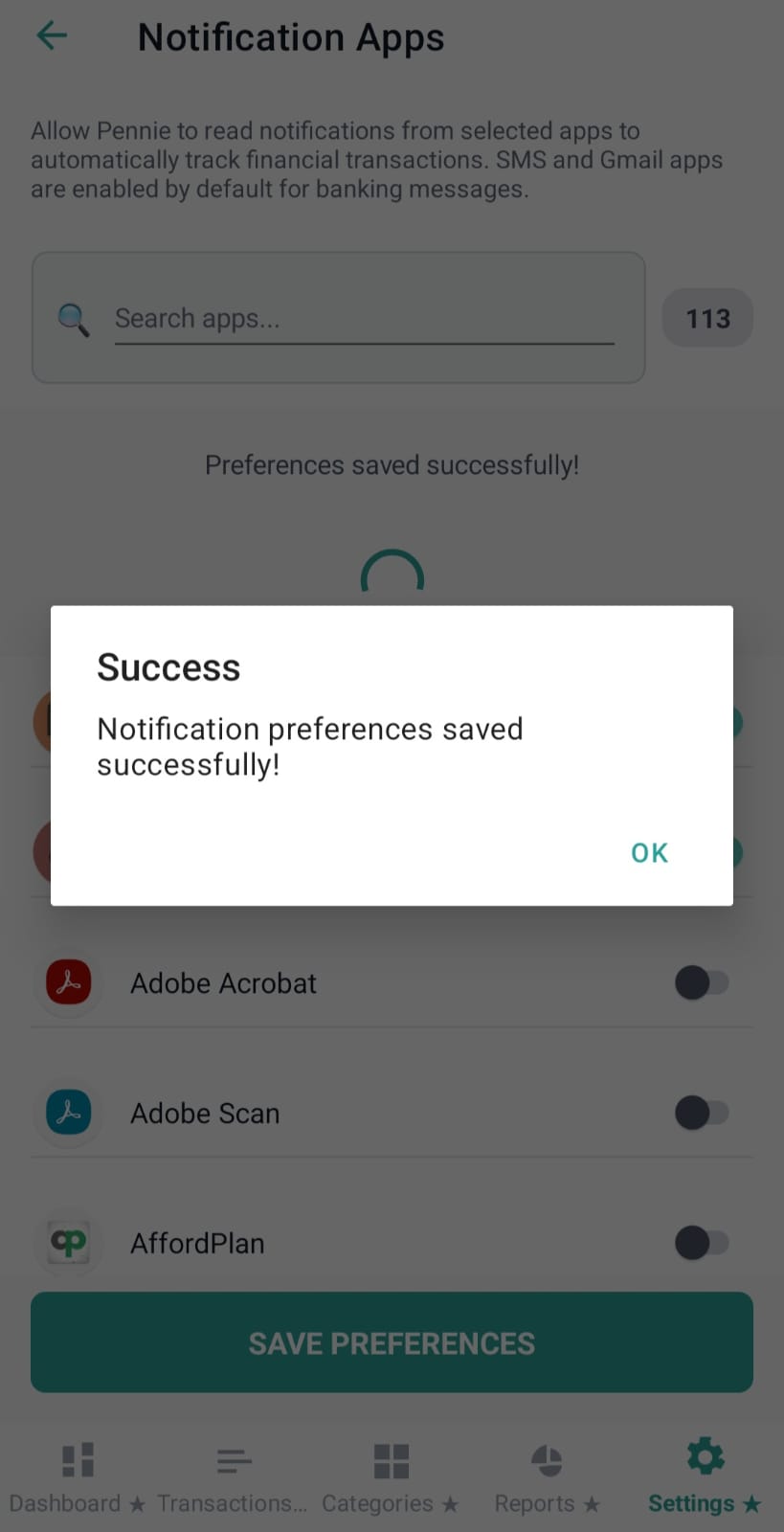
This page lets the user choose which installed apps Pennie is allowed to read notifications from. This is essential to reduce noise and keep finance parsing focused (banks, SMS apps, UPI, wallets).
Header explanation + search
At the top, Pennie explains what the feature does and then provides a search box:
Search apps… filters by app name or package name.
A clear “✕” button appears when there is text.
An app count badge shows the number of apps in the current list.
Image: notificationapps-header-search.png
Apps list (icon, name, SMS badge, enable switch)
Each row includes:
App icon (loaded progressively)
App name
SMS badge for apps detected as SMS apps
Enable toggle to allow/disallow Pennie to read notifications from that app
Image: notificationapps-list.png
Save Preferences
After changing toggles, tap “Save Preferences” to persist the selection. Pennie shows a success dialog and refreshes the status message.
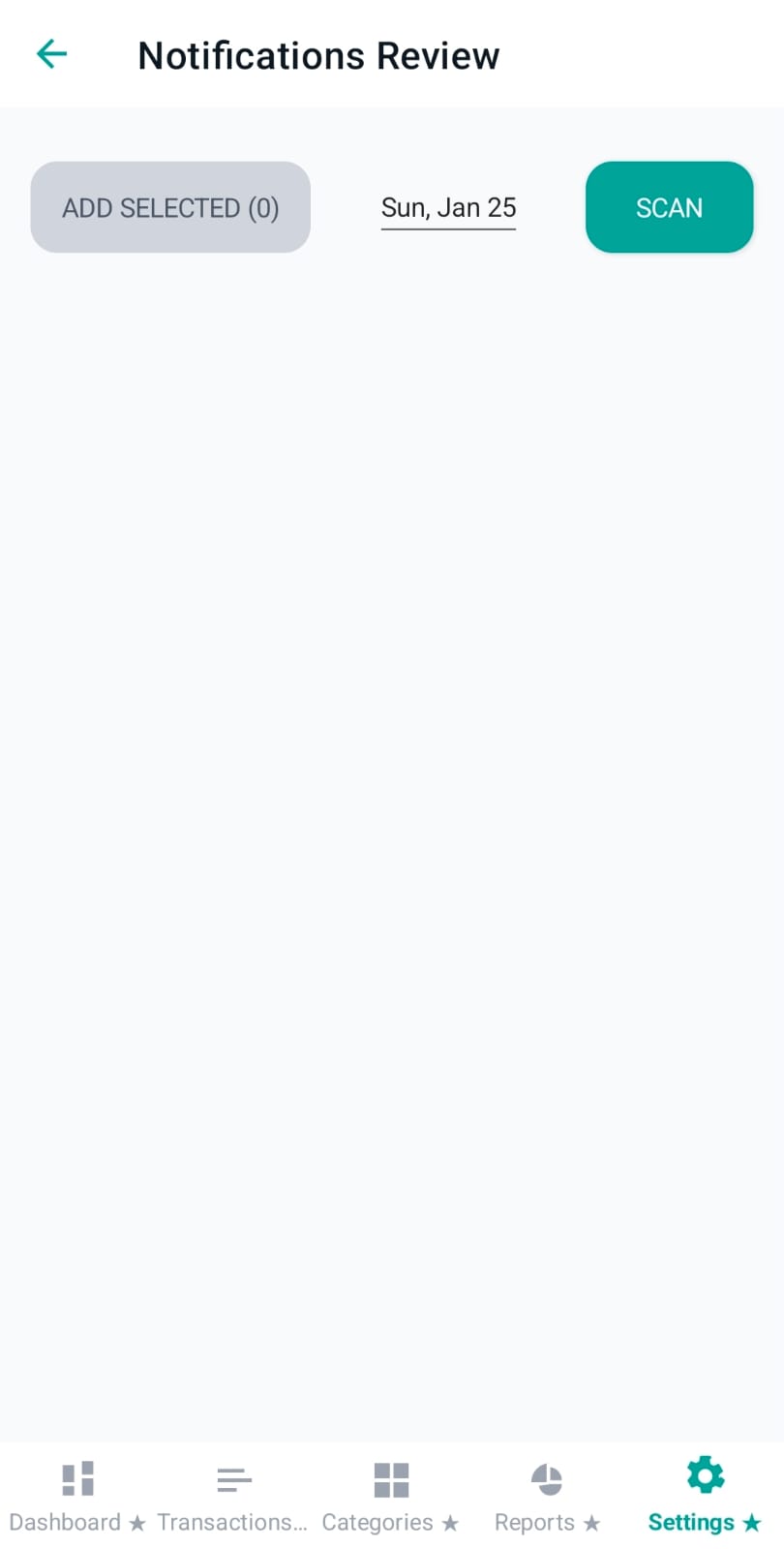
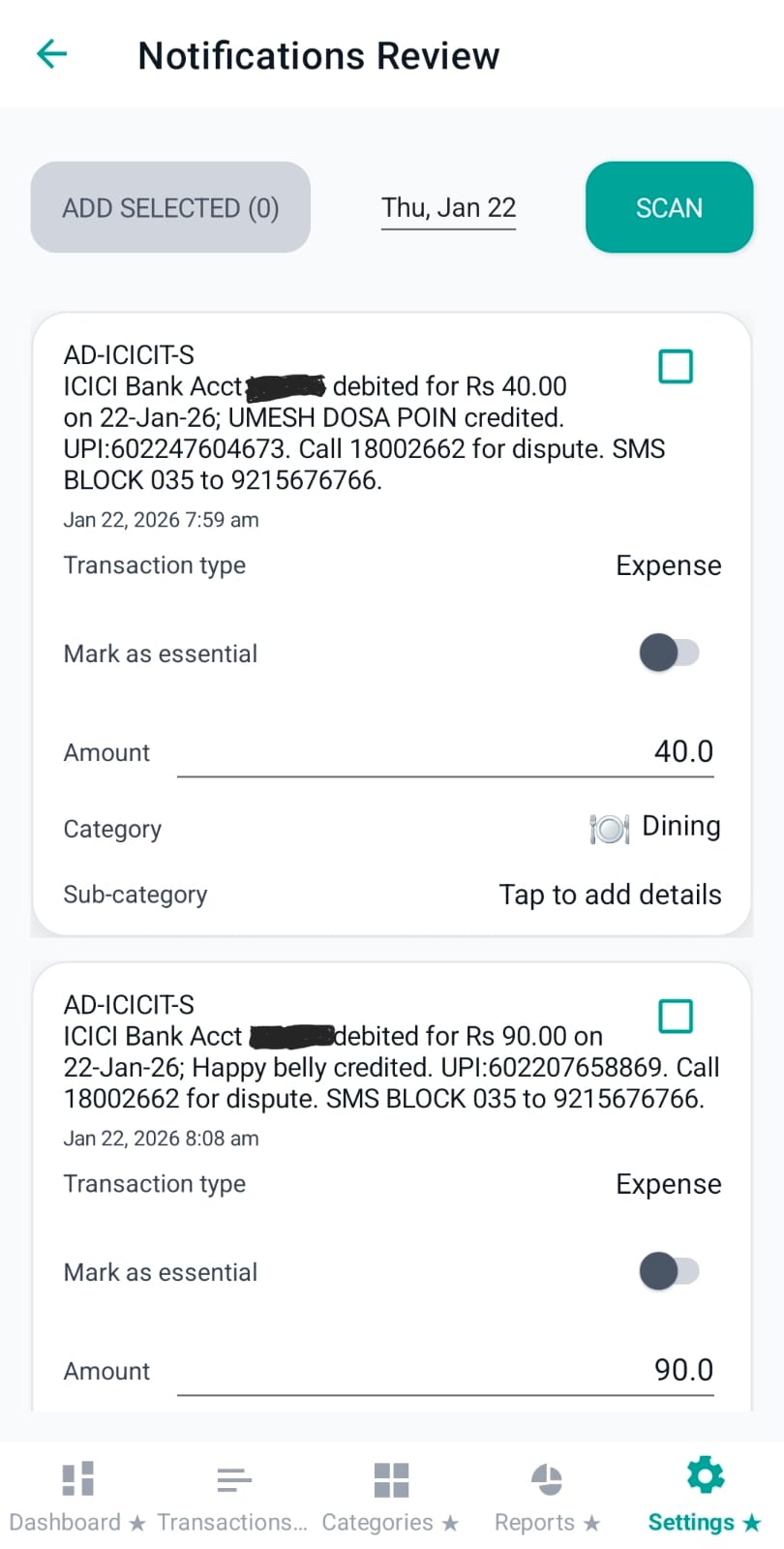
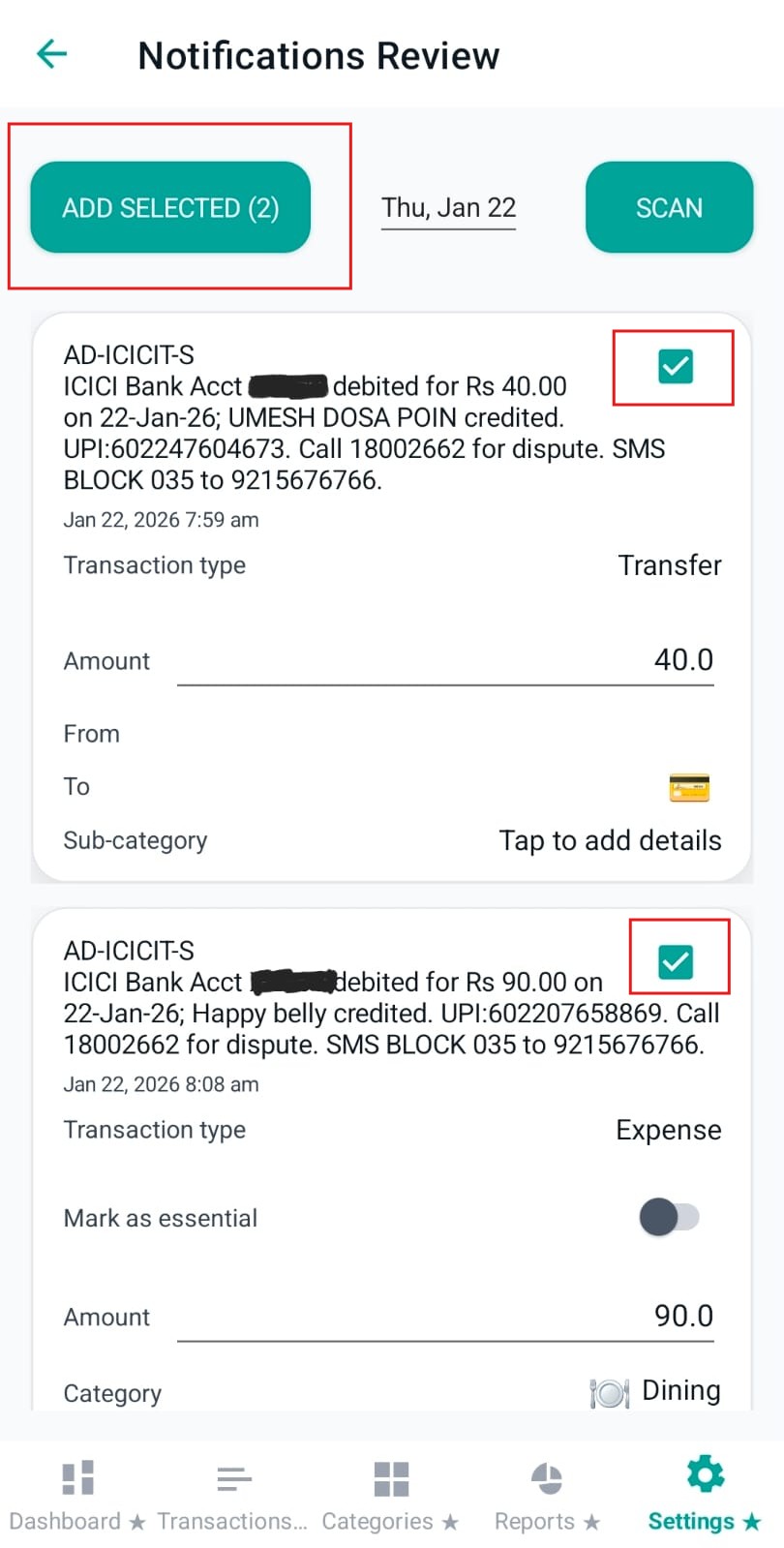
Notifications Review is where Pennie turns raw notification text into staged “candidate transactions”. Review each item, correct fields (type/category/amount), then save it individually. Uncertain finance candidates require confirmation; irrelevant messages can be ignored.
Header: day picker and Scan notifications
The header is optimised for a quick daily routine:
Individual actions: save, ignore or mark a duplicate on the relevant item; there is no Add Selected batch action.
Date picker: constrained to the last 7 days (including today).
Scan: fetches notifications for the selected day and stages them for review.
The current scan unlock dialog says Review notifications, not Unlock backup. Older screenshots below illustrate the fields; the current queue uses individual actions.
Image: smsreview-header-controls.png
Each staged item: message text + editable transaction fields
Each notification is shown with its original text (for auditability) and then an editable form:
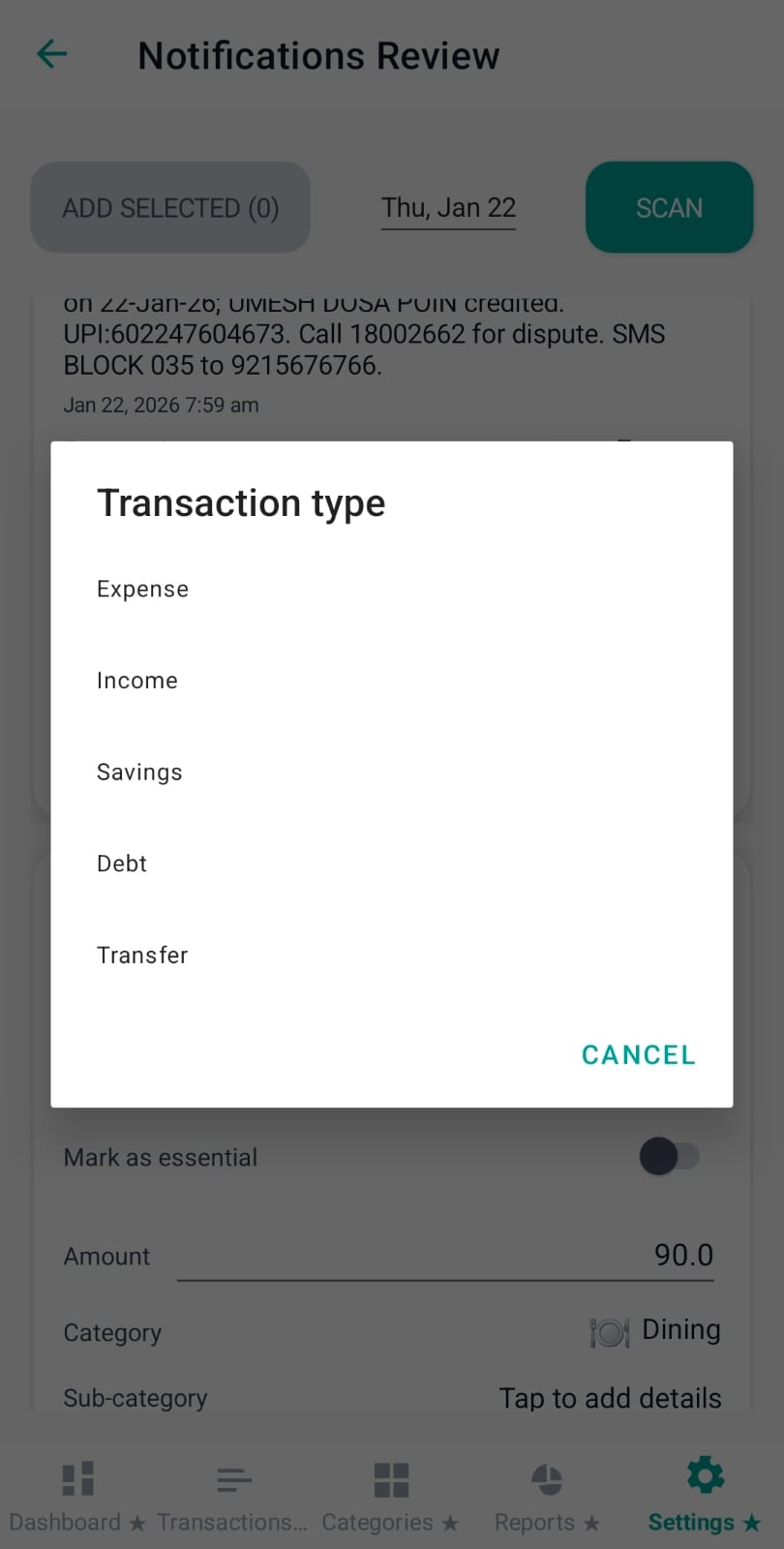
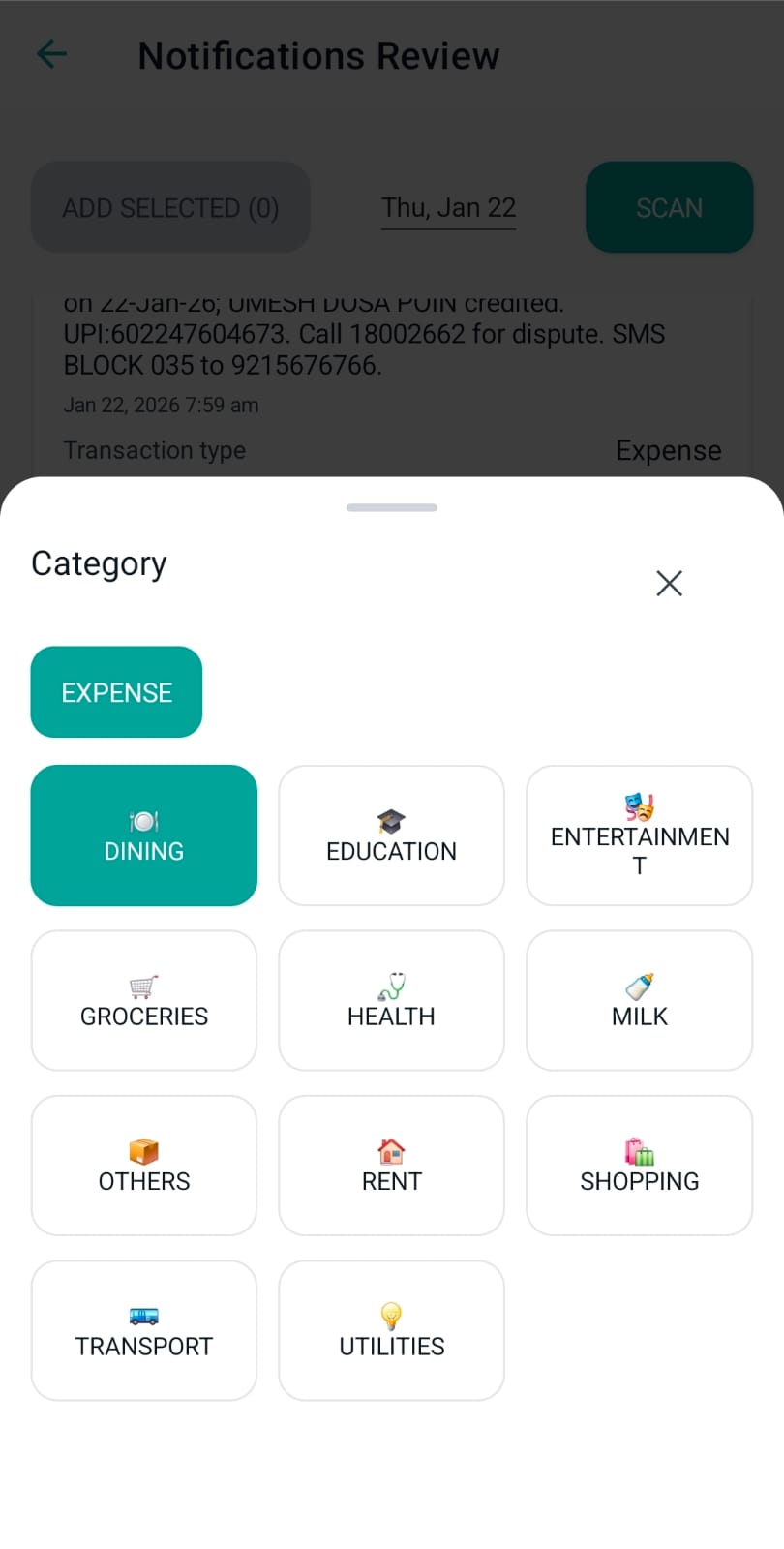
Transaction type: tap to choose Expense / Income / Savings / Debt / Transfer.
Direction toggle: shown for transaction types that can be either incoming or outgoing.
Mark as essential: optional toggle (drives Reports “Essential” filters later).
Amount: editable numeric field (Pennie attempts to prefill from the notification).
Category (and To for transfers): opens a category picker filtered by type.
Sub-category: a free-text detail with suggestion support.
When Transaction type is set to Transfer, Pennie requires:
From category: Savings-only source.
To category: Savings or Debt destination.
Validation: source and destination cannot be the same category.
Image: smsreview-transfer-to-row.png
Sub-category overlay (search + suggestions)
Tapping Sub-category opens a dedicated overlay. This prevents the main list from scrolling while you type. Pennie shows suggested sub-categories and applies your selection back to the staged item.
When you tap “Add Selected”, Pennie disables interactions briefly, commits the selected staged items as real transactions, and then shows a success message with the number added.
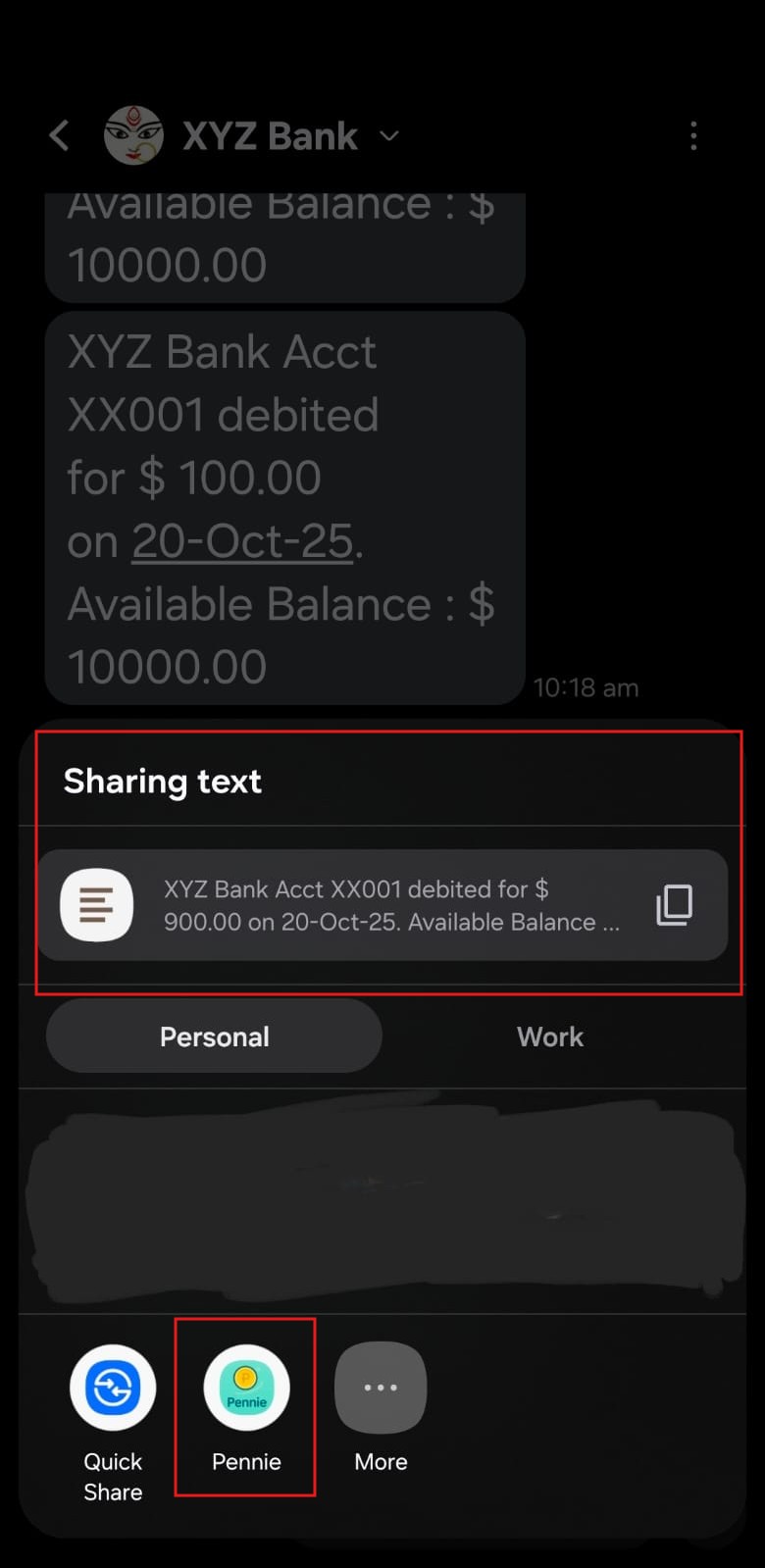
Paste SMS is a lightweight helper for devices/flows where automatic notification capture is unavailable. You paste the raw message text, Pennie extracts the amount (if present), and then opens the Add Transaction page with prefilled fields.
Paste → Parse and Add
The page has a single job:
Paste the raw SMS/notification text.
Tap Parse and Add.
Pennie navigates to Add Transaction with query fields: note, and optionally amount and type (income/expense).
Image: pastesms-page.png
AI Intelligence: from finance message to reviewed expense
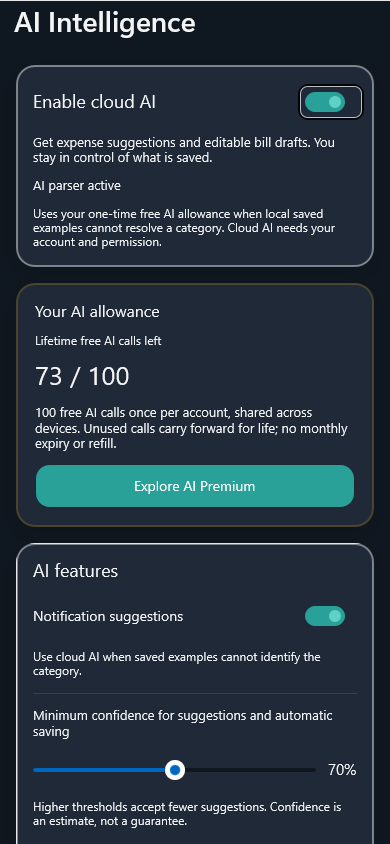
Open Settings > AI Intelligence to manage optional AI assistance. The on-device ledger remains the source of truth. Your saved examples come first; cloud AI can help when local evidence cannot identify the details.
Enable AI deliberately
Sign into your Pennie account if prompted. Google sign-in does not enable AI.
Check the agreement box to enable it. Cancel leaves it off. Turning the switch off stops future AI requests.
Choose whether to use notification suggestions. AI-dependent controls become available after the master switch is enabled.
How a suggestion becomes an expense
Pennie captures finance notifications from the apps you allow. SMS, email and bank-app notifications can describe the same payment.
It parses locally, uses saved transaction examples and eligible cached answers, and groups matching notifications to reduce duplicate processing.
When permitted, cloud AI can suggest merchant, amount, category, subcategory and transaction type. Ambiguous messages, including non-English messages, can still need review.
Tap Pennie's notification to open AI Review. Check all fields, swipe the transaction-type row for more options, correct mistakes, then save. Saved choices help future local suggestions.
Use Ignore for promotions or irrelevant messages instead of adding them to the ledger.
Current source-linked MAUI UI in the Windows preview harness. Example data; Android appearance may differ.
100 free AI calls, once
The free allowance is per account, shared across devices. Unused calls carry forward for life: no expiry, monthly reset or refill. Check the allowance card before requesting more assistance.
AI Premium supplies a separate monthly allowance for notification and bill assistance. The app shows your current limit, remaining calls and applicable renewal information. Prices and limits shown in the app are authoritative.
Save automatically with AI Premium
Enable cloud AI, then explicitly turn on Save automatically under AI features. It requires AI Premium; regular Premium does not include it.
Set the minimum confidence threshold. Higher thresholds accept fewer suggestions. Only eligible suggestions above the threshold are saved automatically; uncertain ones still need attention. Confidence is an estimate, not a guarantee—review your ledger regularly.
In AI Intelligence, tap Scan bill to take a photo or select a supported receipt/PDF. There is no separate Scan Bill toggle.
Review the draft
Pennie reads image or PDF text locally. Permitted AI assistance can structure a draft even when local recognition is incomplete. Check the merchant, date, currency, total and every item; correct OCR mistakes.
Reconcile and save
Resolve mismatched totals before saving one expense or separate item expenses. After editing, optional AI category suggestions must not replace your amounts. Always check the final entries.
Text rather than image uploads
Cloud AI receives bounded, redacted receipt text rather than the original image. Merchant and non-phone payment context can remain. Redaction is not anonymisation; read the main Privacy Policy before enabling AI.
Access and allowance
AI assistance needs cloud AI permission and available allowance. If free calls are exhausted, the app offers AI Premium. A rewarded scan unlock, where required, is separate from AI allowance and does not buy more calls.
04 Settings & connected features
Settings tab (Preferences, Security, Notifications, Data Transfer)
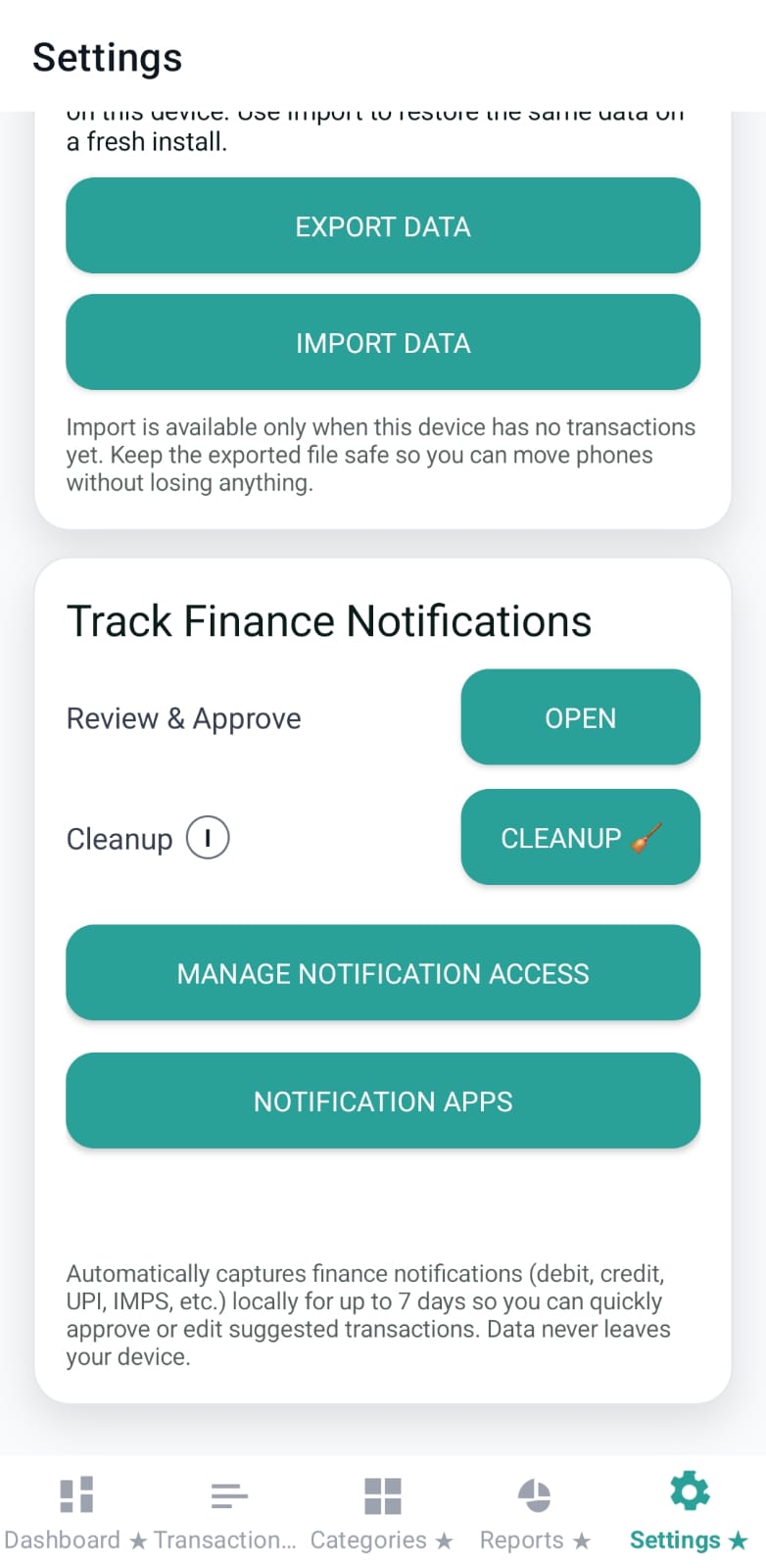
Settings is where Pennie stores device-level preferences and “permission-driven” features. It also hosts the entry points for finance-notification tracking (review flow, cleanup, and app selection).
Premium and referral status
Settings shows the regular Premium upgrade entry and a compact referral status. Tap Upgrade to Pro to compare Monthly, Annual and Lifetime plans. Use the referral info button to see full reward rules and expiry. AI Premium is a separate plan opened from AI Intelligence; there is no free Premium trial.
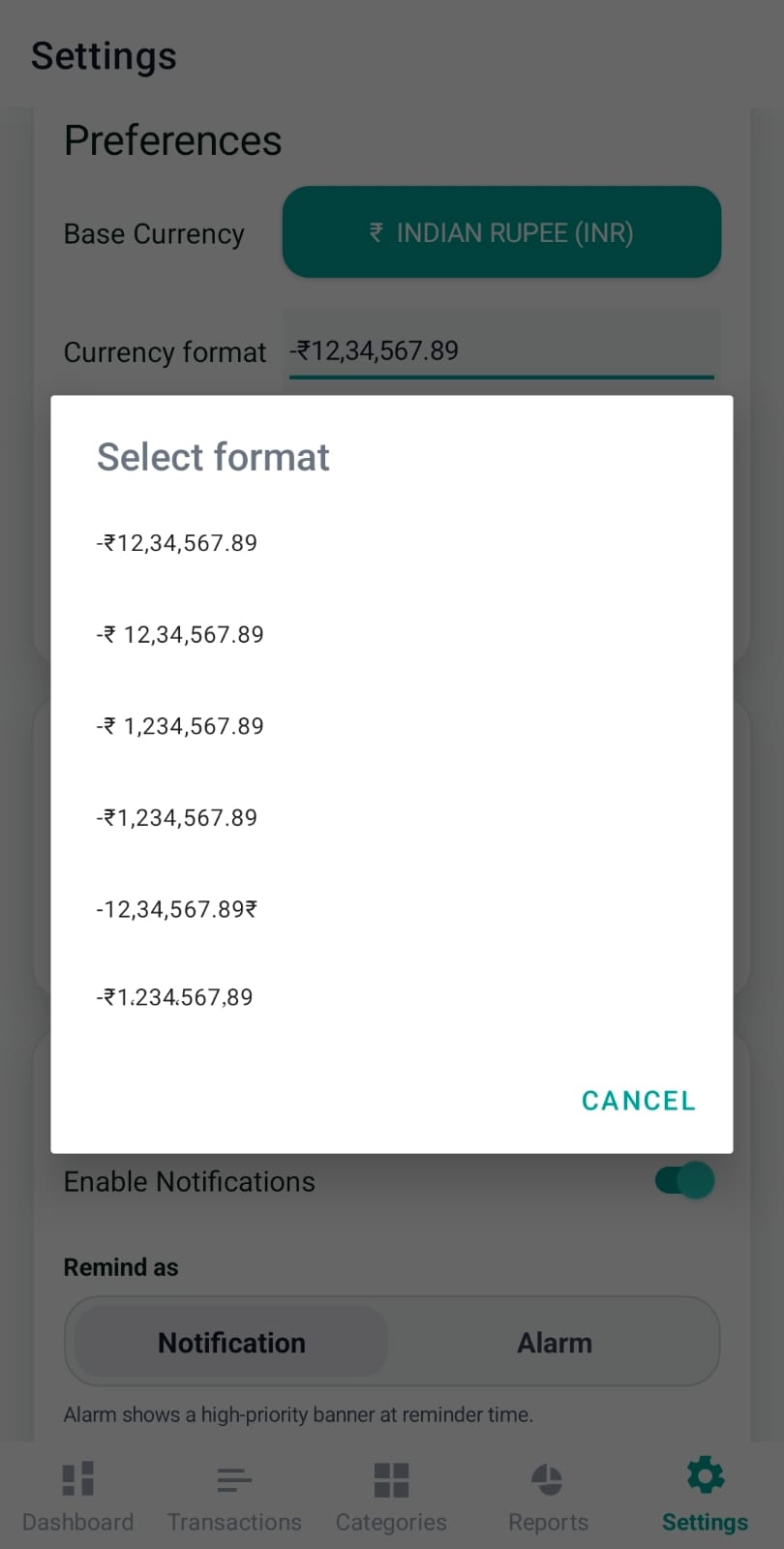
Preferences focuses on local formatting and UI choices:
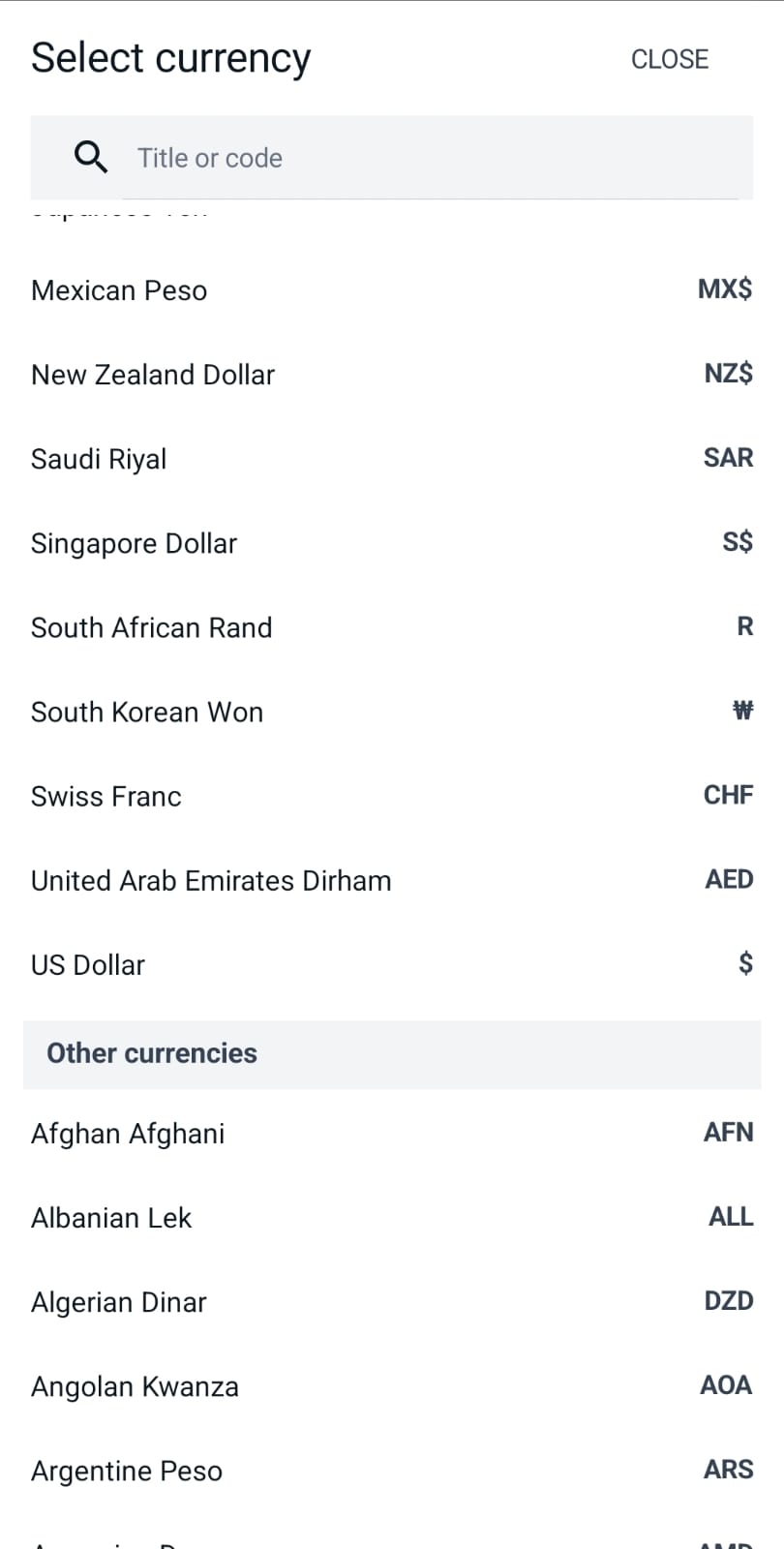
Base currency: opens a currency selector popup and stores the base code (used across charts and formatting).
Currency format: a picker of a few sample formats (e.g., -1,234,567.89) based on cultures that match the currency.
Financial year starts: month picker (used by fiscal-aligned flows and reporting summaries).
Theme: Light / Dark / System.
Preferences also includes Bank message languages, so users can tell Pennie which languages their bank SMS and transaction alerts use before notification parsing starts.
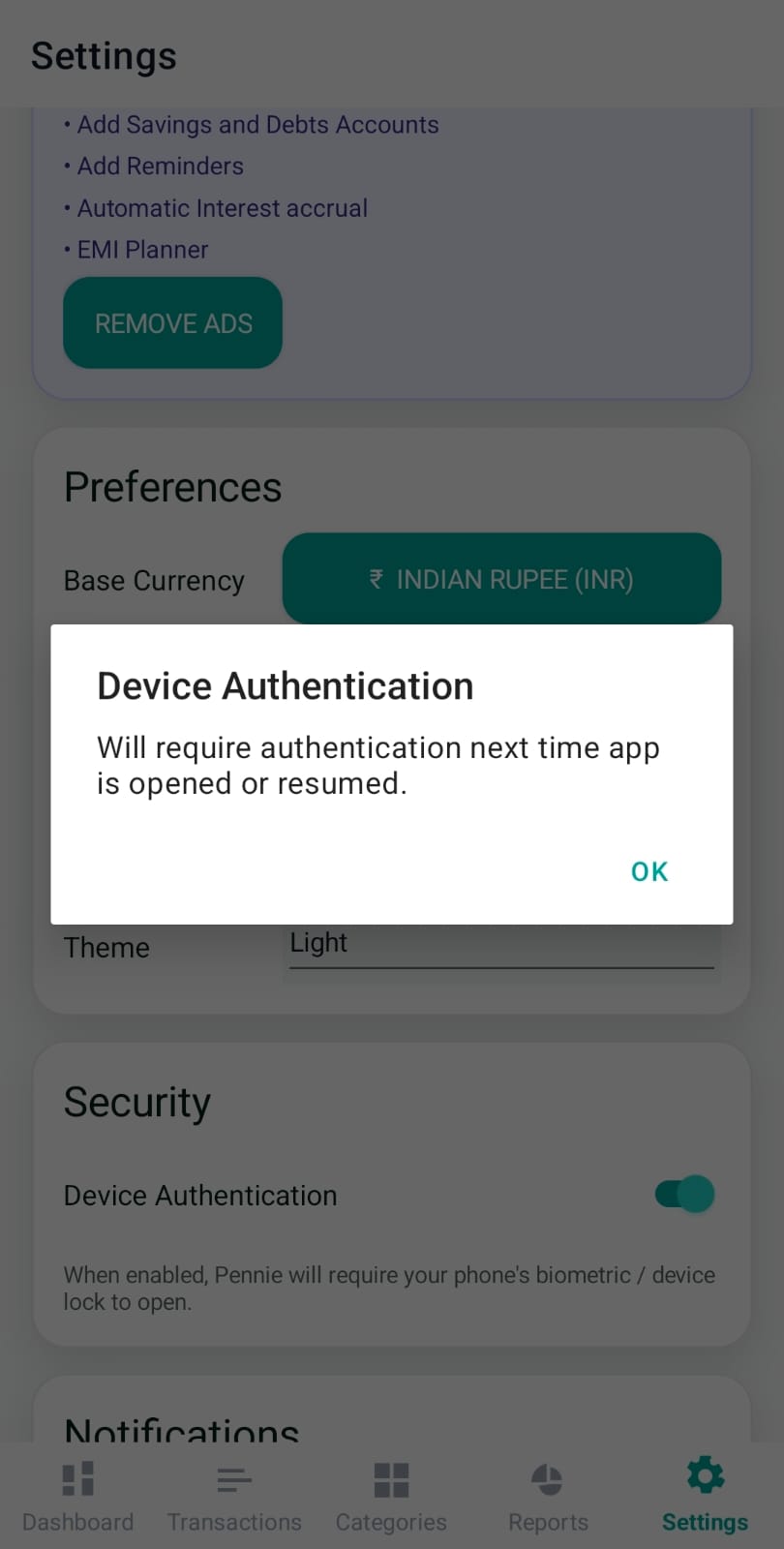
When enabled, Pennie requires biometric/device authentication whenever the app opens or resumes. Disabling it triggers an authentication check before the toggle is turned off.
Image: settings-device-auth.png
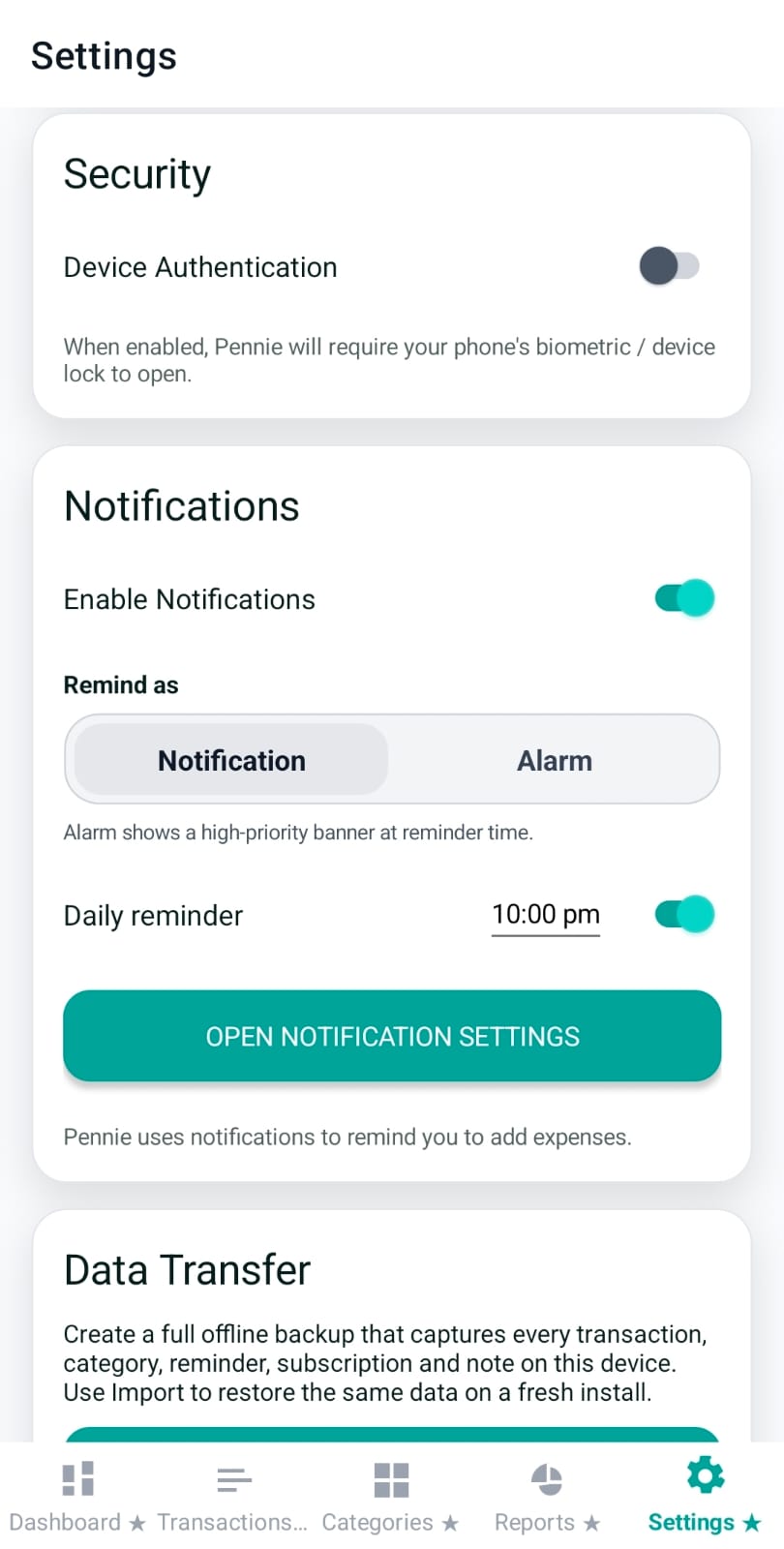
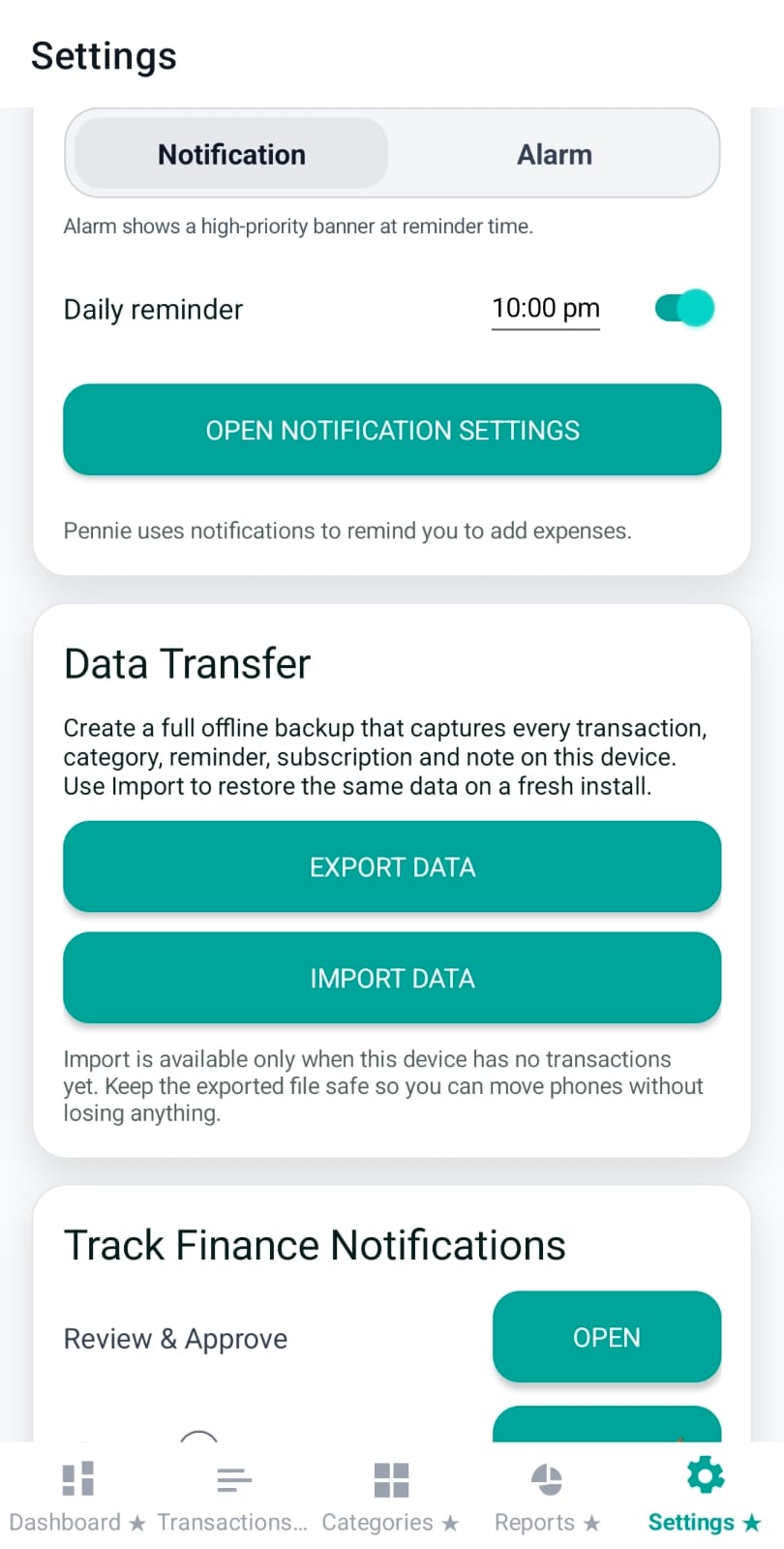
Notifications: enable, remind-as, daily reminder
This section controls all local reminders:
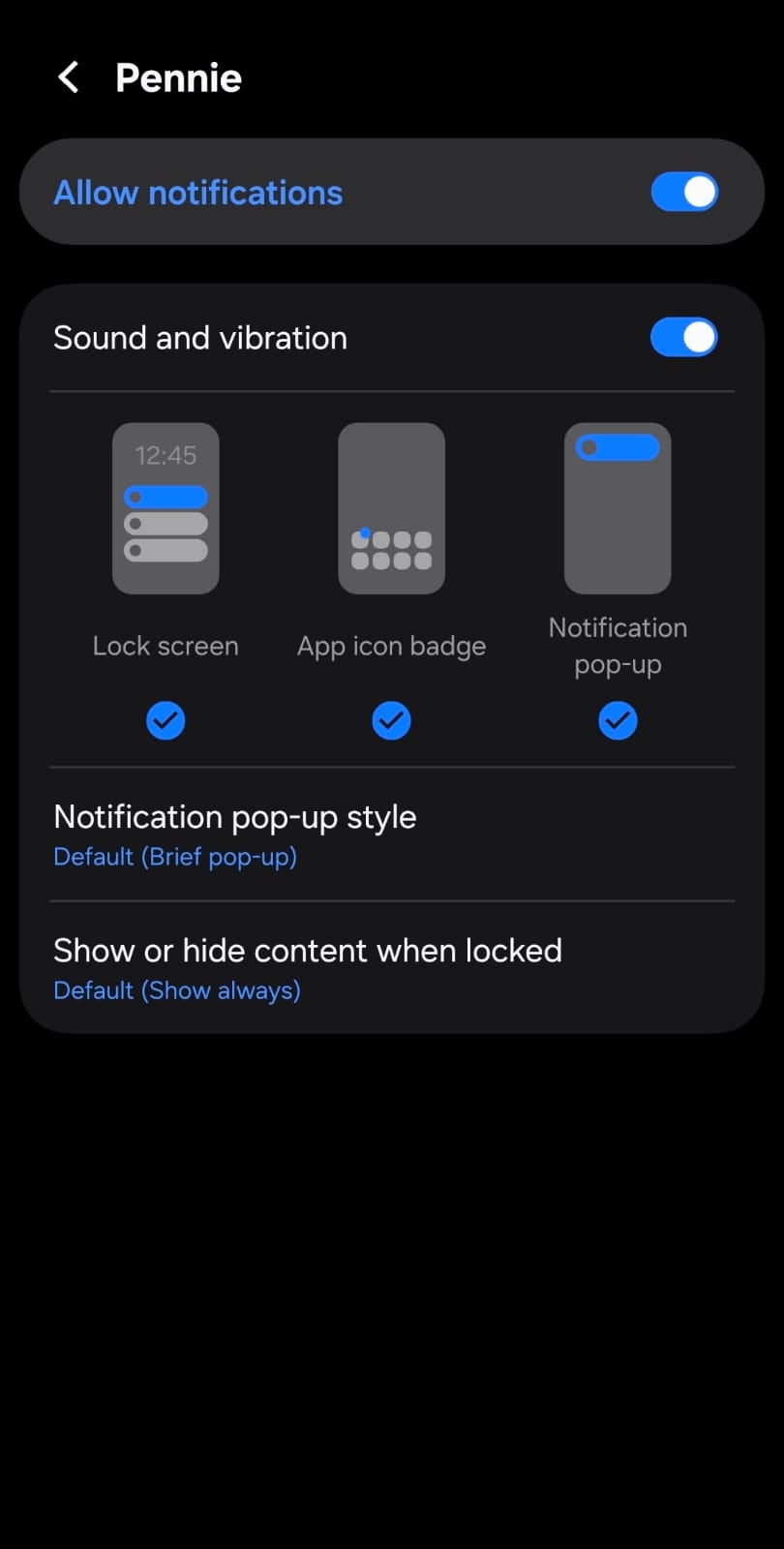
Enable Notifications: turns reminder delivery on/off and also starts/stops background scheduling (Android).
Remind as: choose Notification (banner) or Alarm (high-priority alert).
Daily reminder: time picker + toggle to schedule a daily reminder.
Pennie can create an encrypted local backup or use separately connected Google Drive, and restore on an eligible empty installation. These controls require regular Premium. Continue to the step-by-step backup guide. The local file actions are:
Export Data: exports a full backup file.
Import Data: available only when the device has no transactions yet (prevents accidental overwrite).
Open Settings > Data Transfer. Backup features require regular Premium, not AI Premium. Connecting Drive grants a separate permission for Pennie's private app-data area; it does not give access to your ordinary Drive files.
Make a Google Drive backup
Tap Connect Google Drive and authorize the intended Google account. Pennie/Google sign-in alone is not this authorization.
Tap Back up now to upload an encrypted snapshot. Connecting Drive by itself does not create a backup.
Choose an automatic backup frequency if wanted, and decide whether uploads should use Wi-Fi only. Scheduled backups run when eligible and your data has changed.
Check the displayed backup status. Empty/default-only histories are not uploaded as successful backups.
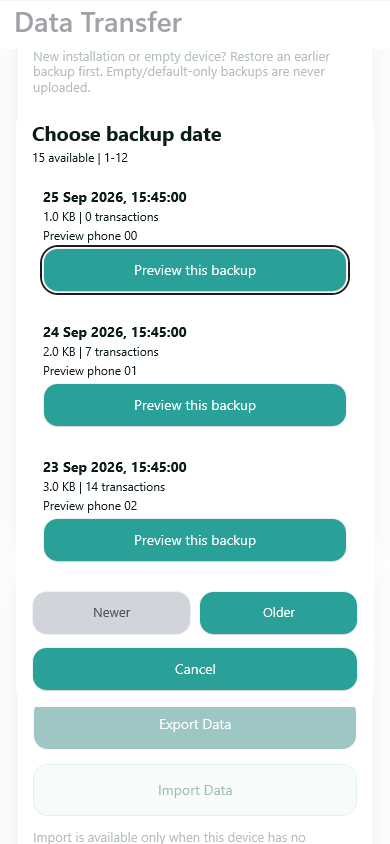
Restore the right snapshot
On a fresh or eligible empty installation, connect the Google account holding your backups and tap Restore from Google Drive.
Choose by date and time. Use the older/newer controls to look beyond the newest page of snapshots.
Preview the selected backup's contents before confirming. A newer empty snapshot must not hide an older useful recovery copy.
Confirm only when you intend to replace local data. After a successful restore, use Reload App to apply the restored history. If Android cannot restart it, close and reopen Pennie as instructed.
Windows preview of the real backup picker. All snapshots and account data shown are synthetic.
Keep a local file instead
Use Export Data to create an encrypted backup file you control. Keep it safely outside the phone. Use Import Data on an eligible empty installation to restore it; Google Drive is not required.
Manage backup storage carefully
Review Drive storage and dated snapshots before cleanup. Age-based cleanup keeps recovery safeguards; deleting all Pennie backups is irreversible and removes your Drive recovery copies, not the device's ledger. Export a safe copy before destructive changes.
Use the regular Premium page for the ad-free app experience and regular paid features, including backup. Review the price first and the included features below it. This plan does not include paid AI allowance or automatic saving.
AI Premium: AI monthly
Open the AI plan from AI Intelligence, even before using all free calls. It provides a monthly AI allowance and optional automatic saving. It does not remove ads or unlock regular Premium backup privileges.
Use either plan independently or both together. Current prices, billing terms, availability and exact allowances are shown in the app; purchases use Google Play.
Rewarded unlocks for eligible free features
Where an ad unlock is offered, the dialog names the action you selected. Choose Watch ad and complete the reward to unlock that feature for the displayed period, or choose View Premium plans. Not now, an unfinished ad or an unavailable ad leaves it locked. A reward does not grant a paid plan or more AI calls.
Referral programme: share a code, earn ad-free time
Sign in, open your profile and use the share action to send your referral code to a friend.
The new user signs into their own account and successfully redeems your code. Sharing or installing alone does not award a referral.
Both accounts receive 15 days without network ads. Every additional successful referral gives the referrer another 15 days.
Every second successful referral also adds a 15-day bonus for the referrer.
Rewards stack from the later of now or the current expiry. Settings shows the time remaining; tap its info button for full rules and the exact expiry. A code can be redeemed once per account.
Referral rewards are not a paid Premium plan. They do not grant backup privileges or AI Premium. First-party app recommendations in free Reports can still appear.
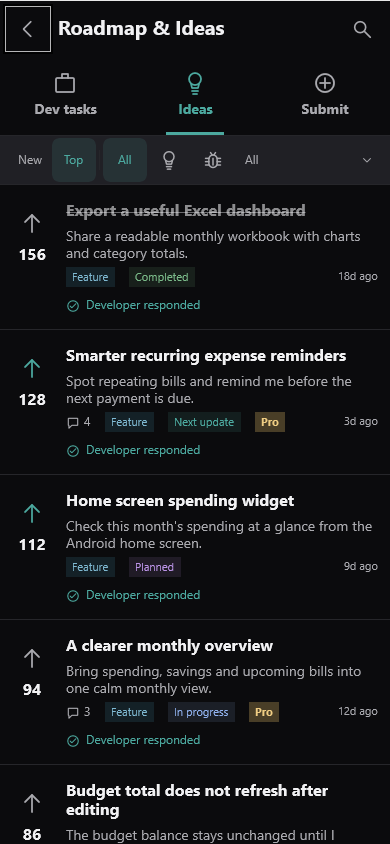
Open Settings > Roadmap & Ideas. Wait for the loading indicator; Retry appears after a loading failure, not while the request is in progress.
Browse Dev tasks for planned work or Ideas for community suggestions. Use the available filters and open an item for its description, status and developer response.
Vote on an idea you support, or use Submit to describe a new suggestion or bug. Explain the steps, expected outcome and actual result for a reproducible bug.
Comments and submissions are moderated. Do not include private financial messages, account numbers or other sensitive data.
Participation uses a secure, random guest identity for this installation, whether or not you are signed into Pennie. There is no extra guest-versus-account choice. Reinstalling can lose access to guest activity; this is not a promise of one vote per person.
Windows preview with synthetic ideas and votes, not the live public roadmap.
Pennie's ledger and monthly Excel exports are local. Optional account services, Google Drive backup, advertising, community feedback and cloud AI are separate connected features. The updated app no longer generates new AI monthly reports.
Enable cloud AI in AI Intelligence controls optional AI. Turning it on shows a dialog linking to this Privacy Policy's AI section; check the agreement box to enable it, or cancel to leave it off. You stay on AI Intelligence. Turning it off stops future AI requests. General policy review does not change that setting or replace Android, Drive or ad choices.
Read the Privacy Policy and Terms of Use, version 2026-09-25, effective 25 September 2026. These English legal notices are not automatically translated. Existing walkthroughs retain their translations; newly added or corrected feature details stay in reviewed English until translations are updated.